
How to Set Up Multi-Factor Authentication for Your Office 365 Account?
Multi-Factor Authentication (MFA) provides extra protection for your Outlook, Teams, and other applications. This guide provides two ways to set it up.
What will you need?
-
A functioning computer.
-
For Method 1: A smartphone (recommended).
-
For Method 2: Any phone capable of receiving SMS or calls.
Method 1: Authentication Using a Smartphone (App)
Step 1: Sign In to Security Settings
-
In your computer's browser, go to: aka.ms/mfasetup.
-
Enter your KU email address and click Next (see Fig. 1).
-
Enter your password and click Sign in (see Fig. 2).
-
On the "Stay signed in?" screen, select Yes (if it's your personal computer) or No (if it's public) (see Fig. 3).
-
When you see a message about additional information, click Next (see Fig. 4).
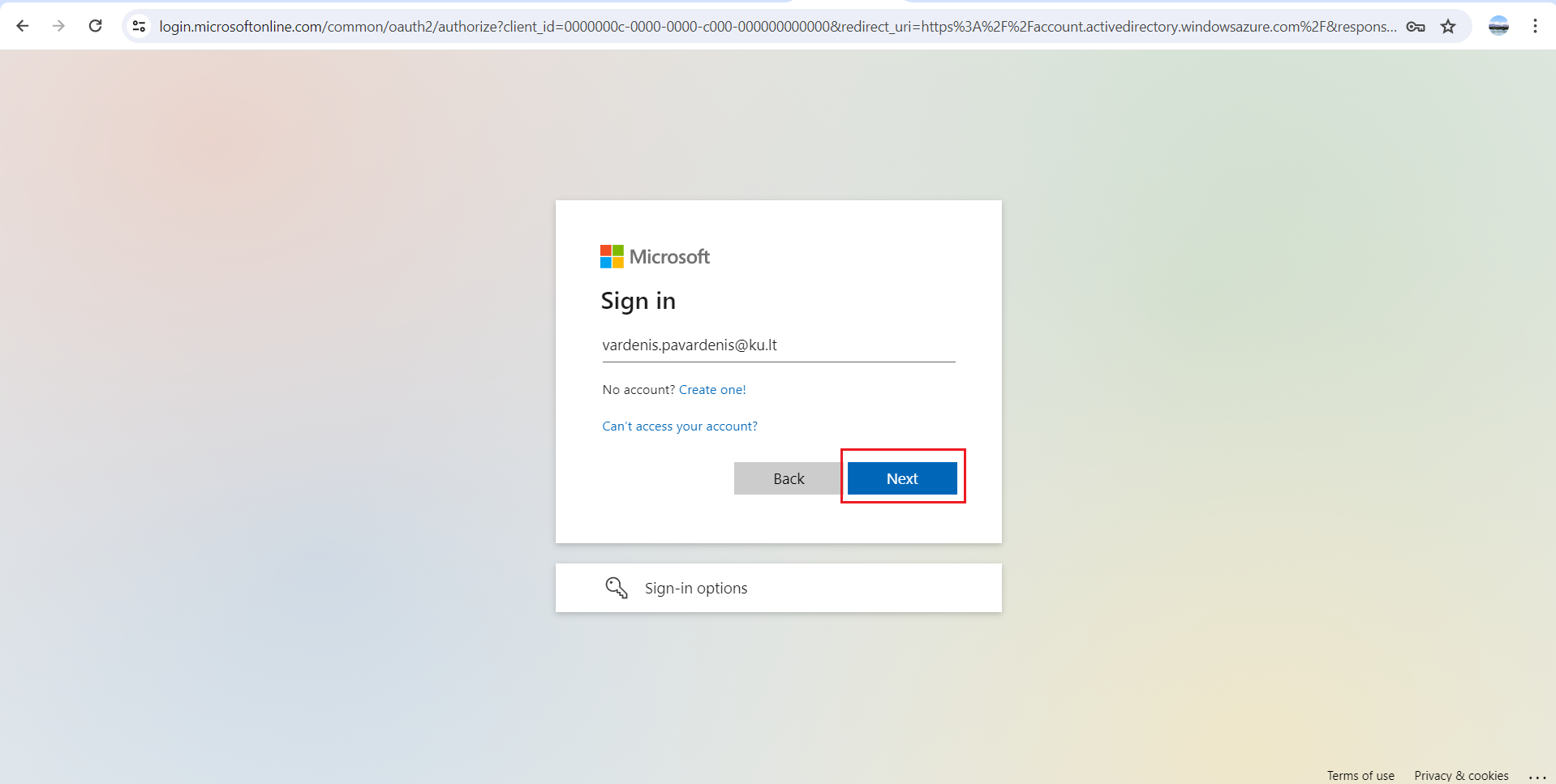
Fig. 1. Email address entry window
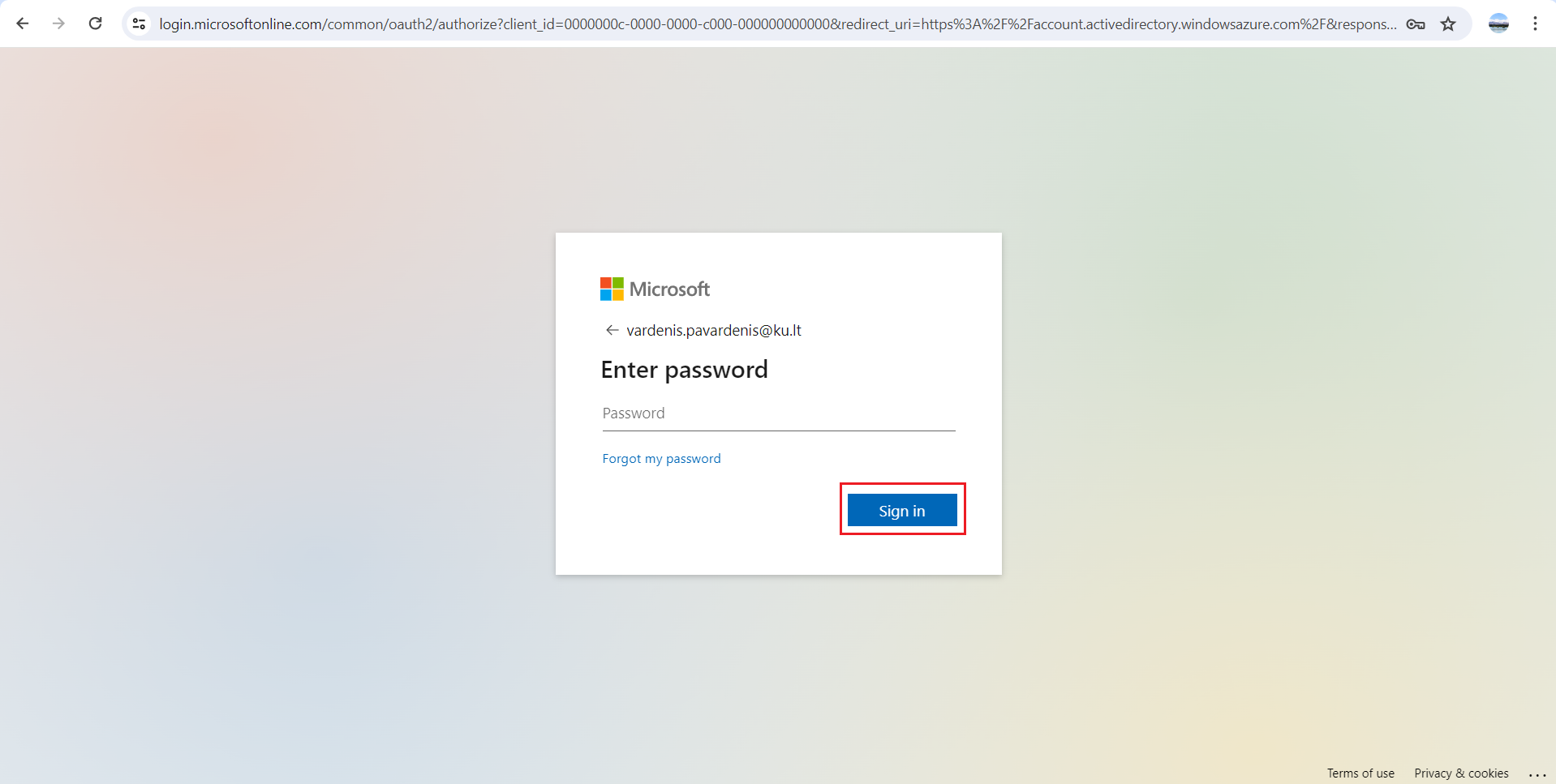
Fig. 2. Password entry window
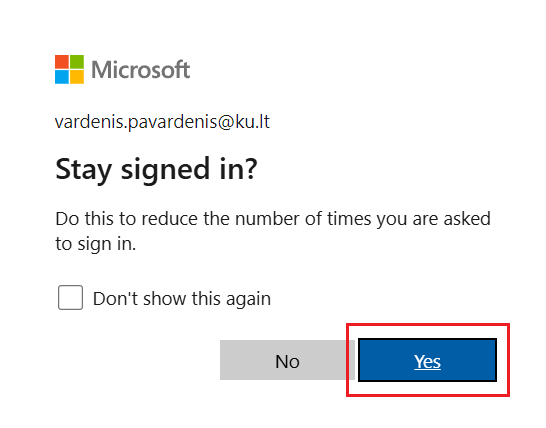
Fig. 3. Selection for staying signed in
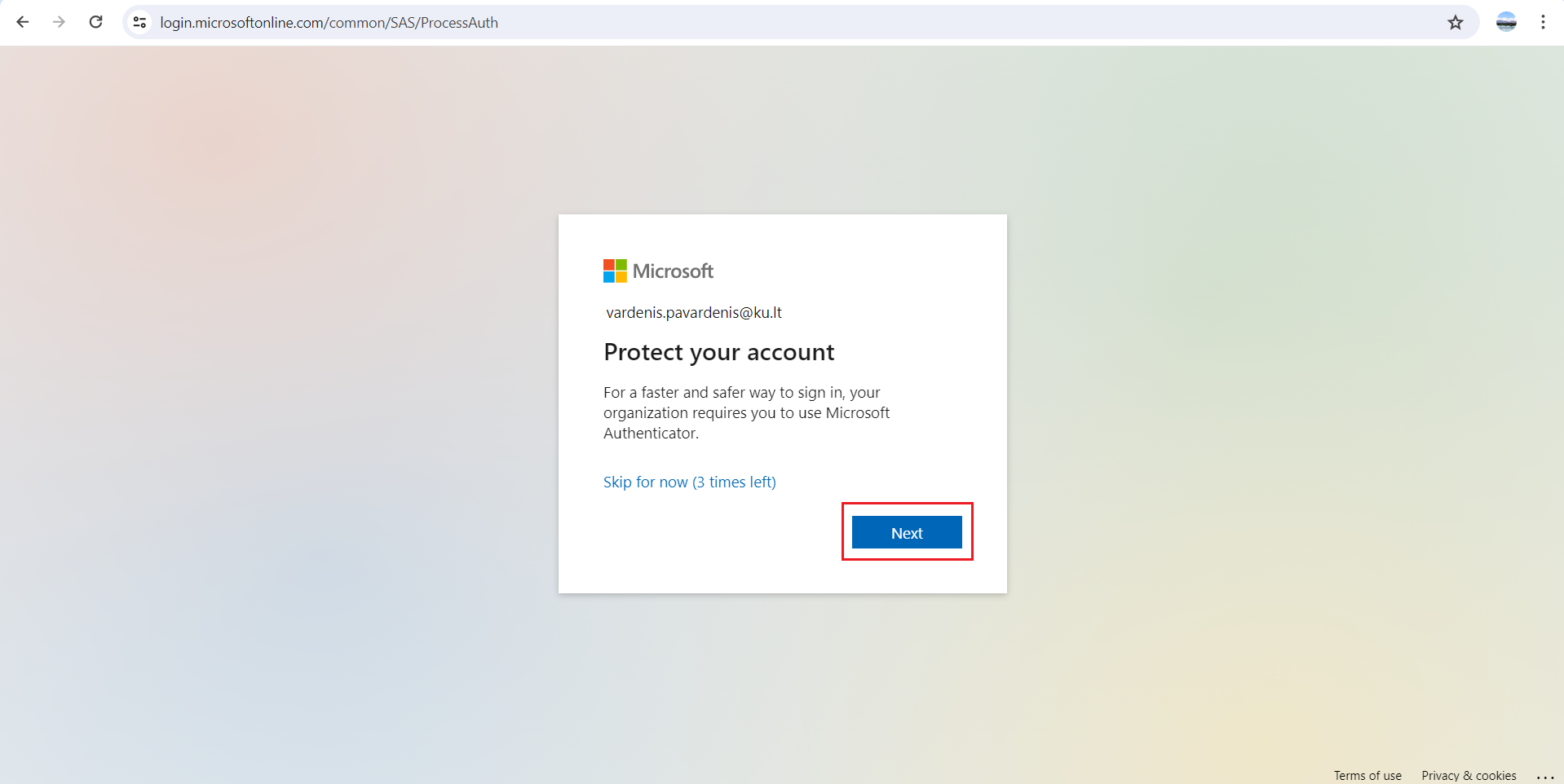
Fig. 4. "More information required" notification
Step 2: Prepare the App on Your Phone
-
Download the Microsoft Authenticator app on your phone (see Fig. 5).
-
Open the app and select Add work or school account (see Fig. 6 and 7).
-
Allow the app to use your camera (click Allow) so you can scan the code (see Fig. 8).
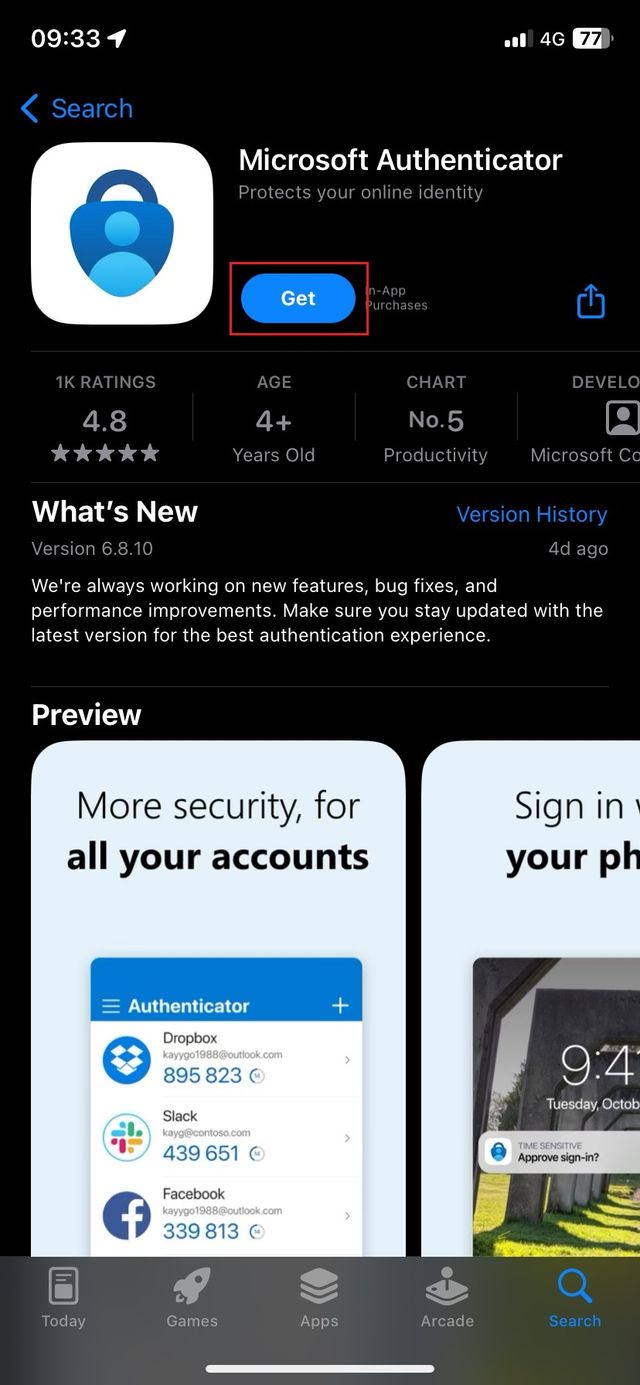
Fig. 5. Searching for the app in the App Store or Google Play
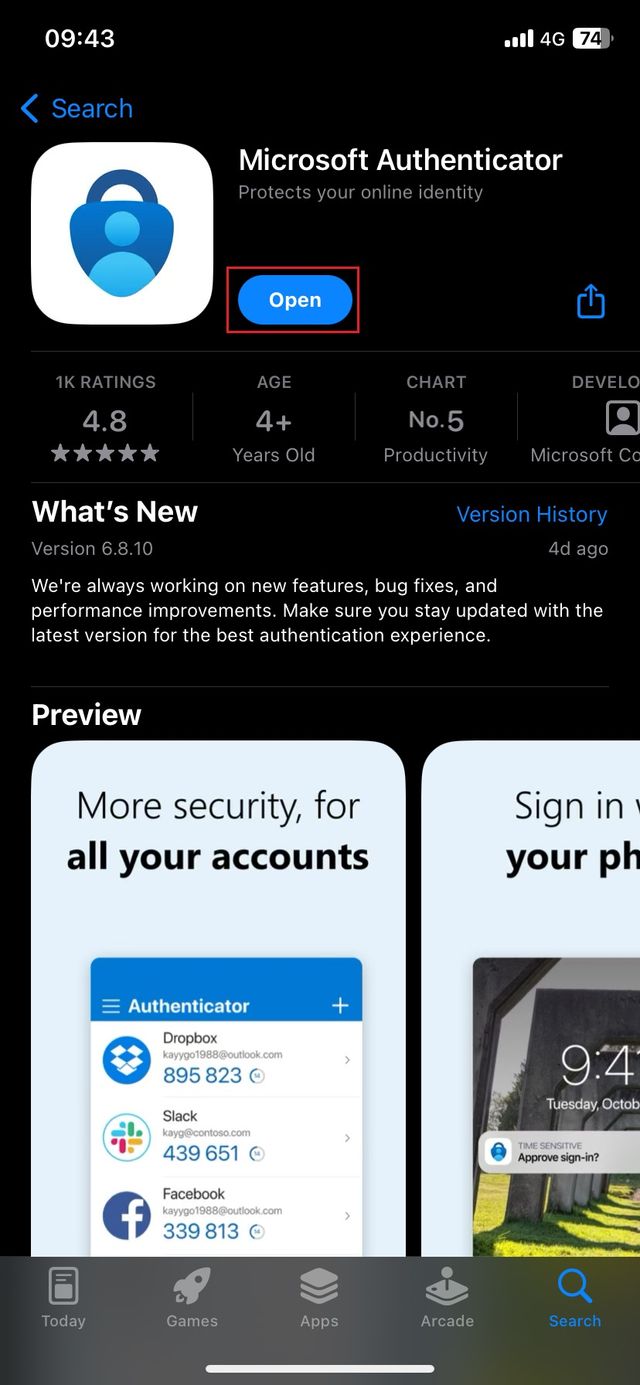
Fig. 6. "Open" button after installation
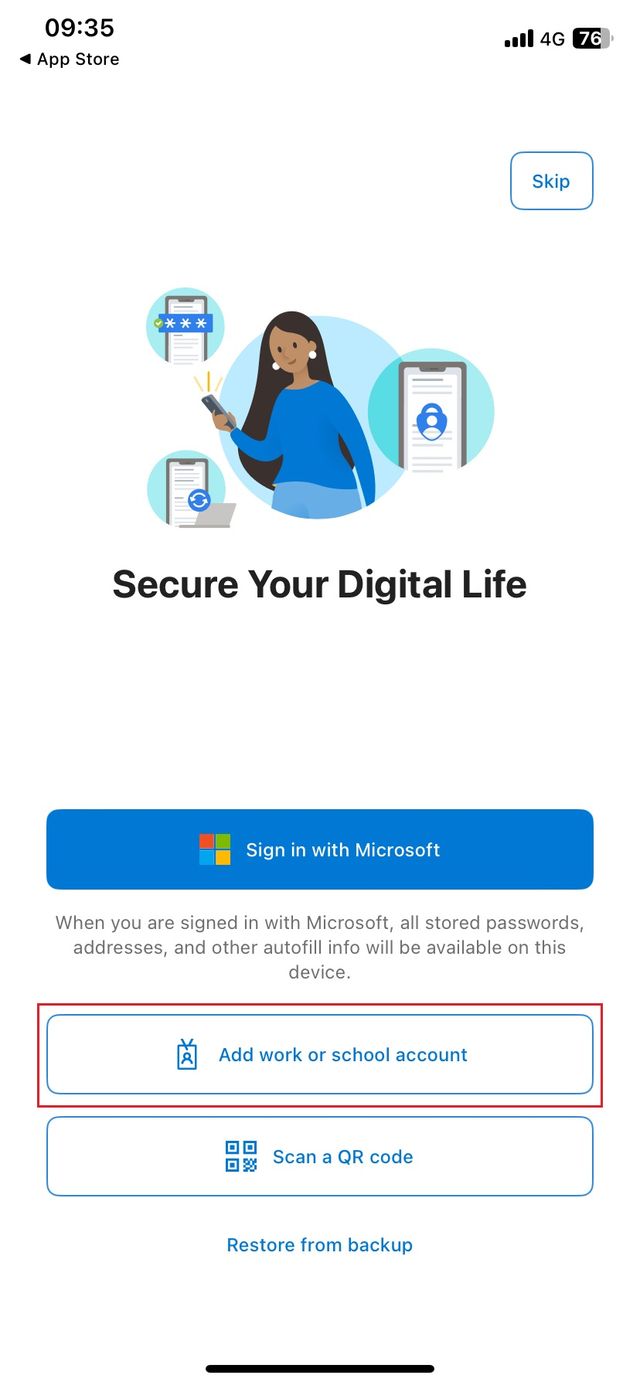
Fig. 7. Selecting account type in the app
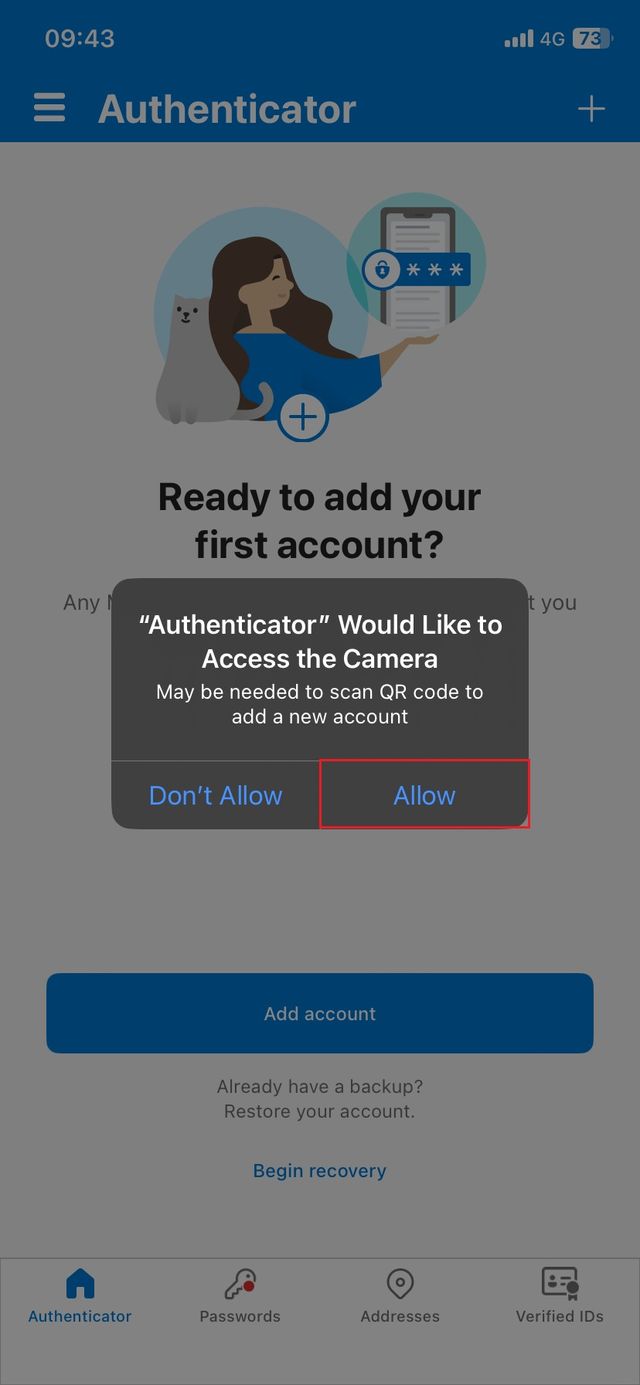
Fig. 8. Permission to use the camera
Step 3: Link Your Phone to Your Account
-
On your computer screen, click Next until you see a QR code (see Fig. 9).
-
Scan this code using the phone app (see Fig. 10).
-
Once you see the confirmation, click Done.
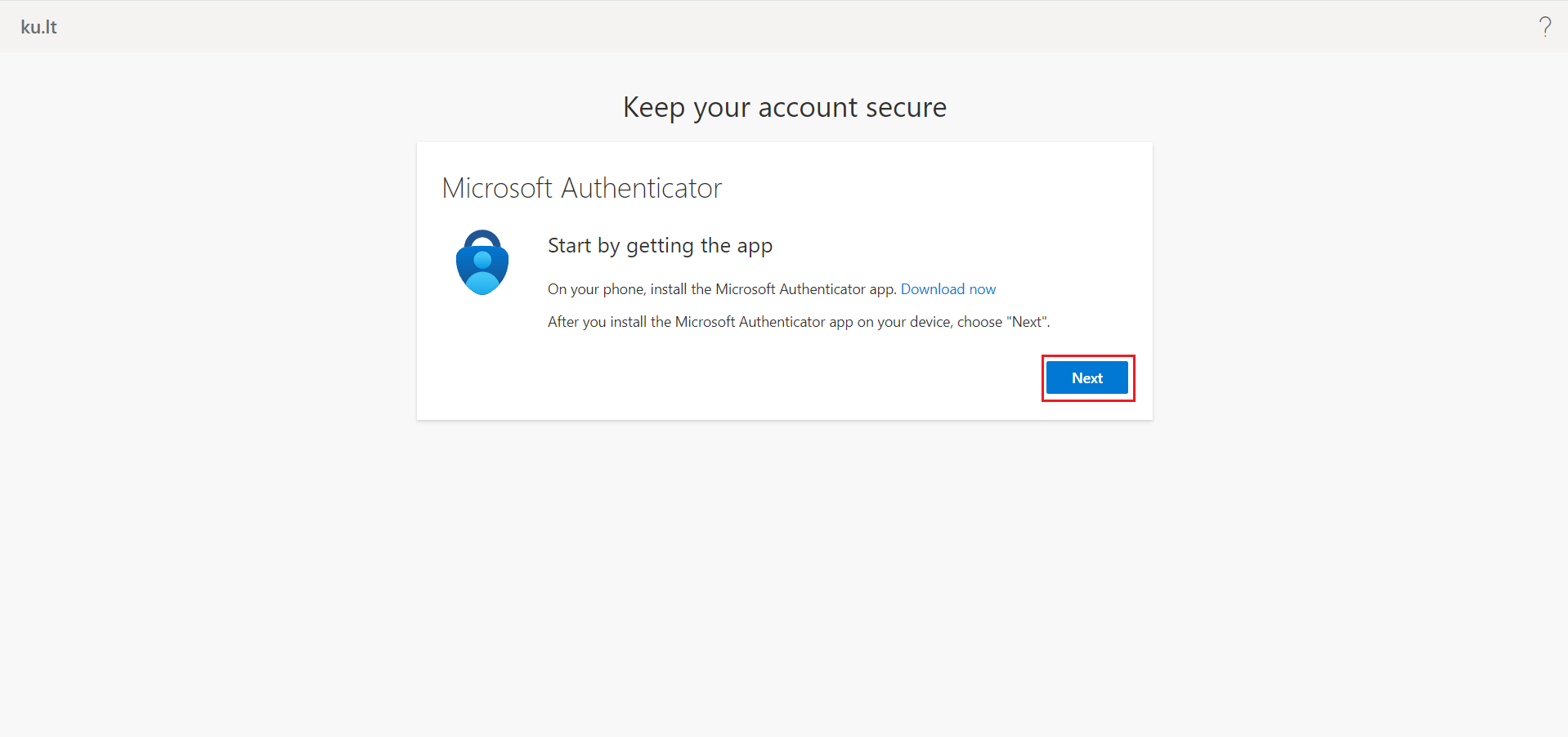
Fig. 9. QR code window on the computer screen
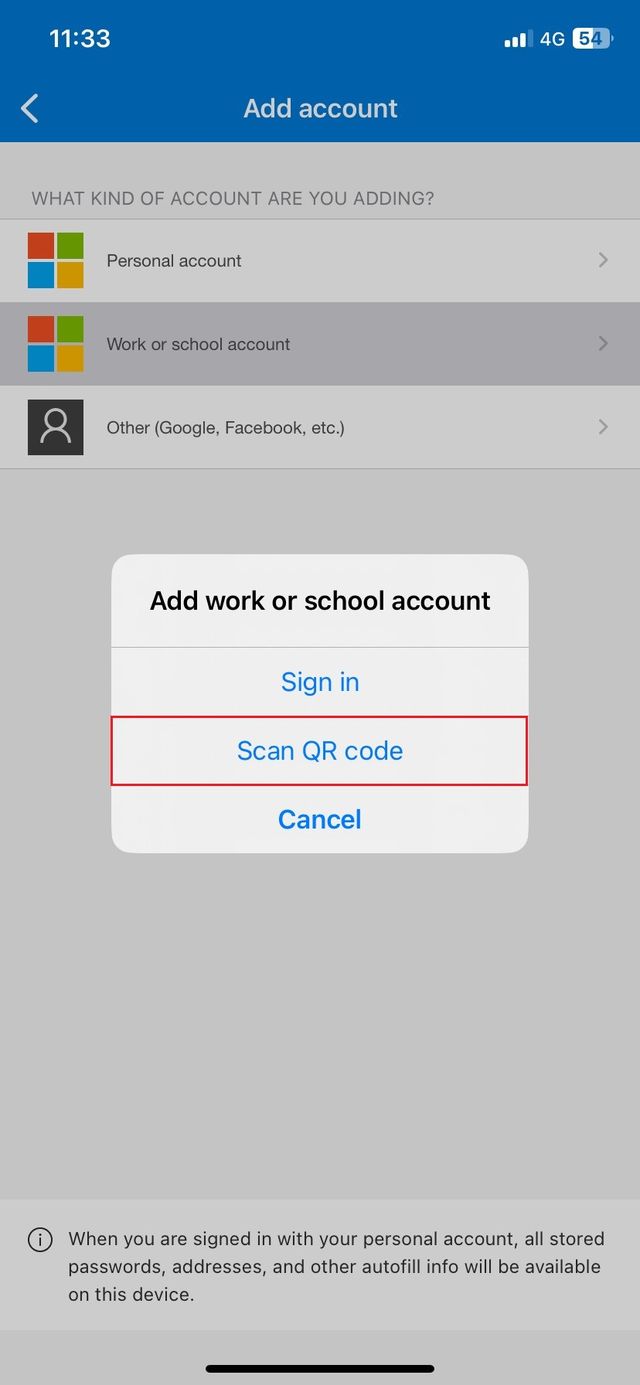
Fig. 10. QR code scanning process
Method 2: Authentication Using SMS or Call
Step 1: Select an Alternative Method
-
Sign in at aka.ms/mfasetup (see Fig. 11).
-
Instead of using the app, click the link at the bottom: "I want to set up a different method" (see Fig. 12).
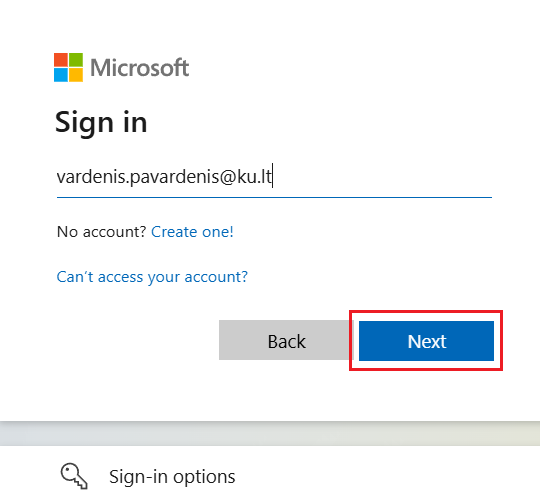
Fig. 11. Entering sign-in credentials
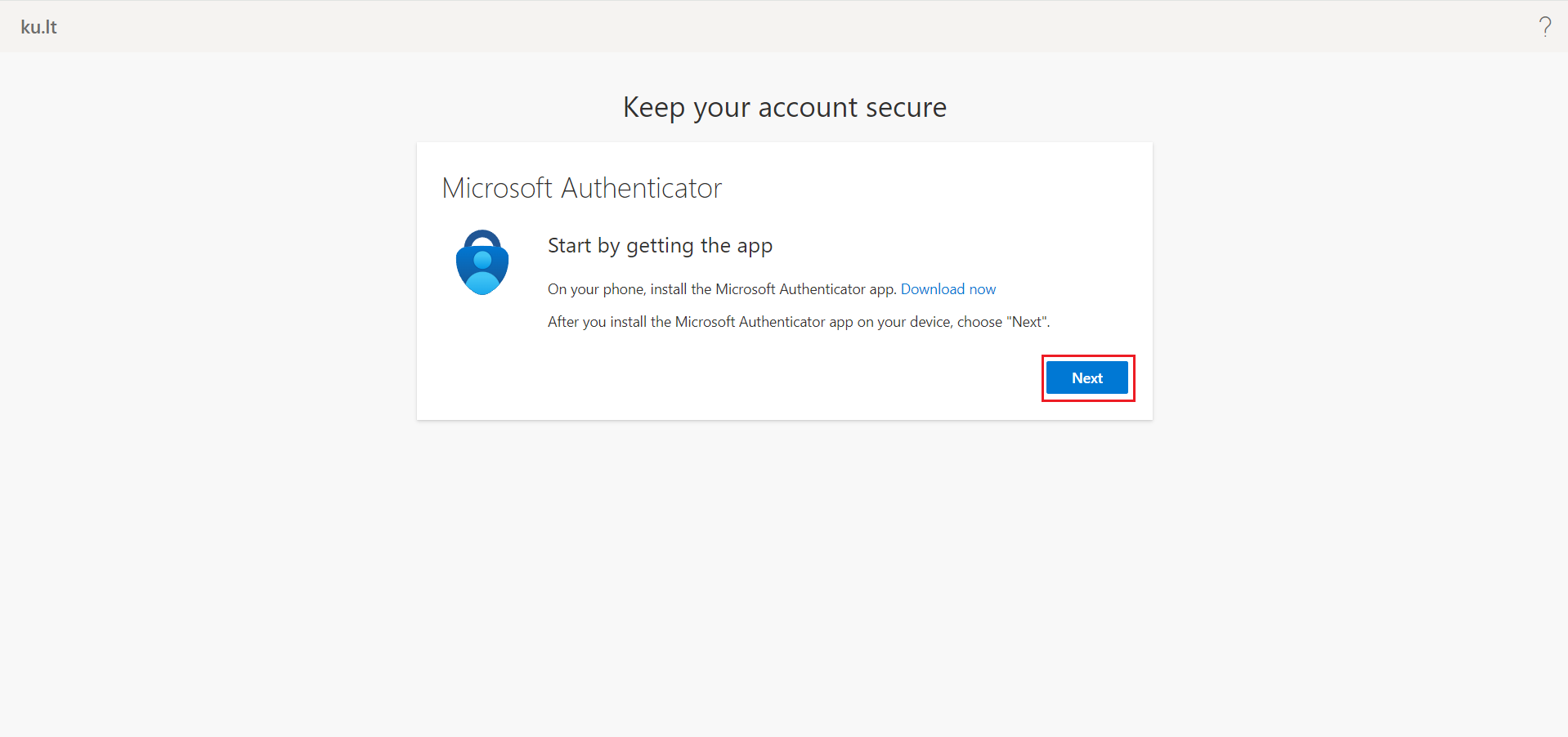
Fig. 12. Link for choosing a different method
Step 2: Set Up Your Phone Number
-
Select Phone from the list and click Confirm (see Fig. 13).
-
Select your country (Lithuania +370) and enter your phone number.
-
Select Receive a code and click Next (see Fig. 14).
-
Enter the code received via SMS into the field on your computer and click Next (see Fig. 15).
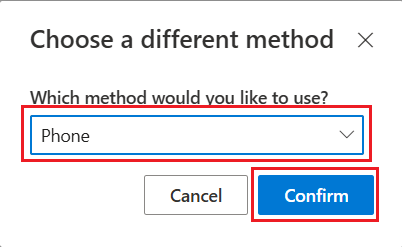
Fig. 13. Selecting the "Phone" method
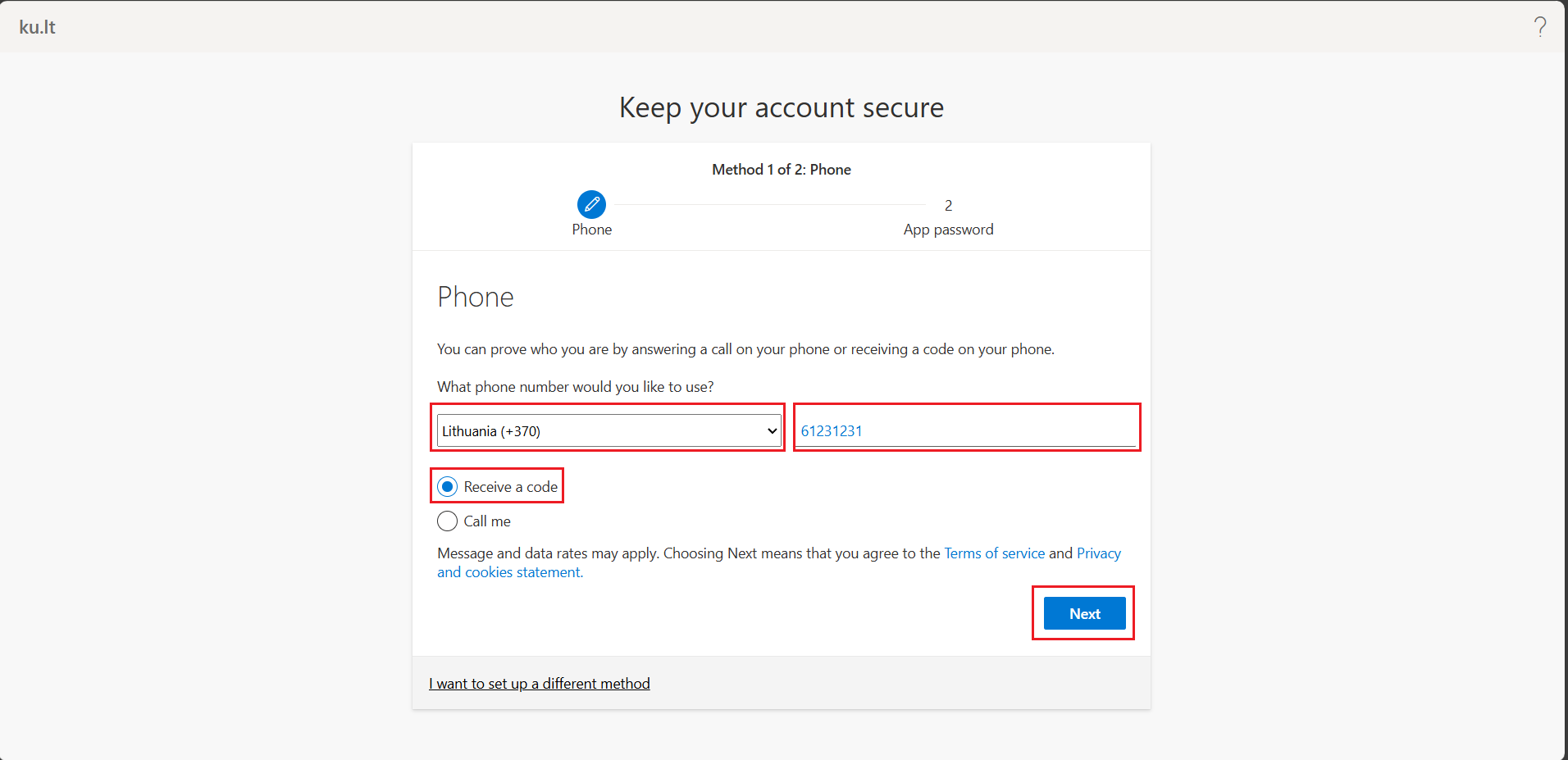
Fig. 14. Entering the phone number
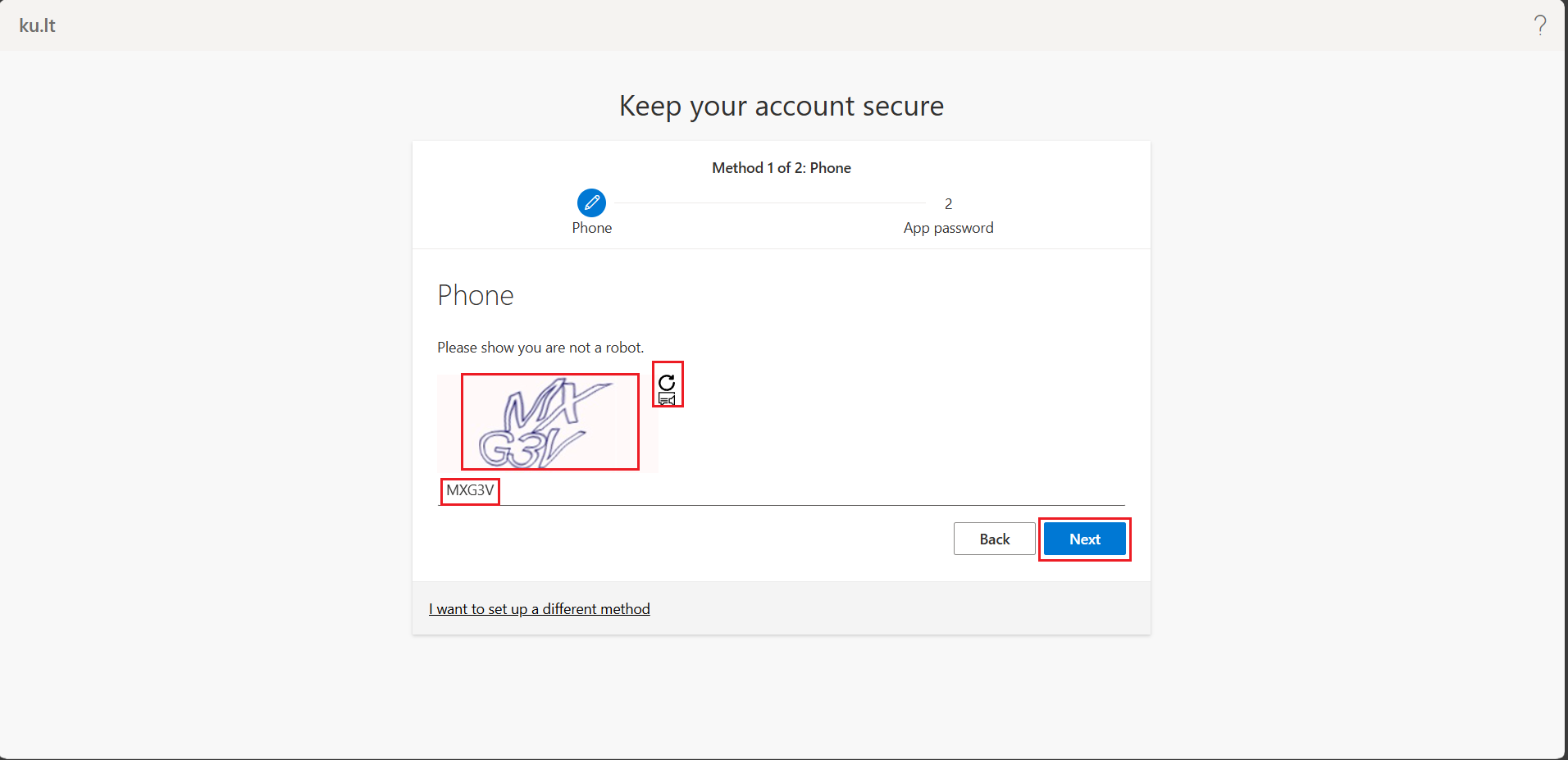
Fig. 15. Verification step/Confirming identity
Step 3: Completion
-
When you see the message "Verification complete", click Next (see Fig. 16).
-
Click Done – your account is now protected (see Fig. 17).
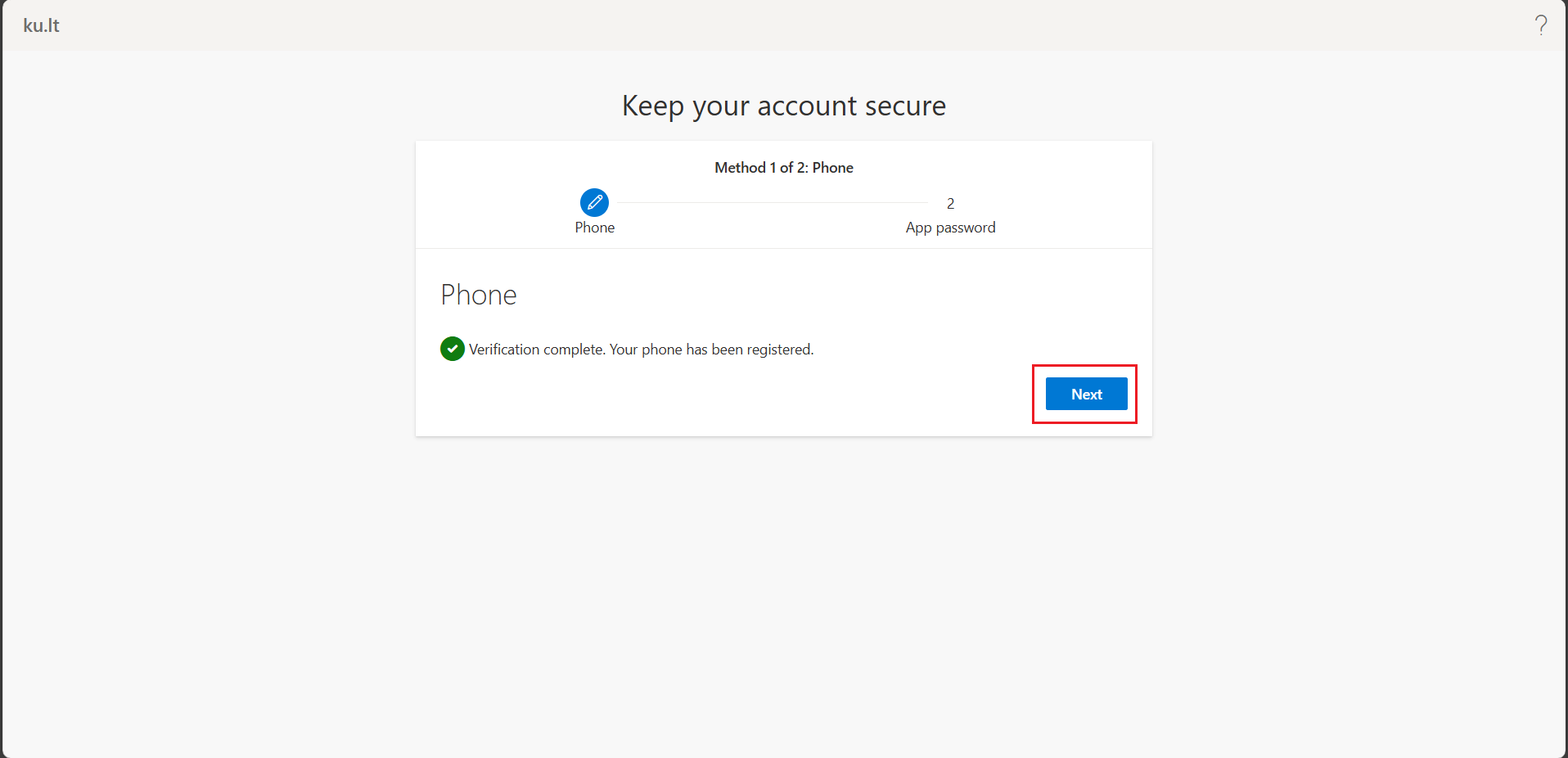
Fig. 16. Successful verification window
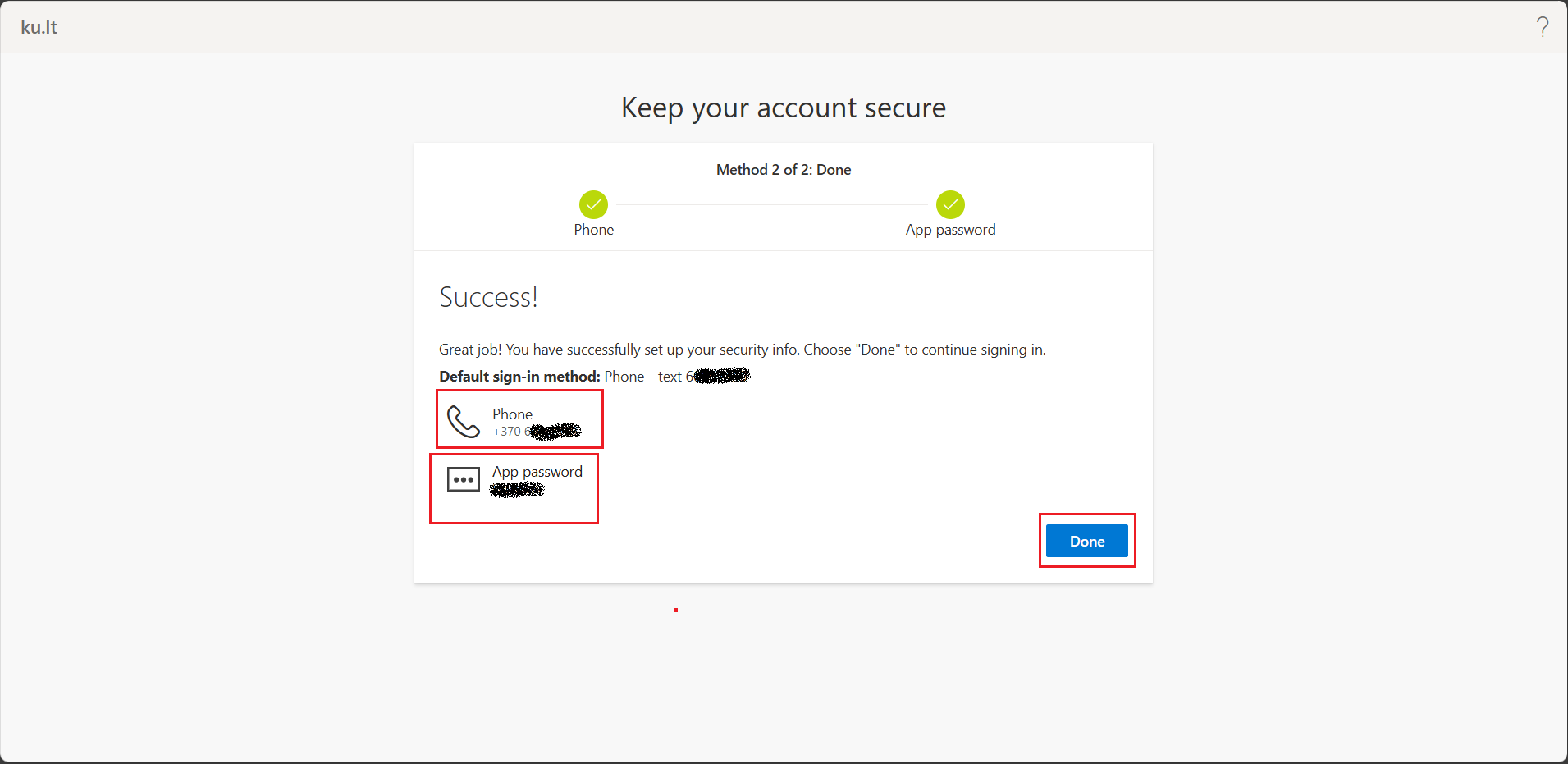
Fig. 17. Final setup completion window