
How to Add an Event to Outlook Calendar (App)?
Step 1: Find the Event on the KU Website
-
Open your browser and go to the page: ku.lt/lt/renginiai.
-
Select the event from the list that you wish to add to your schedule and click on its title.
Step 2: Download the Calendar File
-
In the event description window, below the main event photo, find and click the Pridėti į kalendorių (Add to calendar) button (see Fig. 1).
-
A special file named event-****.ics will be downloaded to your computer.
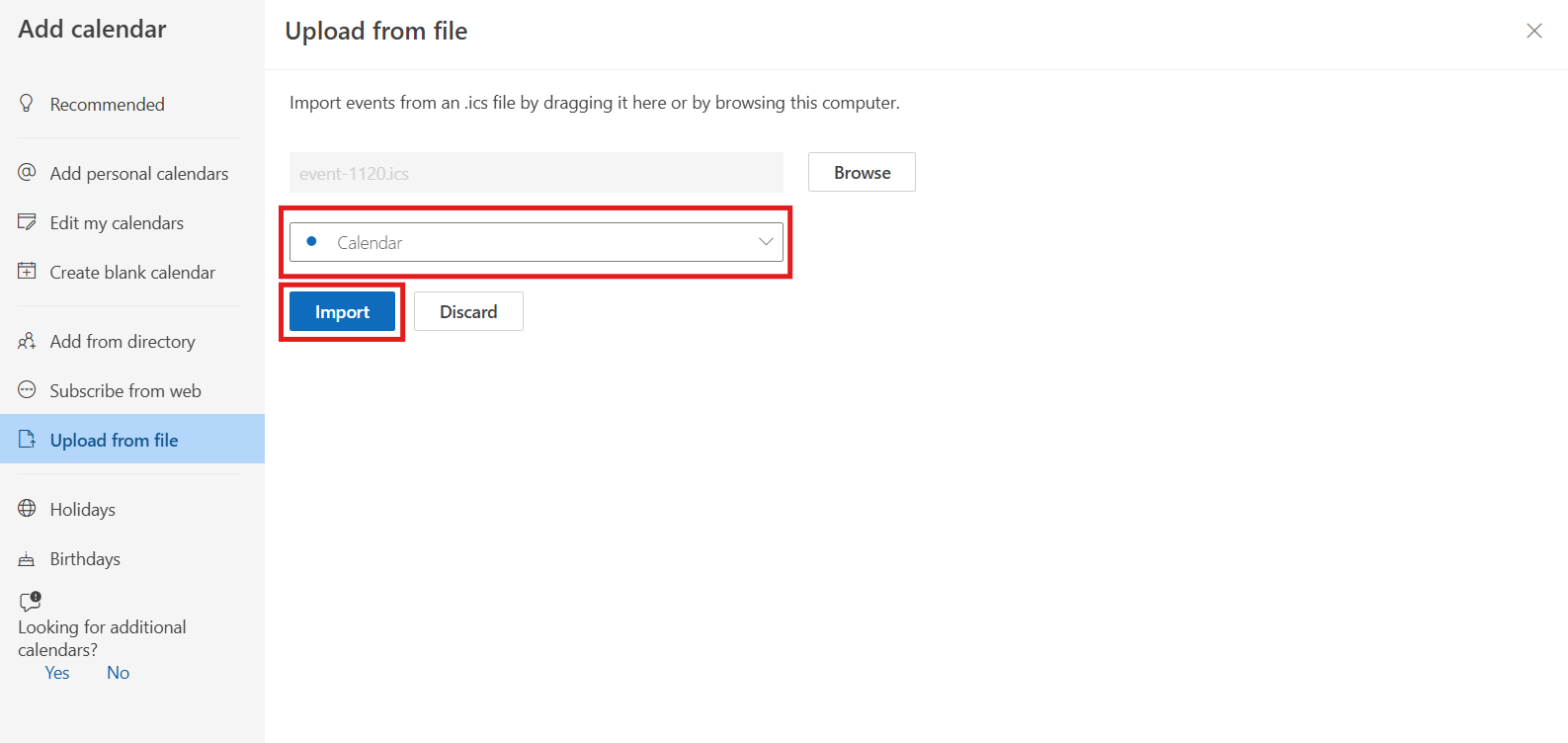
Fig. 1. "Add to calendar" button on the event page
Step 3: Open the File in the Outlook App
-
Click on the downloaded file at the bottom of your browser or in your computer's "Downloads" folder.
-
The Outlook application window Upload from file will open automatically (see Fig. 2).
Fig. 4.2. Outlook window with the pre-selected event file
Step 4: Select the Calendar and Import
In the window that opens, follow these steps (see Fig. 3):
-
In the Select a calendar section, expand the list and select your primary calendar.
-
Click the Import button.
Fig. 3. Calendar selection from the list and the "Import" button
Step 5: Check Your Calendar
The event will be successfully added. You will now see the exact time, location, and a short description of the event in your Outlook calendar.
💡 Tip
This method works not only with the KU website—most organizations provide .ics format files, which you can upload to your work calendar using the same principle.