
How to connect to the "eduroam" Wi-Fi network on Android devices?
"eduroam" is a secure, global academic Wi-Fi network available across Klaipėda University campuses and at participating research and higher education institutions worldwide. This guide provides step-by-step instructions on how to quickly and properly set up access on Android devices using the official configuration app.
What will you need?
-
A smartphone running the Android operating system.
-
An active internet connection for the initial setup (mobile data).
-
Klaipėda University credentials: institutional email ending with @edu.ku.lt or @ku.lt and your password.
Step 1: Download and open the app
-
Open the Google Play Store on your phone, search for the geteduroam app, and tap Install (see Fig. 1).
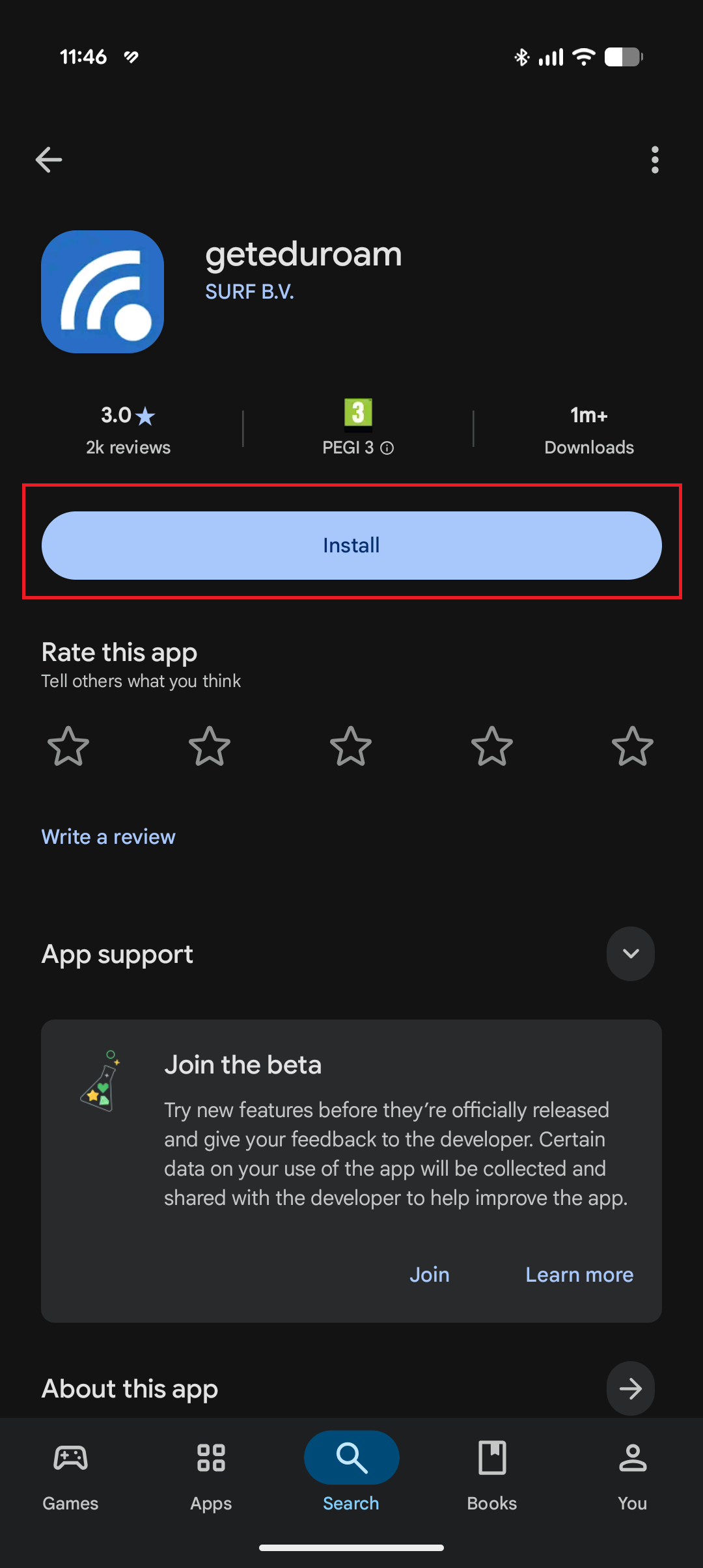
Fig. 1. "Install" button in the Google Play Store
-
Once installed, tap Open (see Fig. 2).
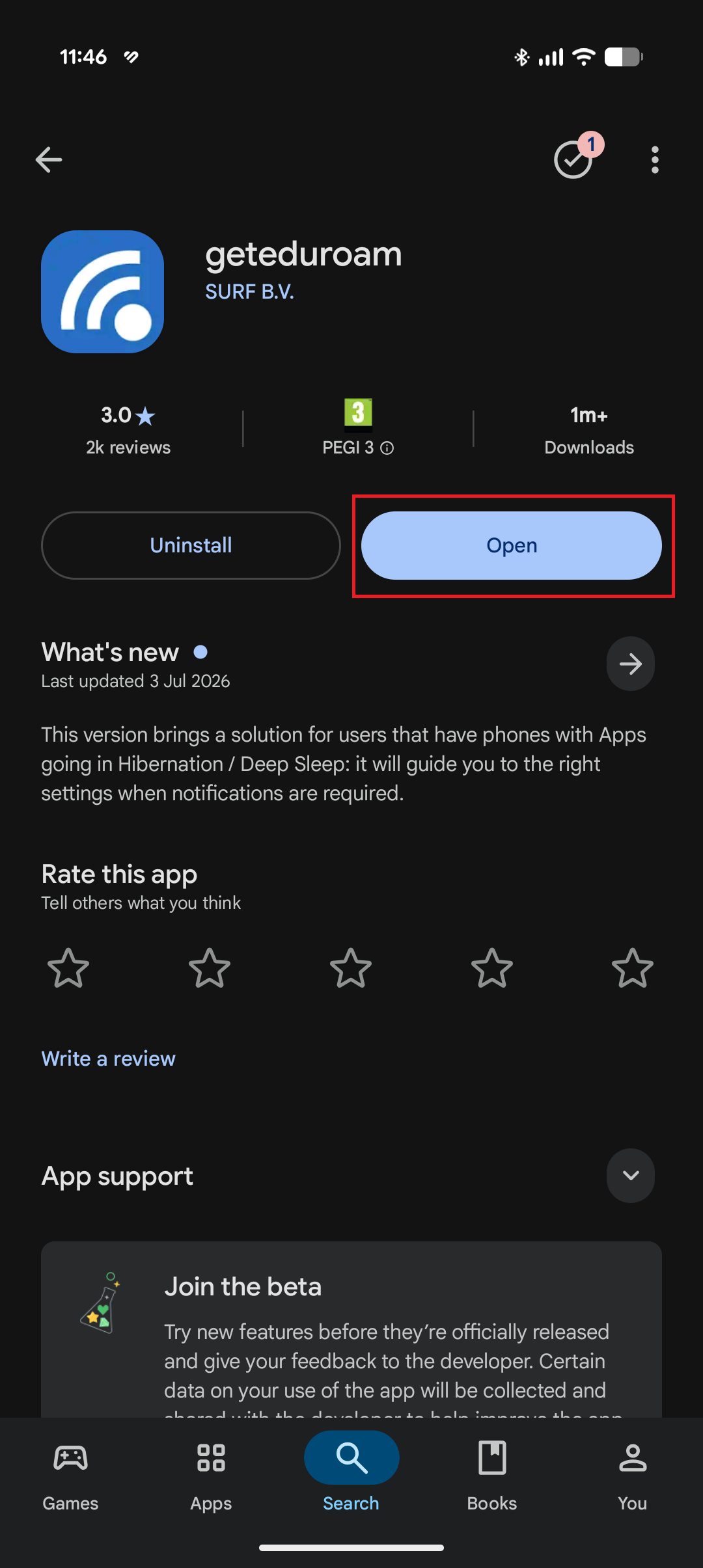
Fig. 2. "Open" button after installation
Step 2: Select Klaipėda University
-
In the app's search bar, start typing Klaipeda or KU (see Fig. 3).
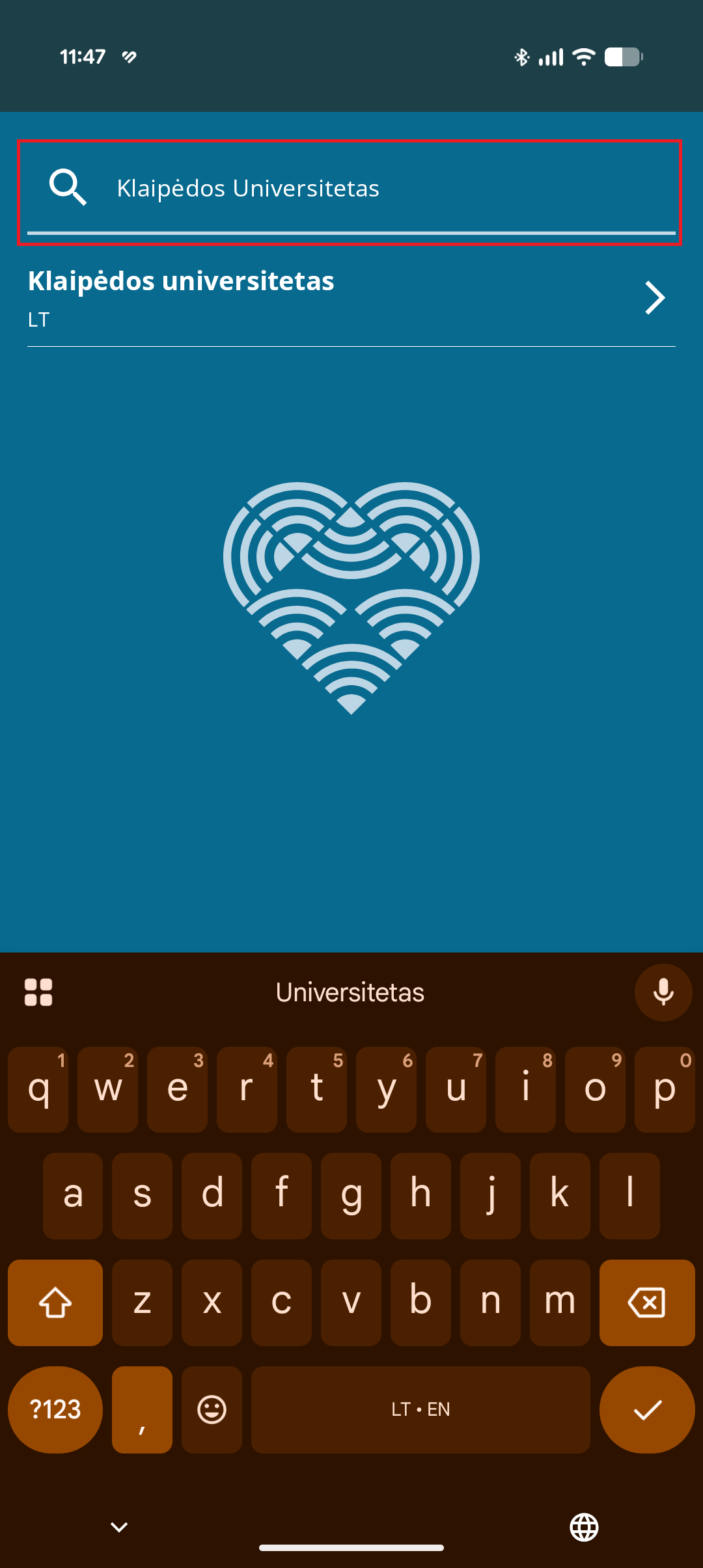
Fig. 3. Institution search bar in the app
-
From the list of results, select Klaipėdos universitetas (or Klaipėda University) (see Fig. 4).
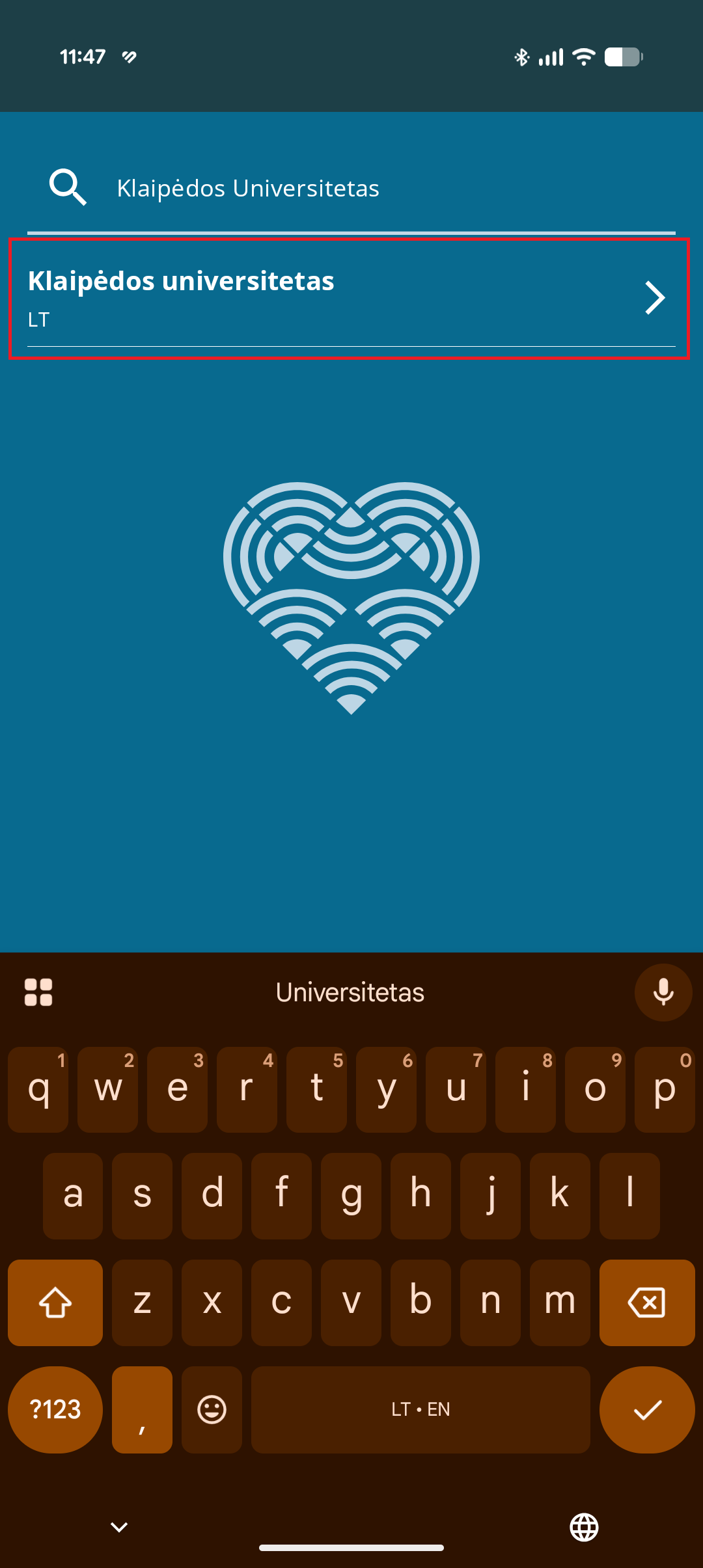
Fig. 4. Selecting "Klaipėdos universitetas" from the list
Step 3: Log in with your university account
-
On the login screen, enter your credentials:
-
Username: enter your full institutional email address ending with @edu.ku.lt (e.g.,
name.surname@edu.ku.lt) or @ku.lt (for staff members). -
Password: enter your university account password (see Fig. 5).
-
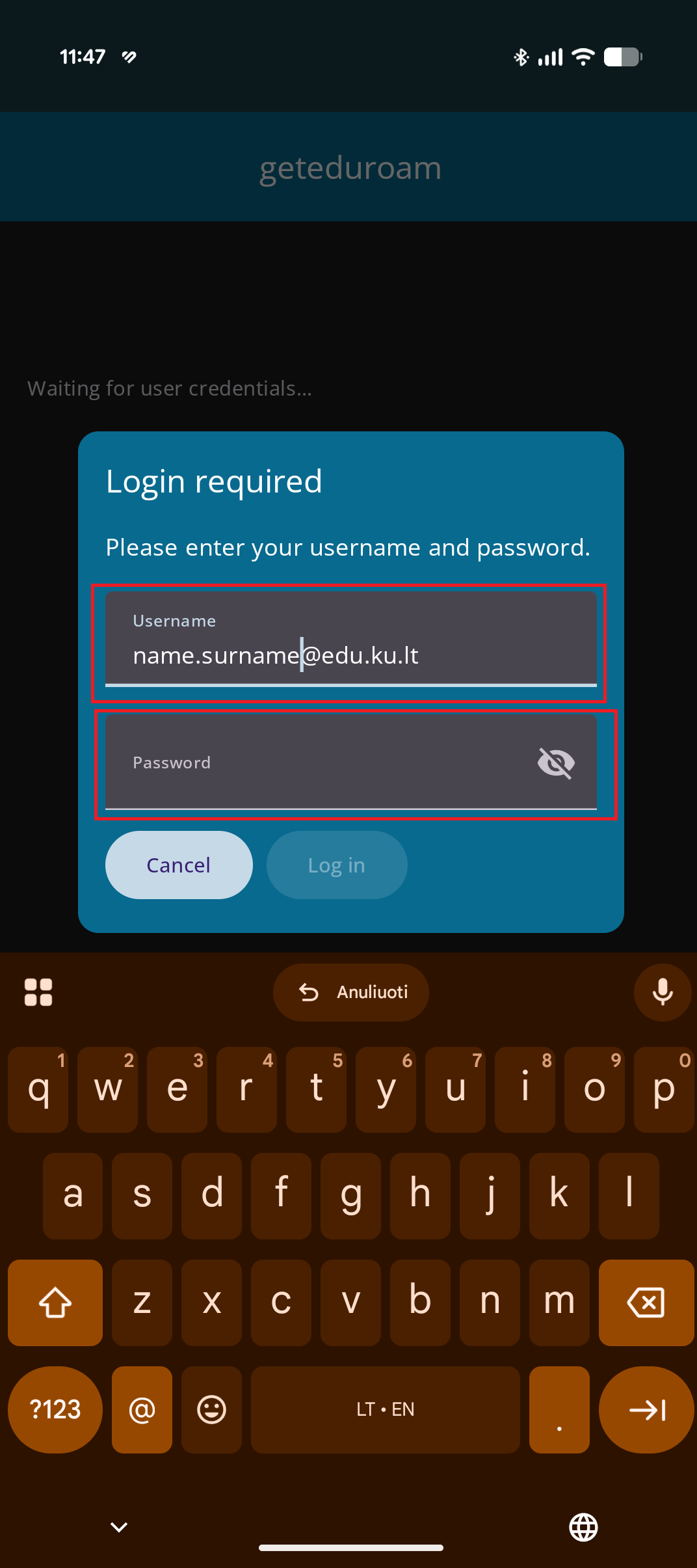
Fig. 5. Login credentials screen
-
After entering your credentials, tap the Log in (or Connect) button (see Fig. 6).
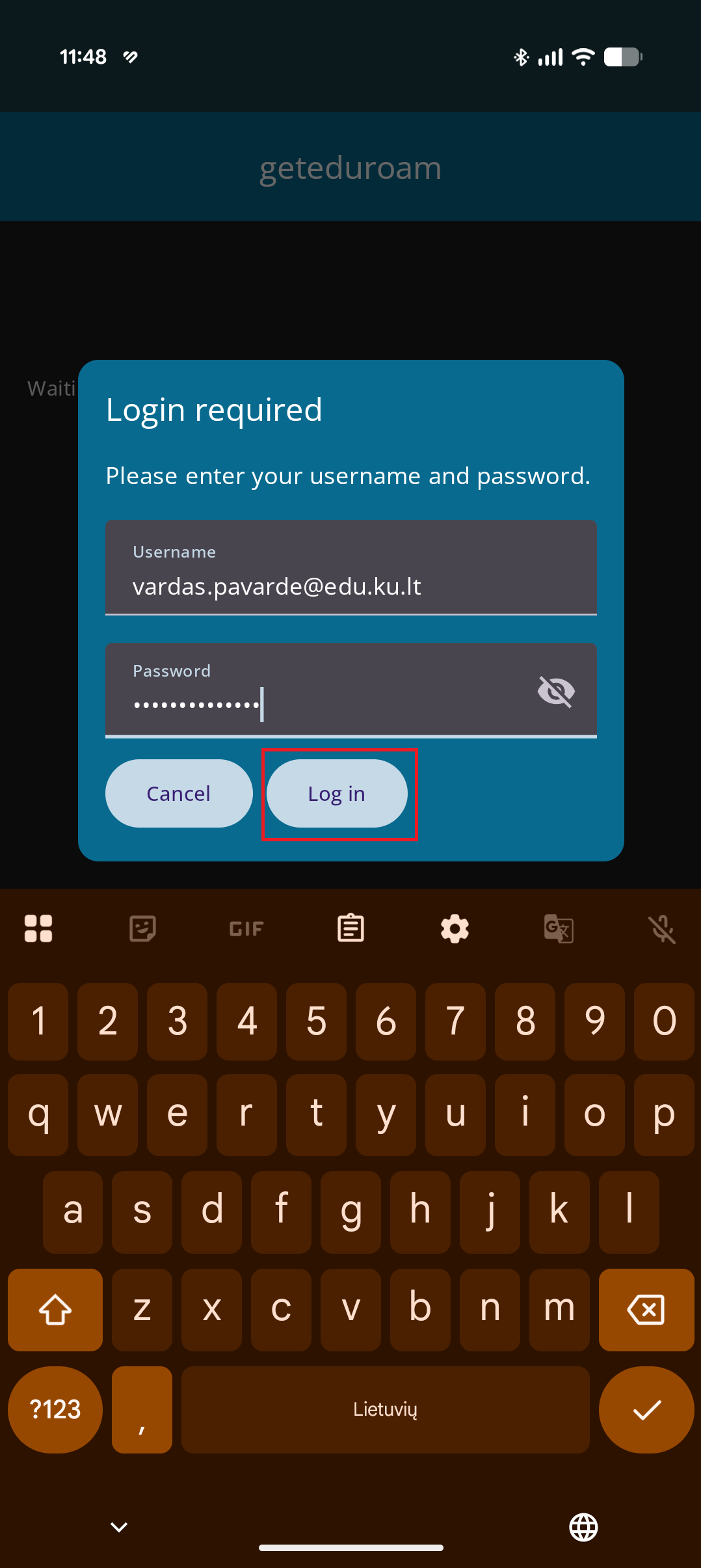
Fig. 6. Login confirmation button
Step 4: Save the network configuration and finish setup
-
When prompted with the system message "Save this network? (geteduroam wants to save a network to your phone)", tap Save (see Fig. 7).
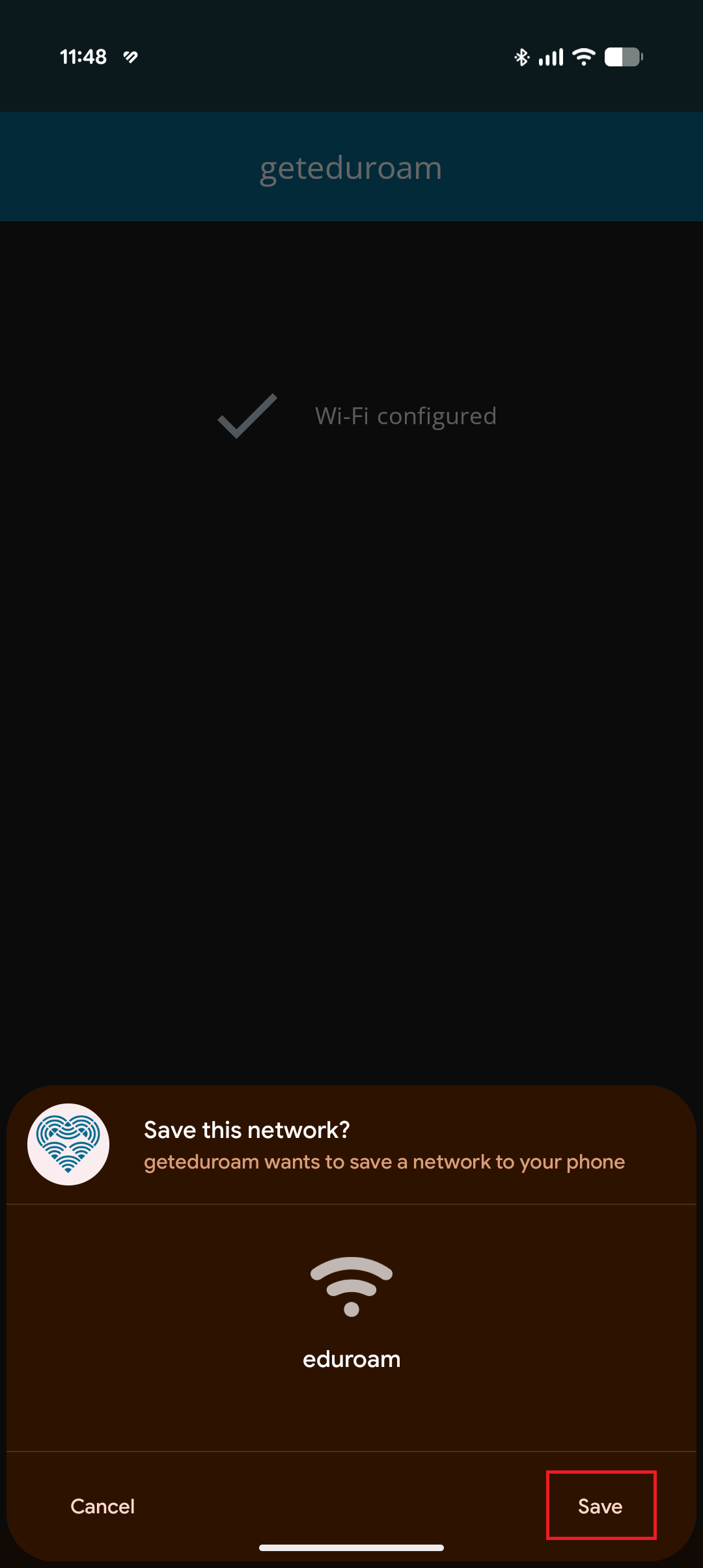
Fig. 7. "Save this network?" system prompt with the "Save" button
-
Once the confirmation message Wi-Fi configured appears, tap Close app (see Fig. 8).
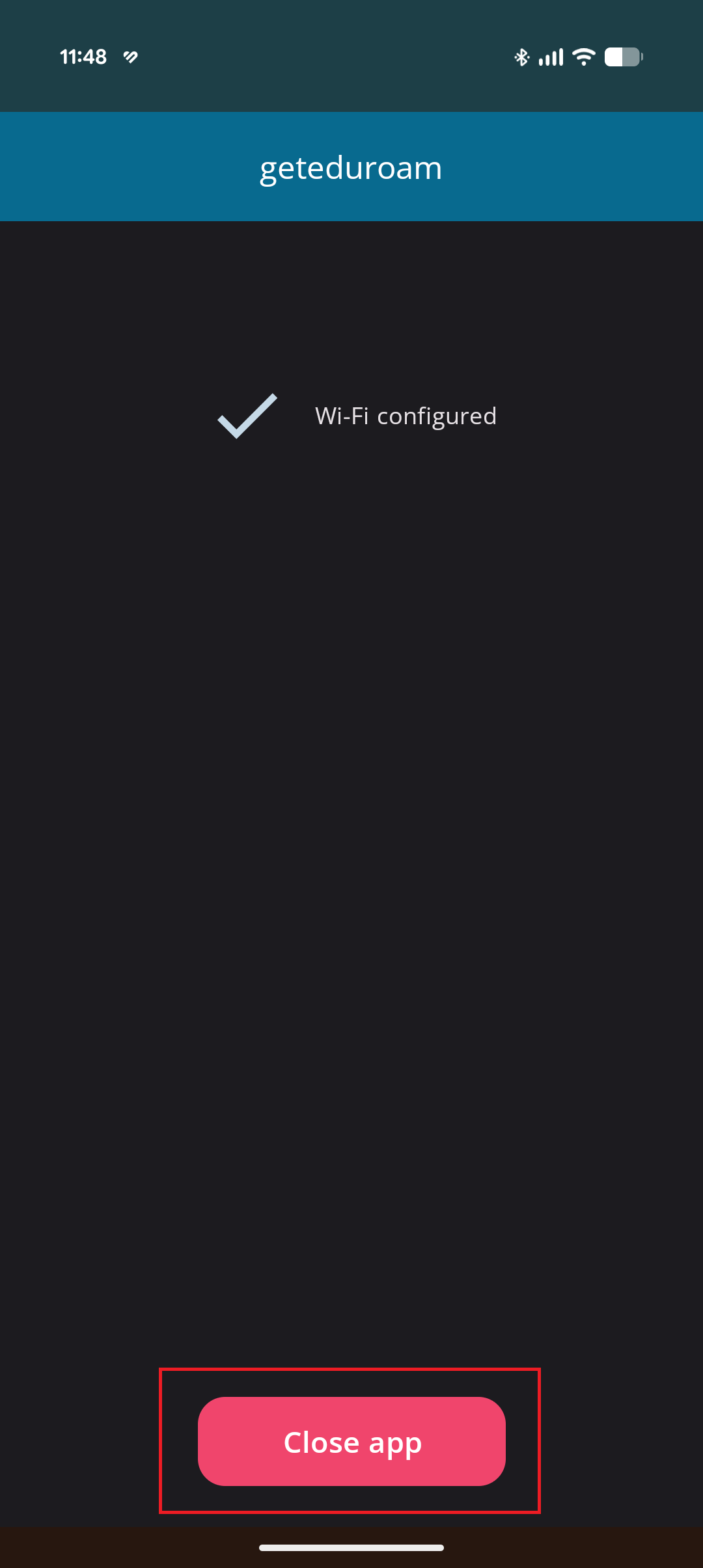
Fig. 8. "Wi-Fi configured" screen and the "Close app" button
Your phone is now successfully configured and will automatically connect to the "eduroam" wireless network.