
How to Change Your KU Account Password?
In this guide, you will learn how to safely and quickly change your Klaipėda University (KU) account password through the internal system.
Step 1: Sign In to "Mano KU"
-
Open your browser and go to: intranet.ku.lt/lt/employees/login.
-
Enter your credentials in the login window:
-
Username: Use the format firstname.lastname (without the "@ku.lt" suffix).
-
Password: Enter your current password.
-
-
Click the Prisijungti (Sign In) button (see Fig. 1).
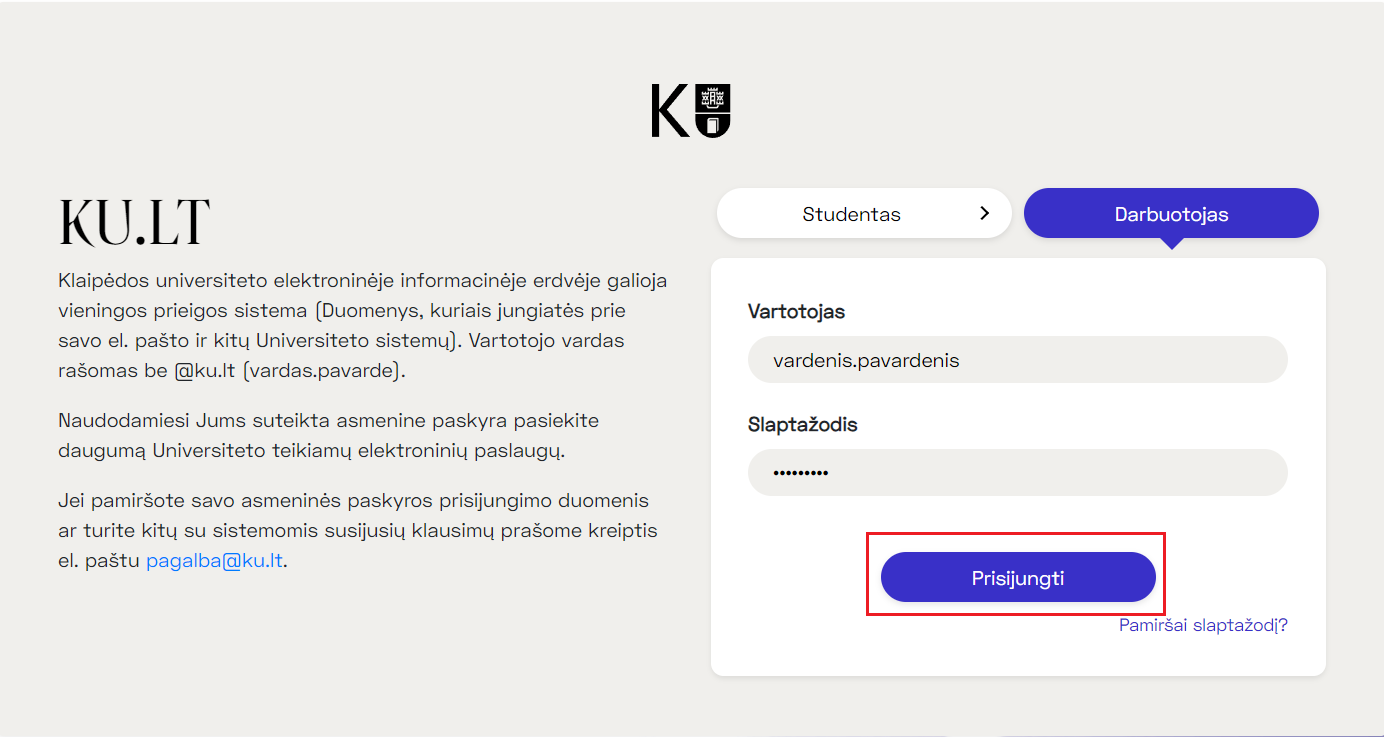
Fig. 1. Signing in to Mano KU
Step 2: Open the Password Change Window
Once logged into the "Mano KU" home page, locate and click the Keisti slaptažodį (Change Password) button in the menu bar or on the dashboard (see Fig. 2).
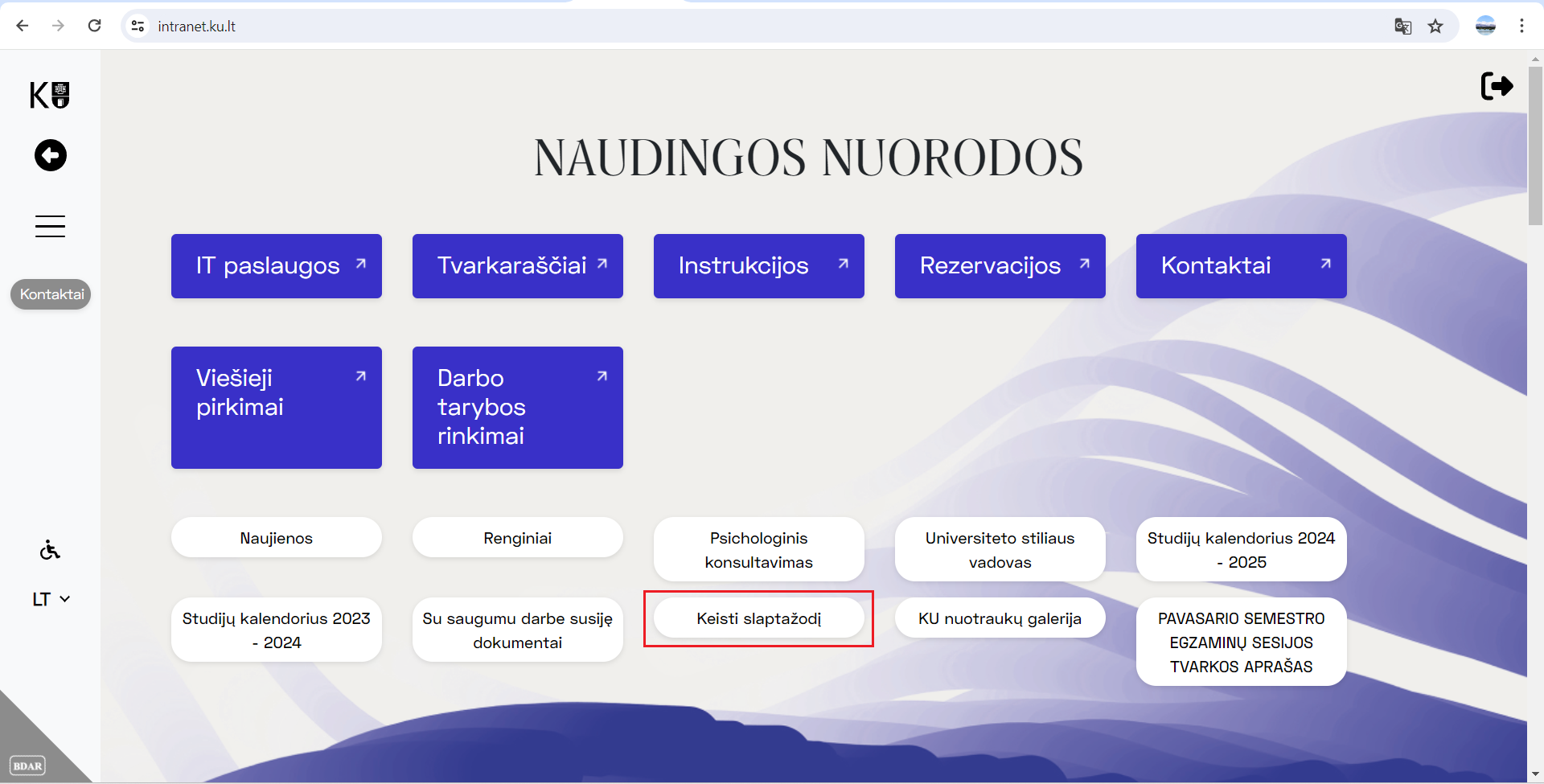
Fig. 2. Password change button
Step 3: Enter Your New Password
In the window that appears, fill in the following fields:
-
Old password: Enter the one you are using now.
-
New password: Create a secure password.
-
Confirm new password: Re-enter your new password.
-
Click the Pakeisti slaptažodį (Change Password) button.
If everything is done correctly, you will see the message: "Slaptažodis sėkmingai pakeistas" (Password changed successfully) (see Fig. 3).
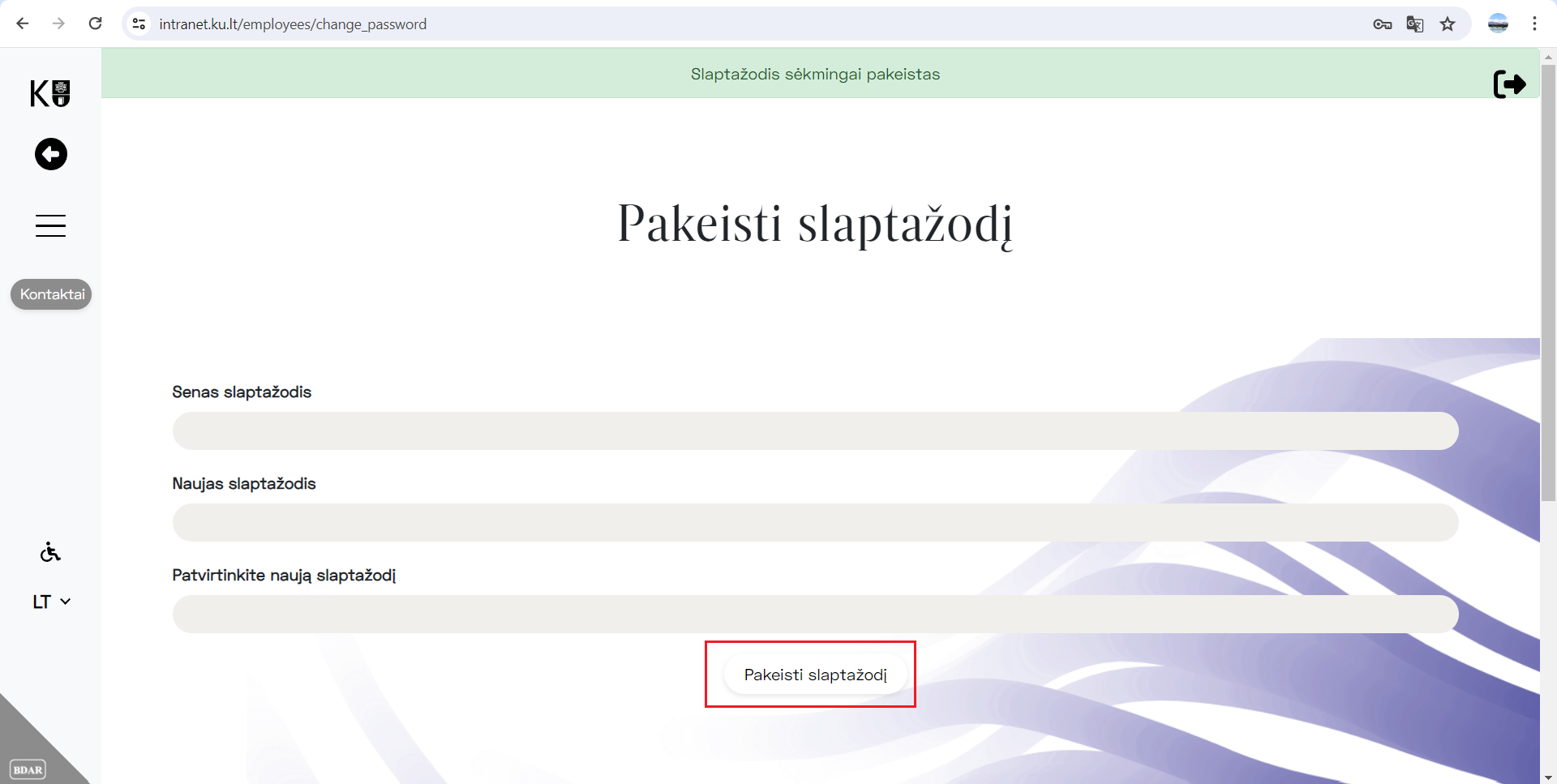
Fig. 3. Successful password change
💡 Important Password Requirements
To be accepted by the system, your new password must meet the following rules:
-
Length: At least 12 characters.
-
Composition: At least one uppercase letter (A-Z) and one lowercase letter (a-z).
-
Numbers: At least one digit (0-9).
If the password is too weak, the system will display an error message (see Fig. 4). In this case, add the missing character types and try again.
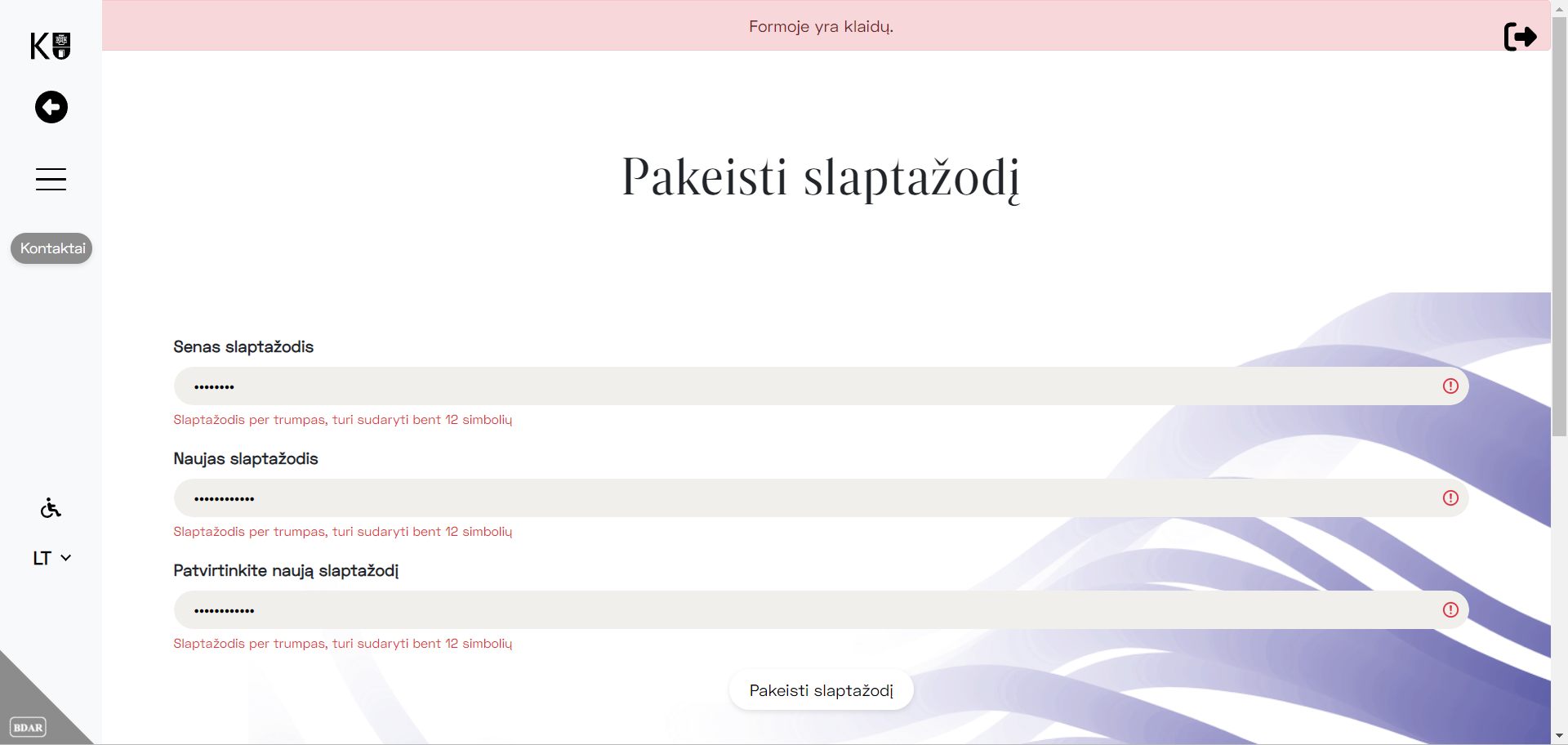
Fig. 4. Password requirements