
What to Do if You Forgot Your Password?
If you can no longer sign in to your Klaipėda University (KU) account, this instruction will help you securely reset your password.
Step 1: Start Password Recovery
-
Open the login page in your browser: intranet.ku.lt/lt/employees/login.
-
Below the login fields, locate and click the link "Pamiršai slaptažodį?" (Forgot your password?) (see Fig. 1).
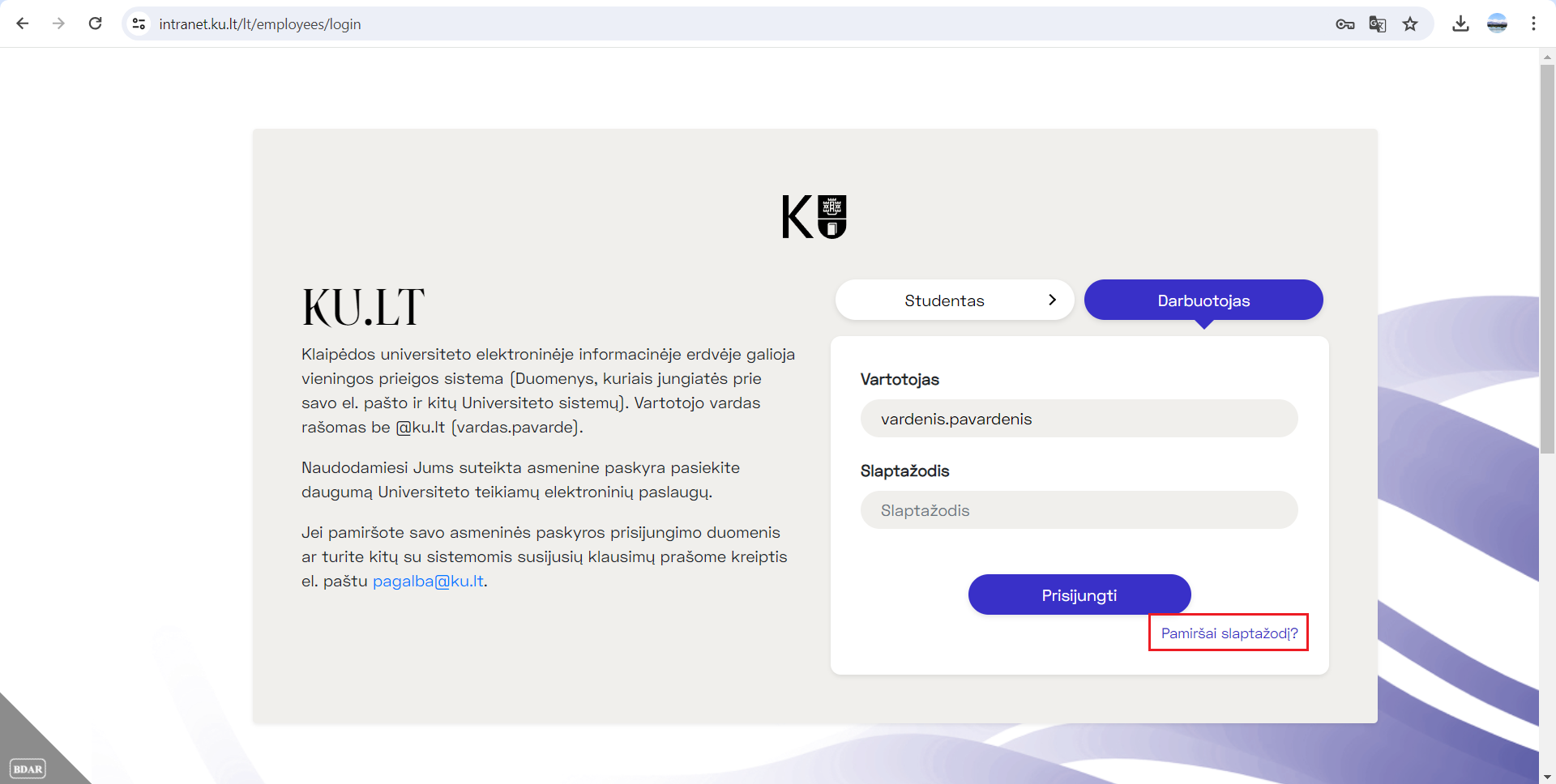
Fig. 1. Password recovery link
Step 2: Enter Your Email
-
In the window that opens, enter your full KU email address (e.g., firstname.lastname@ku.lt).
-
Click the Atstatyti slaptažodį (Reset Password) button (see Fig. 2).
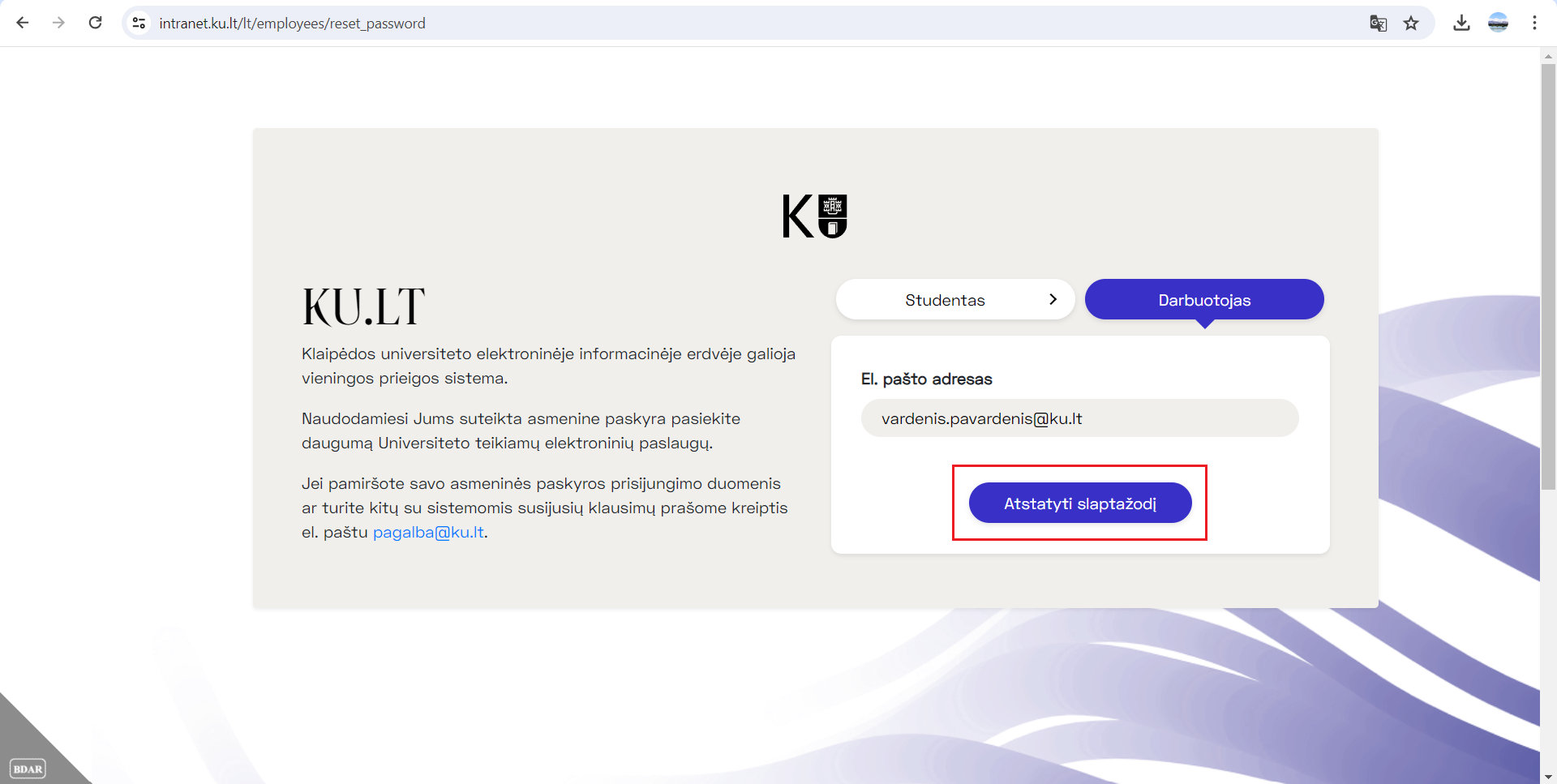
Fig. 2. Reset password button
-
Success: If you entered the address correctly, you will see a green message stating that the link has been sent (see Fig. 3).
-
Error: If you entered an incorrect address, you will see the message "Vartotojas nerastas" (User not found) (see Fig. 4).
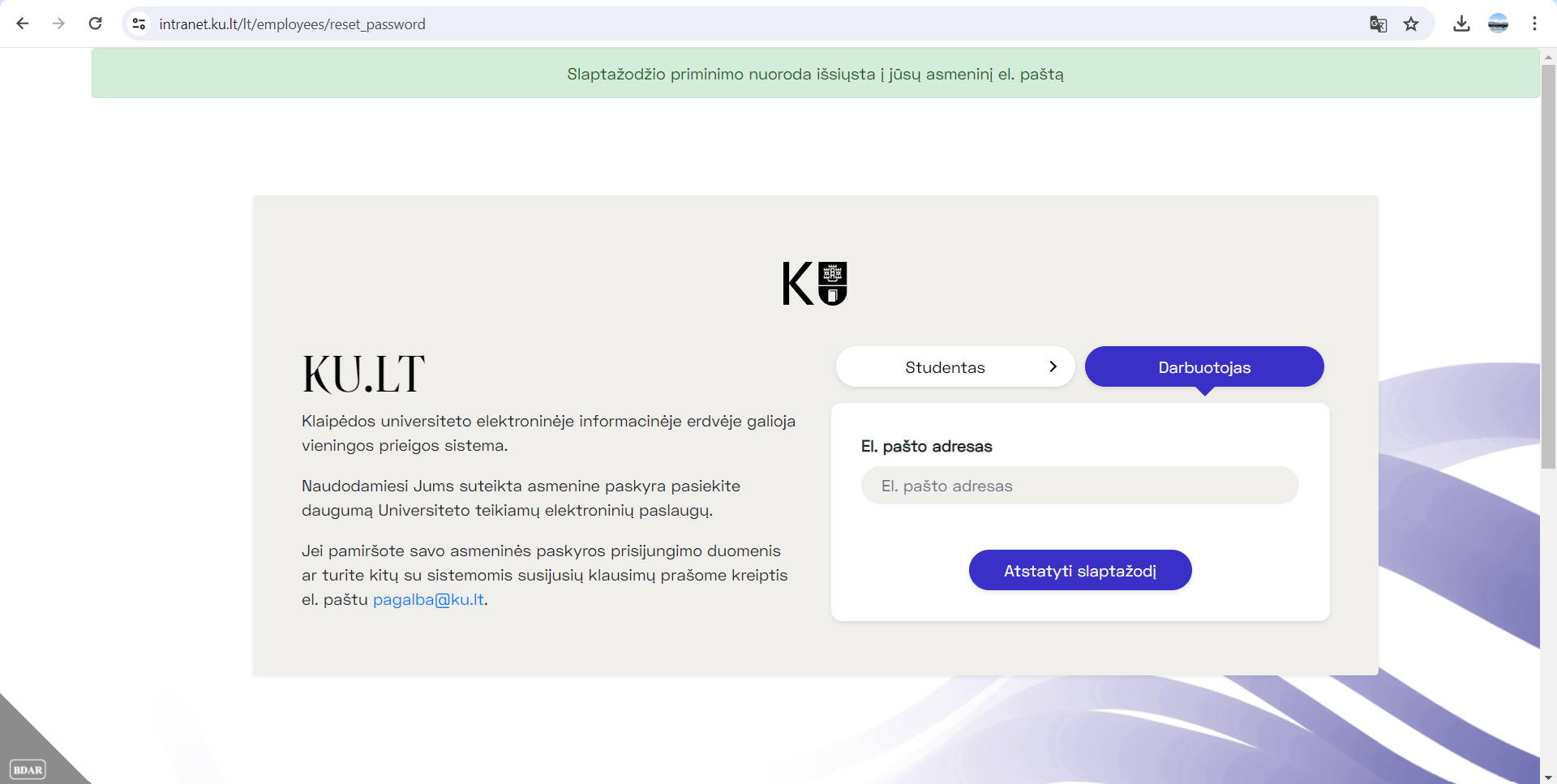
Fig. 3. Successful password reminder
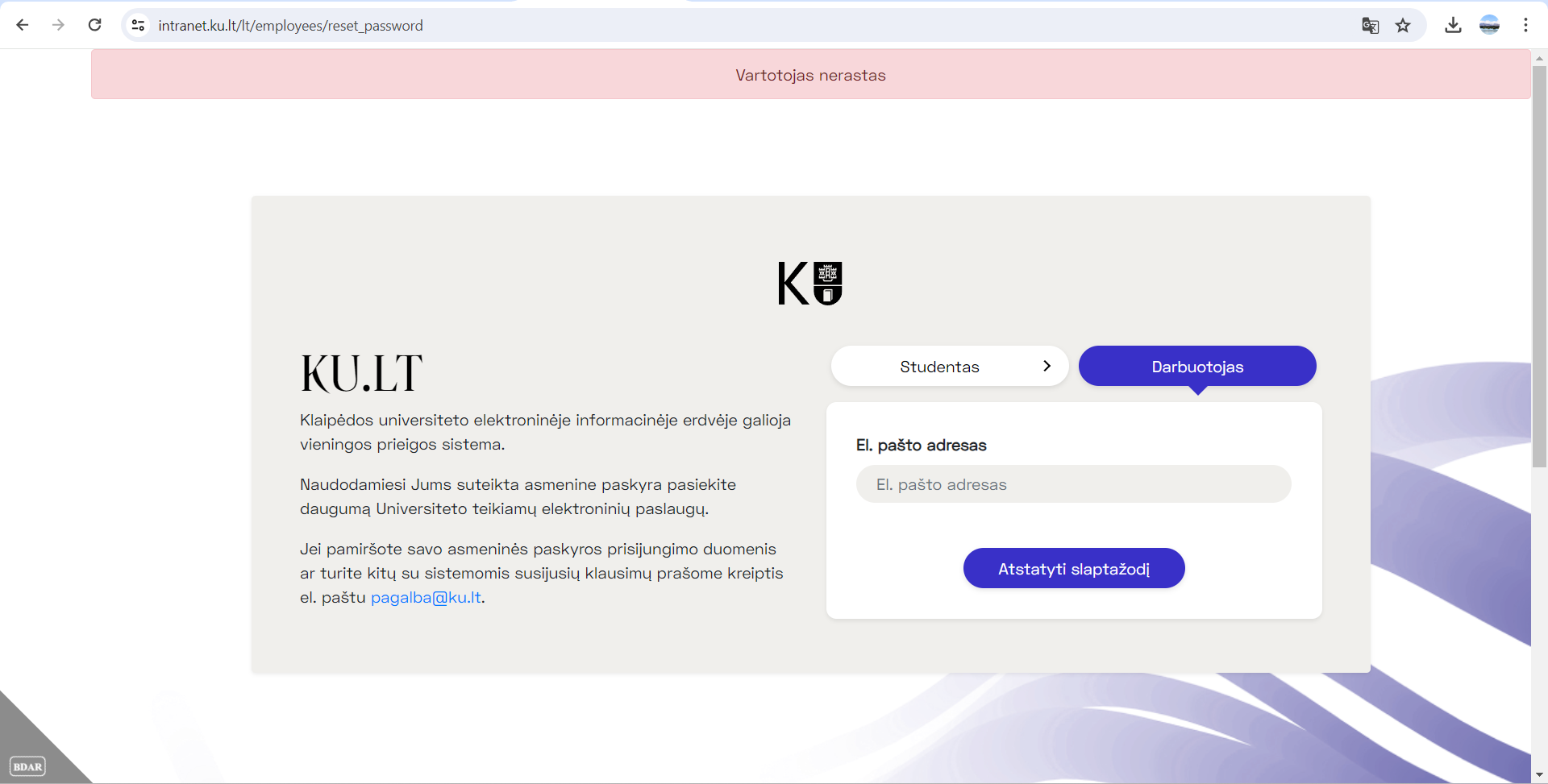
Fig. 4. Unsuccessful password reminder
Step 3: Check Your Email Inbox
-
Log in to your personal email and find the message from the KU system.
-
In the email, click the link or the button "čia" (here) to access the password change page (see Fig. 5).
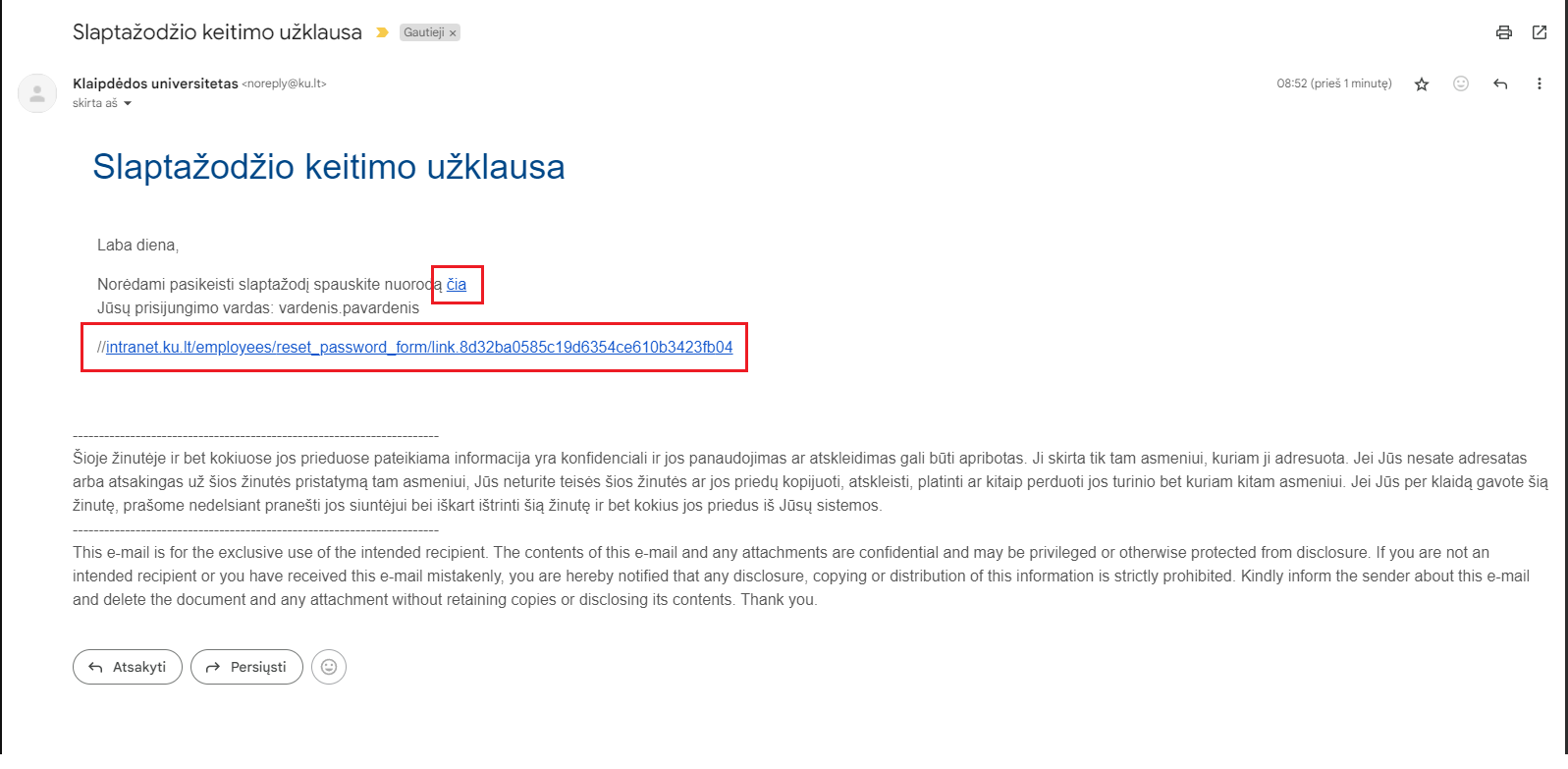
Fig. 5. Password change request
Step 4: Create a New Password
-
On the password reset page, fill in the "New password" and "Confirm new password" fields.
-
Click the Pakeisti slaptažodį (Change Password) button (see Fig. 6).
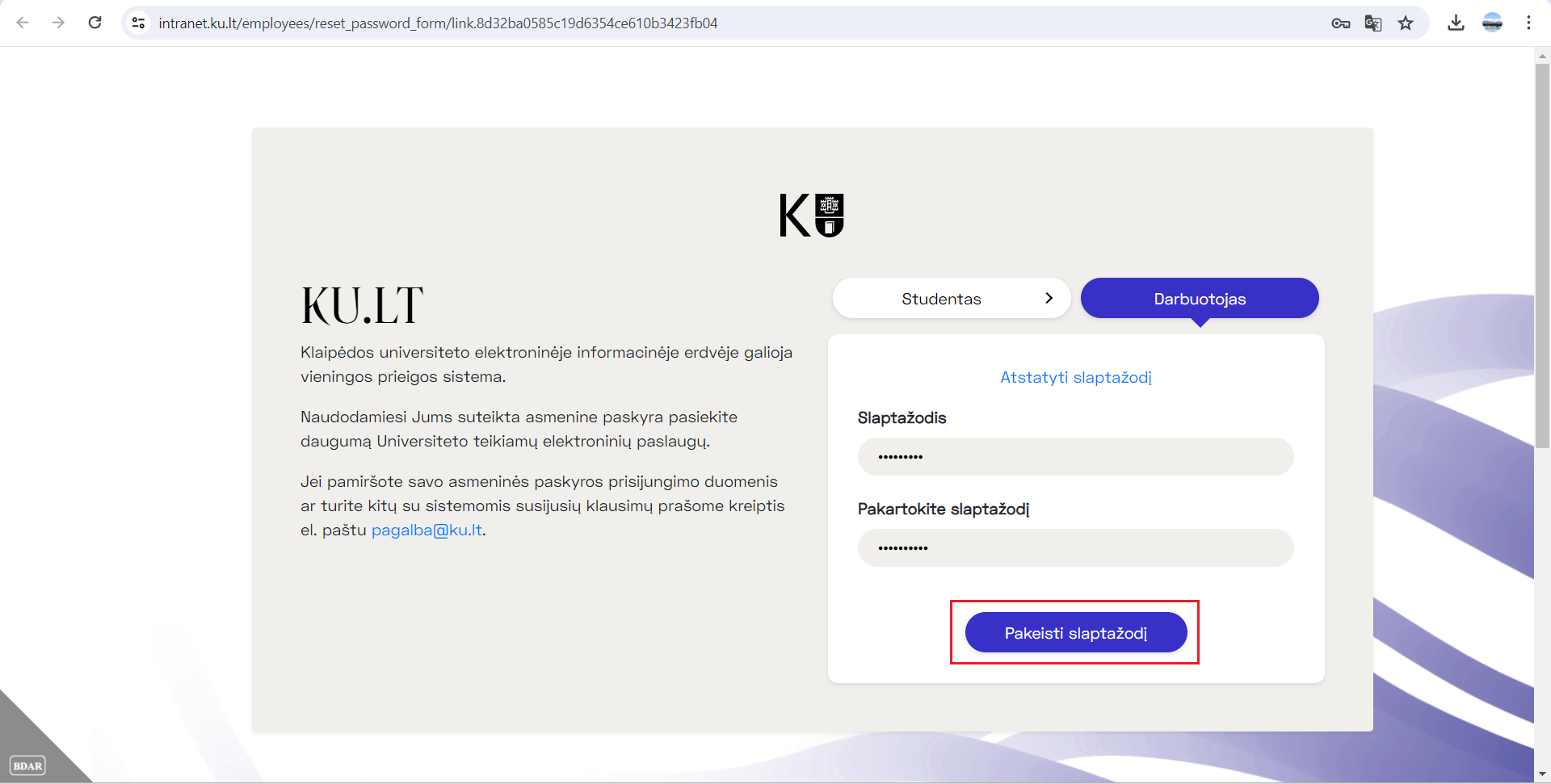
Fig. 6. Password reset page
💡 Requirements for the New Password
The system enforces the following security requirements:
-
Length: At least 12 characters.
-
Composition: Uppercase/lowercase letters and at least one number.
-
Uniqueness: You cannot use your old password.
Step 5: Completion
After successfully changing your password, you will see a confirmation message (see Fig. 7) and will be automatically redirected to the login page.
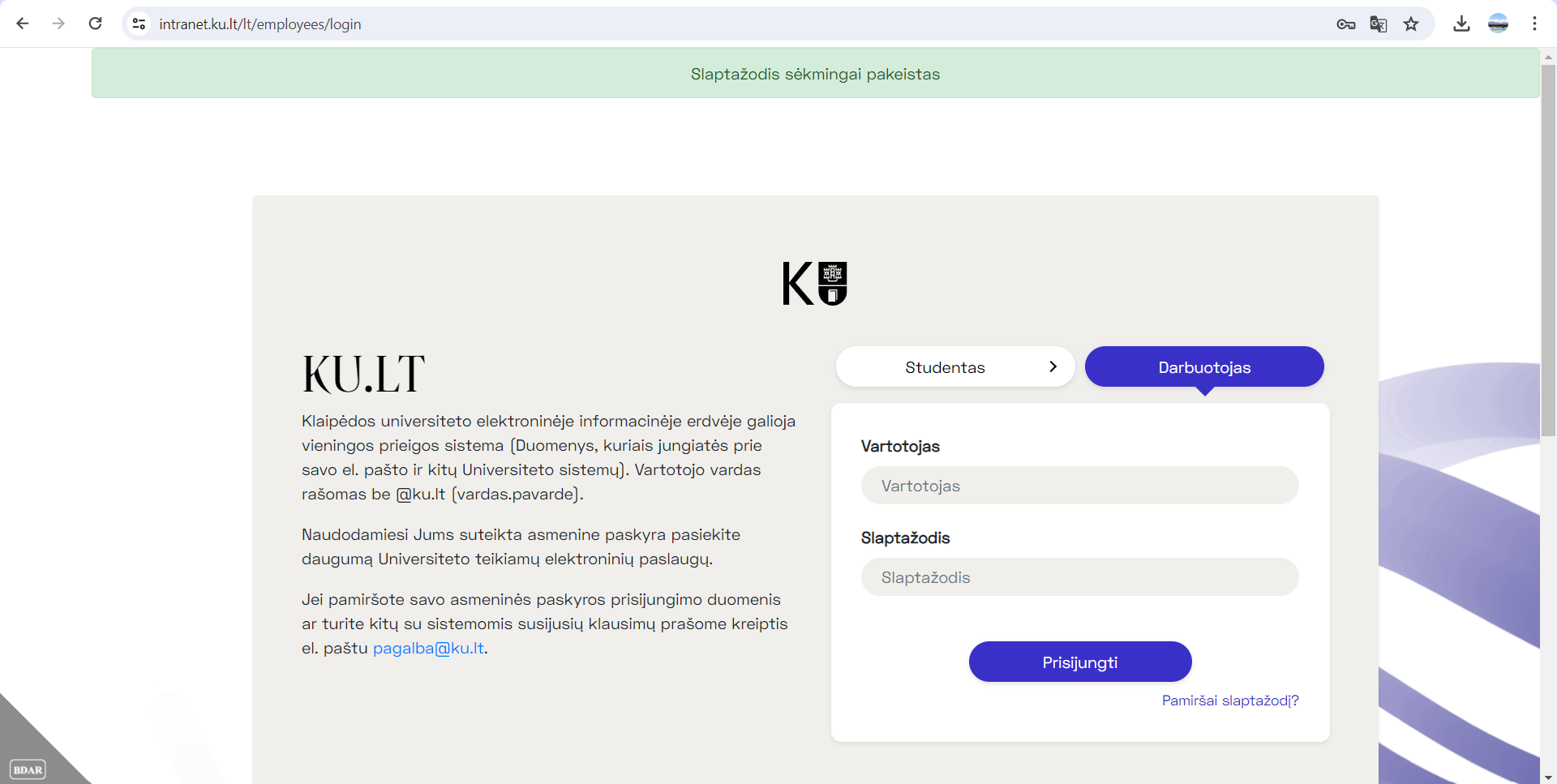
Fig. 7. Successfully changed password