
How to Add an Event to Outlook Calendar (Web)?
If you use email via a browser (e.g., pastas.ku.lt), this guide will help you upload event information directly from the university website.
Step 1: Download the Event File
-
Go to ku.lt/lt/renginiai and open the desired event.
-
Click the Pridėti į kalendorių (Add to calendar) button (see Fig. 1).
-
The file event-****.ics will be saved to your computer.
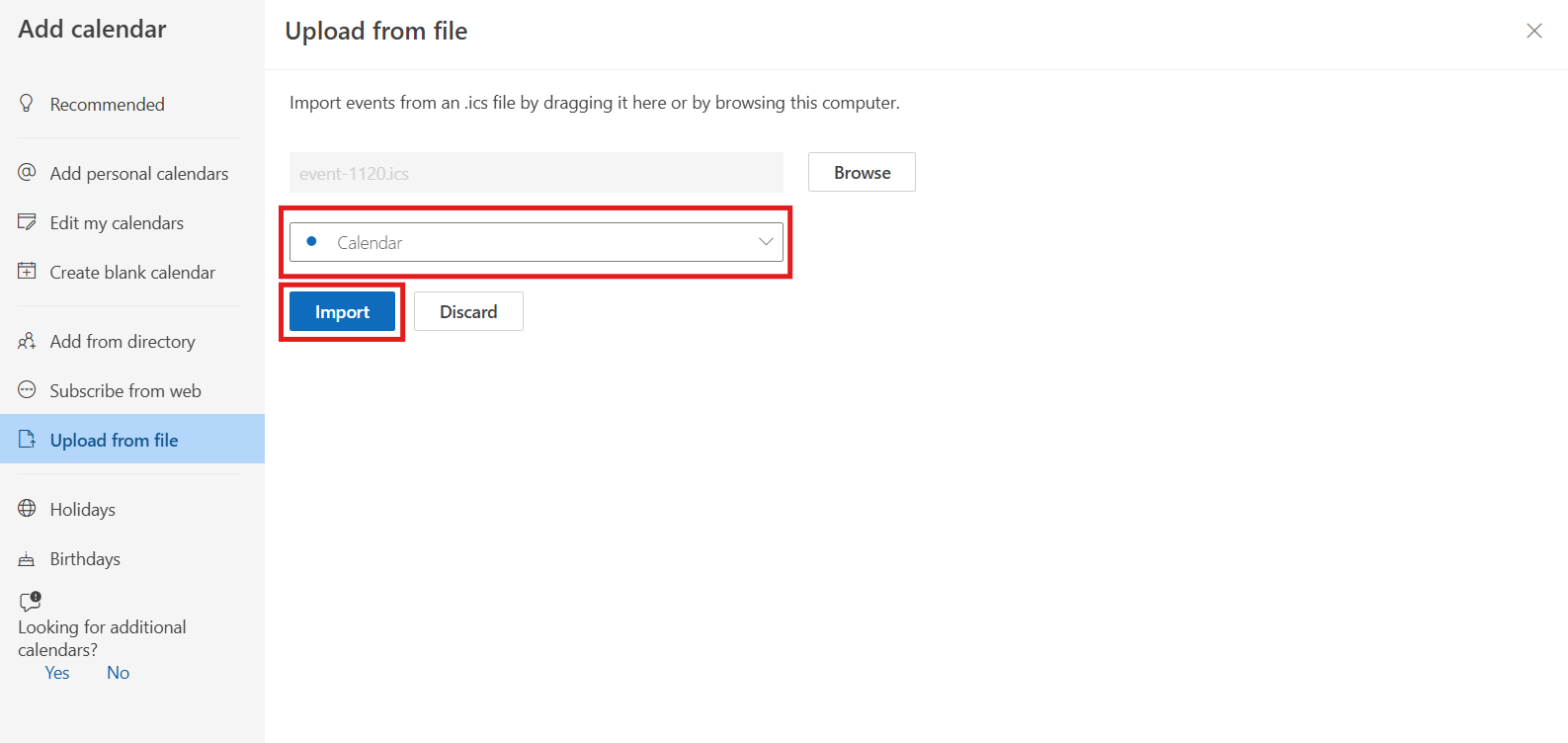
Fig. 1. Event download button
Step 2: Open the Calendar Upload Window
-
Open your KU email in the browser and go to the calendar section (see Fig. 2).
-
On the left side, click the Add calendar button (see Fig. 3).
Fig. 2. Calendar icon in the left sidebar
Fig. 3. "Add calendar" button in the browser
Step 3: Upload the File from Your Computer
In the window that opens (see Fig. 3):
-
Select the Upload from file section from the left menu.
-
Click Browse and select the .ics file you just downloaded.
Fig. 4. "Upload from file" section and file selection
Step 4: Select the Calendar and Import
In the same window (see Fig. 4):
-
In the Select a calendar section, choose your personal calendar.
-
Click the Import button.
Fig. 5. Calendar selection and "Import" button
Step 5: Completion
In a moment, you will see a message stating that the event was successfully added. It will now be visible in your schedule along with all your other meetings.
💡 Useful to Know
If you use multiple devices, the added event will automatically appear in the Outlook app on your phone as well, as browser data is synchronized with your entire account.