
How to Access KU Email via Web Browser?
This is the fastest way to access your work email on any computer without installing additional software.
Step 1: Open the Login Page
-
Open your preferred web browser (e.g., Google Chrome, Microsoft Edge, or Mozilla Firefox).
-
Enter the following address in the address bar: pastas.ku.lt.
Step 2: Enter Your Login Details
-
In the window that appears (see Fig. 1), enter your full KU email address (e.g., firstname.lastname@ku.lt) and click Next.
-
In the next window (see Fig. 2), enter your account password and click Sign in.
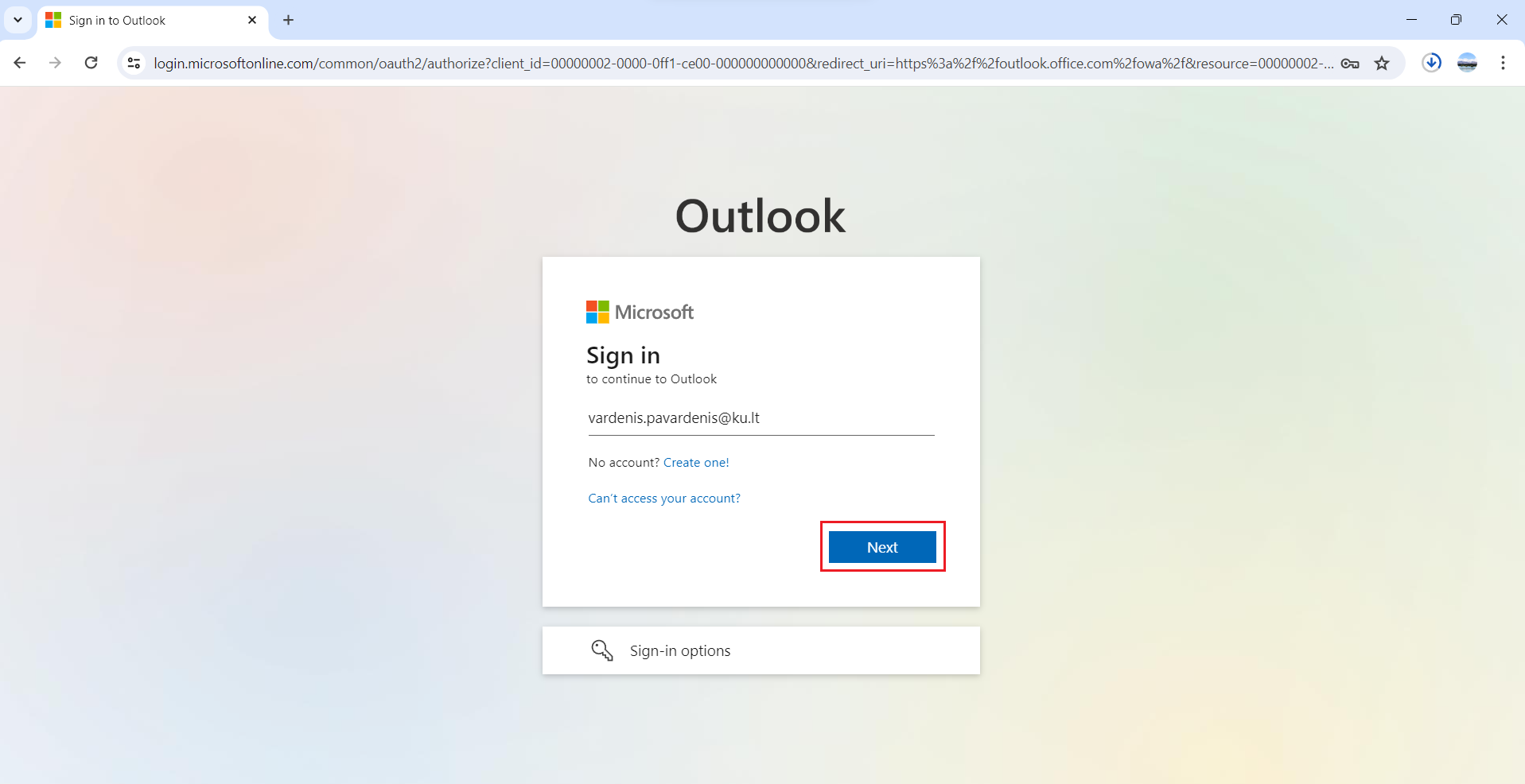
Fig. 1. Email address entry window
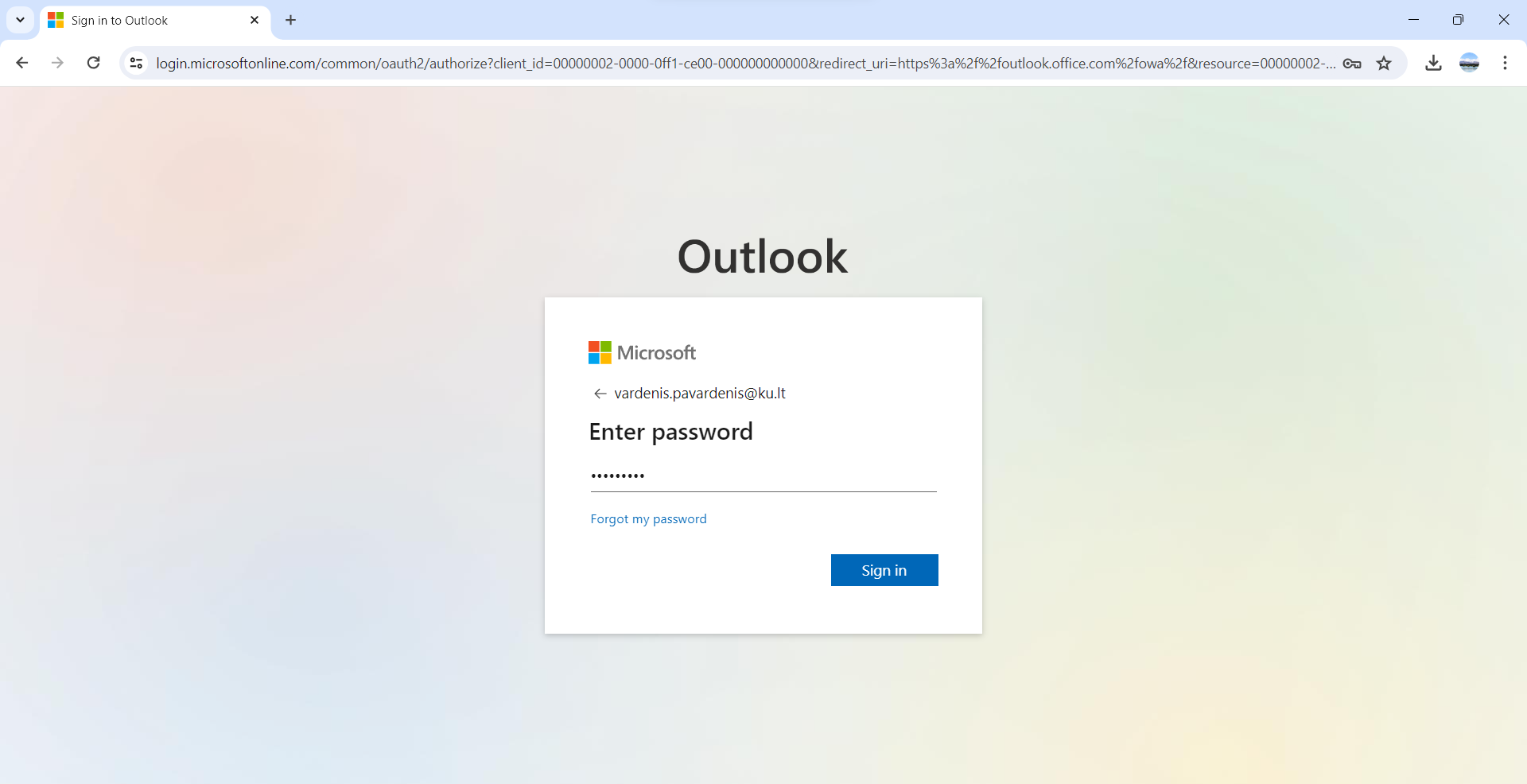
Fig. 2. Password entry window
Step 3: Choose Session Settings
The system will ask if you want to stay signed in (see Fig. 3):
-
Click Yes if you are using a personal computer and want to sign in faster next time.
-
Click No if you are using a public or shared computer.
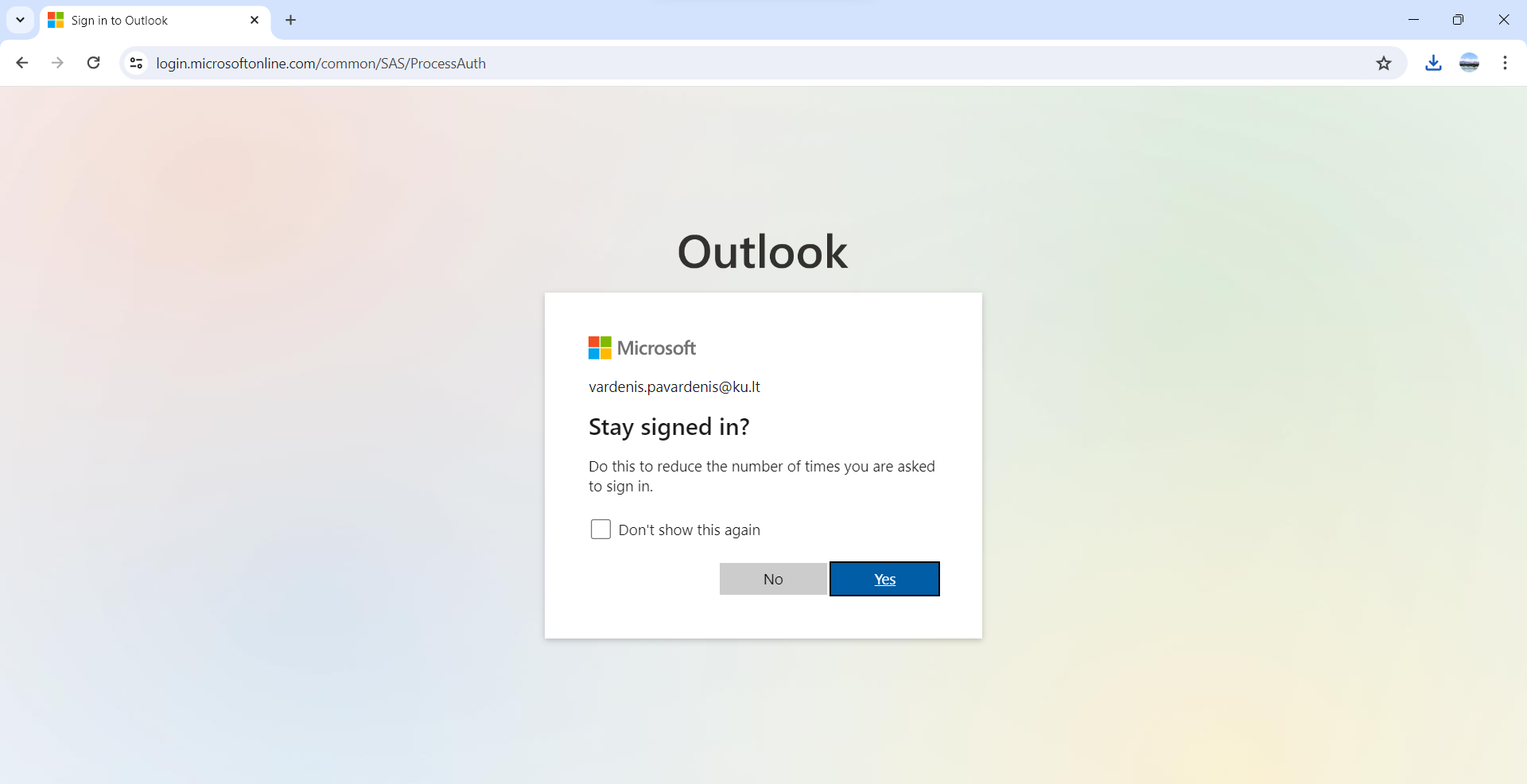
Fig. 3. "Stay signed in?" prompt
Step 4: Start Using Your Email
After completing these steps, you will be redirected to your Outlook mailbox (see Fig. 4), where you can read and write emails.
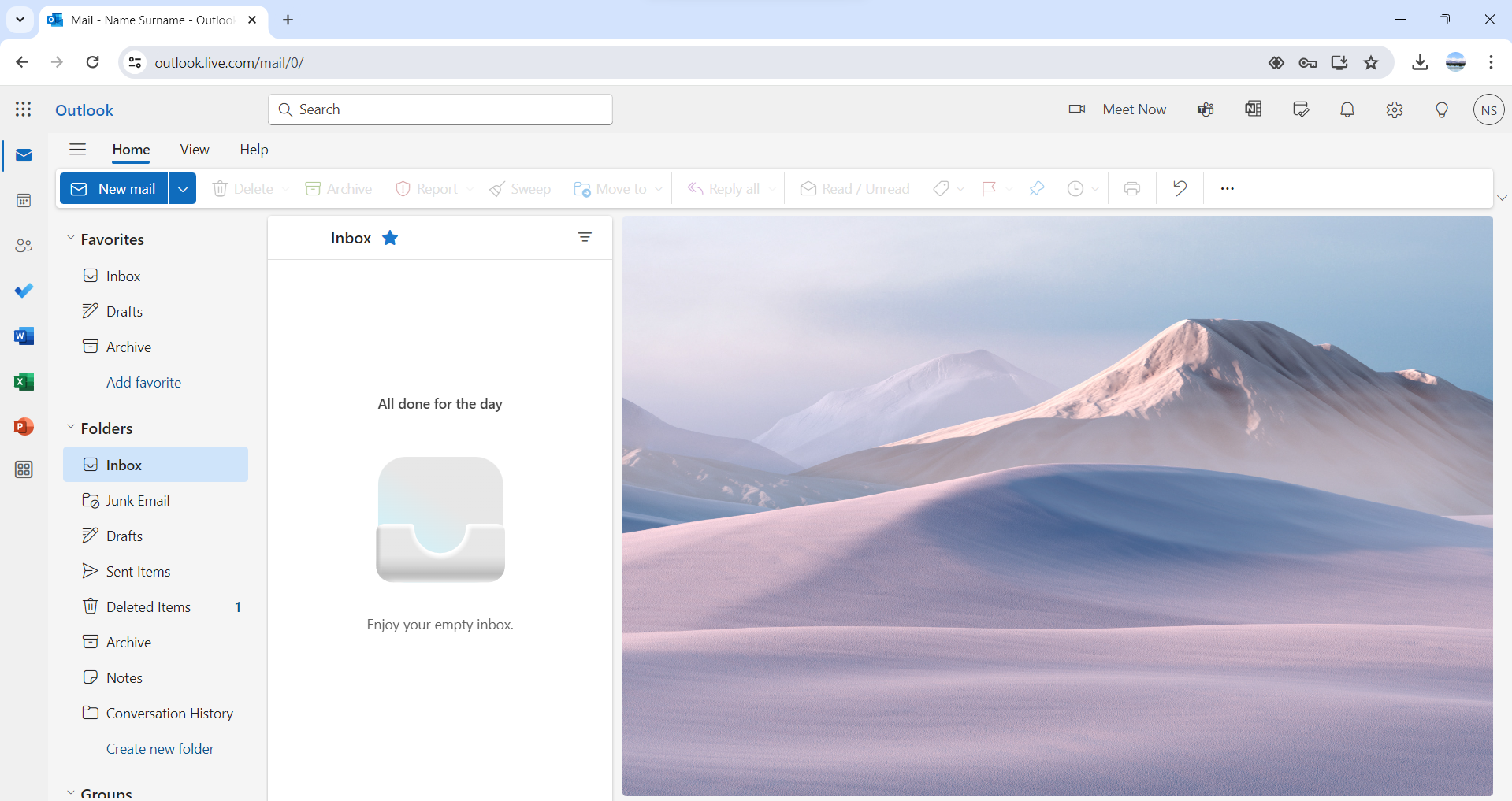
Fig. 4. Main KU email window in the browser
💡 Useful Notes
-
Security: If you cannot sign in, double-check if you entered your password correctly (pay attention to capital letters).
-
Updates: We recommend using the latest browser version to ensure all Outlook features work smoothly.
-
Support: If you forgot your password or encounter other technical issues, please contact the KU IT Help Desk.