
How to Configure KU Email on an Android Device?
The Microsoft Outlook app on Android devices allows you to conveniently access your university email, calendar, and files all in one place.
Step 1: Download the Outlook App
-
Open the Google Play Store on your phone (see Fig. 1).
-
Type "Outlook" in the search bar and select "Microsoft Outlook" (see Fig. 2).
-
Click Install (see Fig. 3).
-
Once the installation is complete, tap Open.

Fig. 1. Google Play Store icon
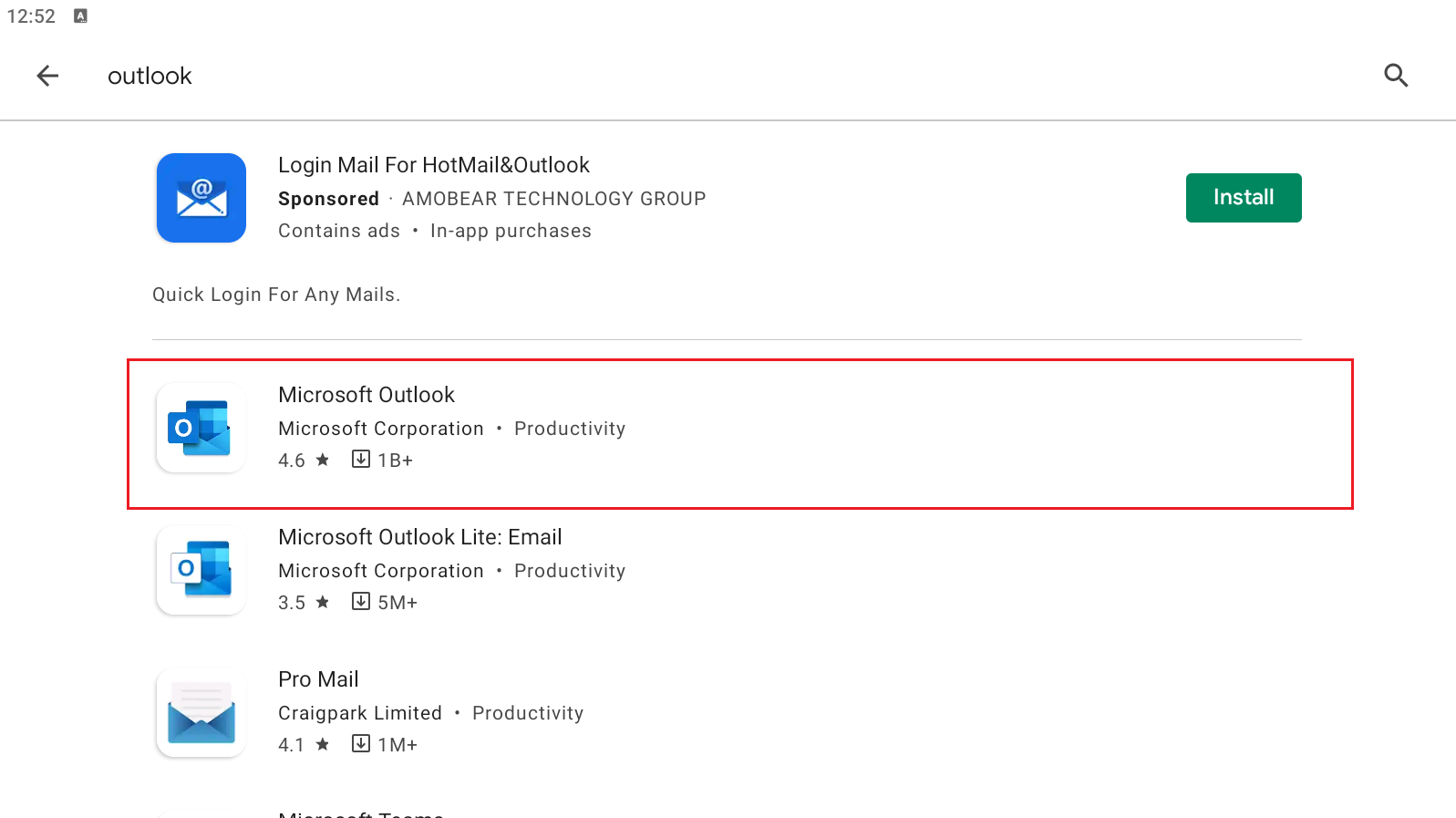
Fig. 2. Microsoft Outlook app in search
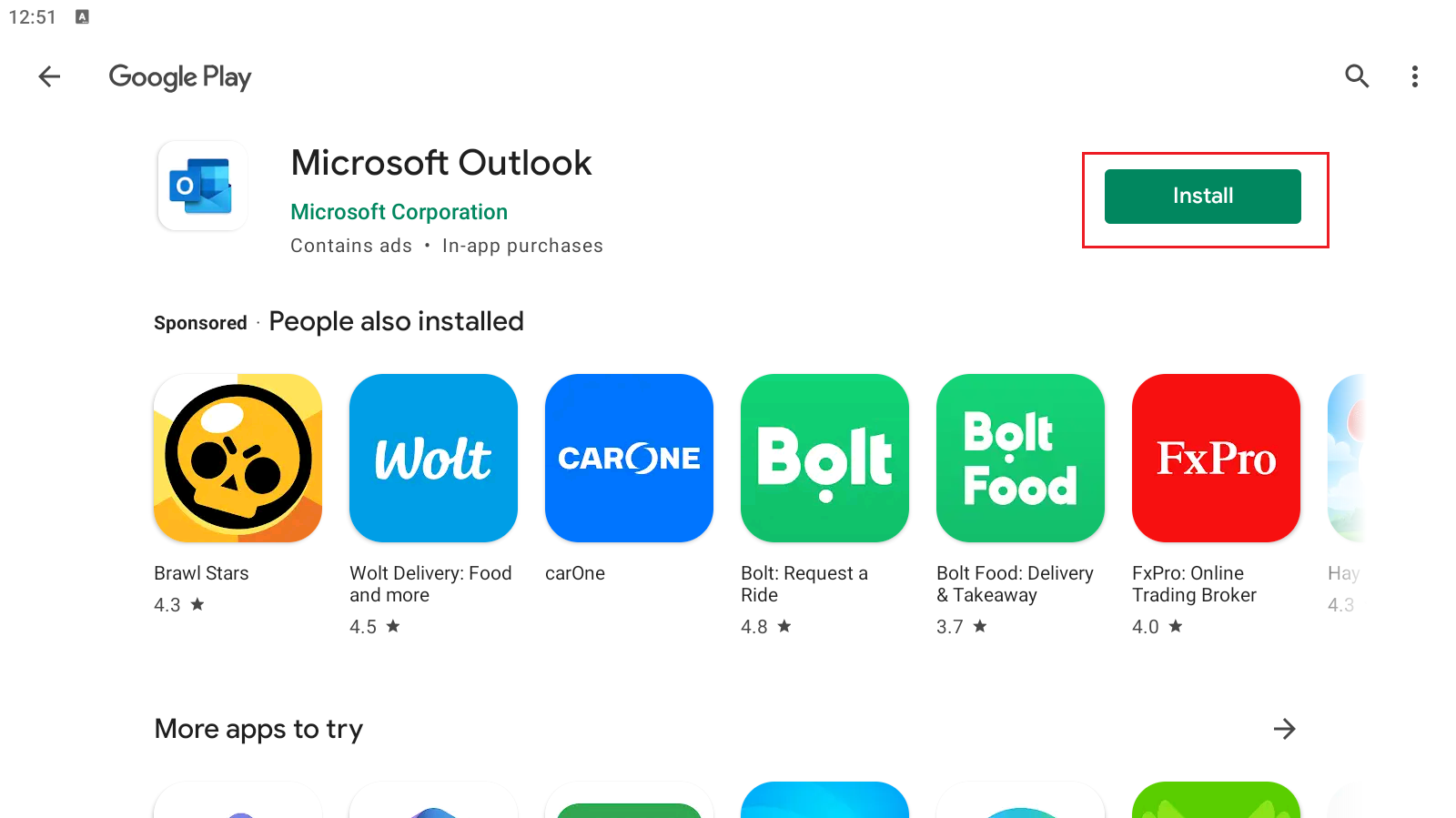
Fig. 3. "Install" button
Step 2: Add Your Account
-
Once the app is open, tap Add Account (see Fig. 4).
-
Enter your full KU email address (e.g., firstname.lastname@ku.lt) and confirm by tapping the checkmark at the top right (see Fig. 5).
-
In the window that appears, enter your account password and tap Sign in (see Fig. 6).
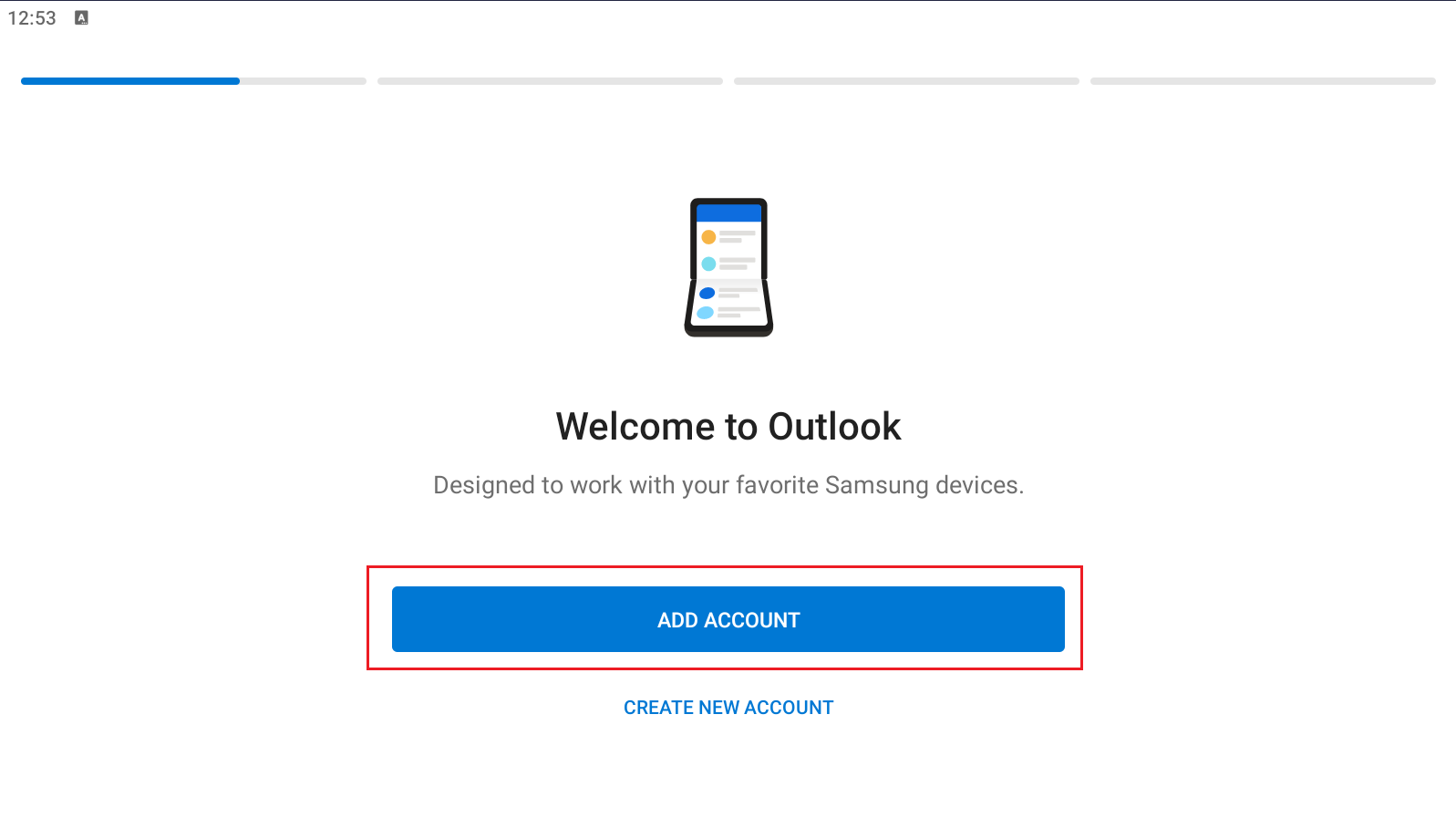
Fig. 4. Account setup start screen
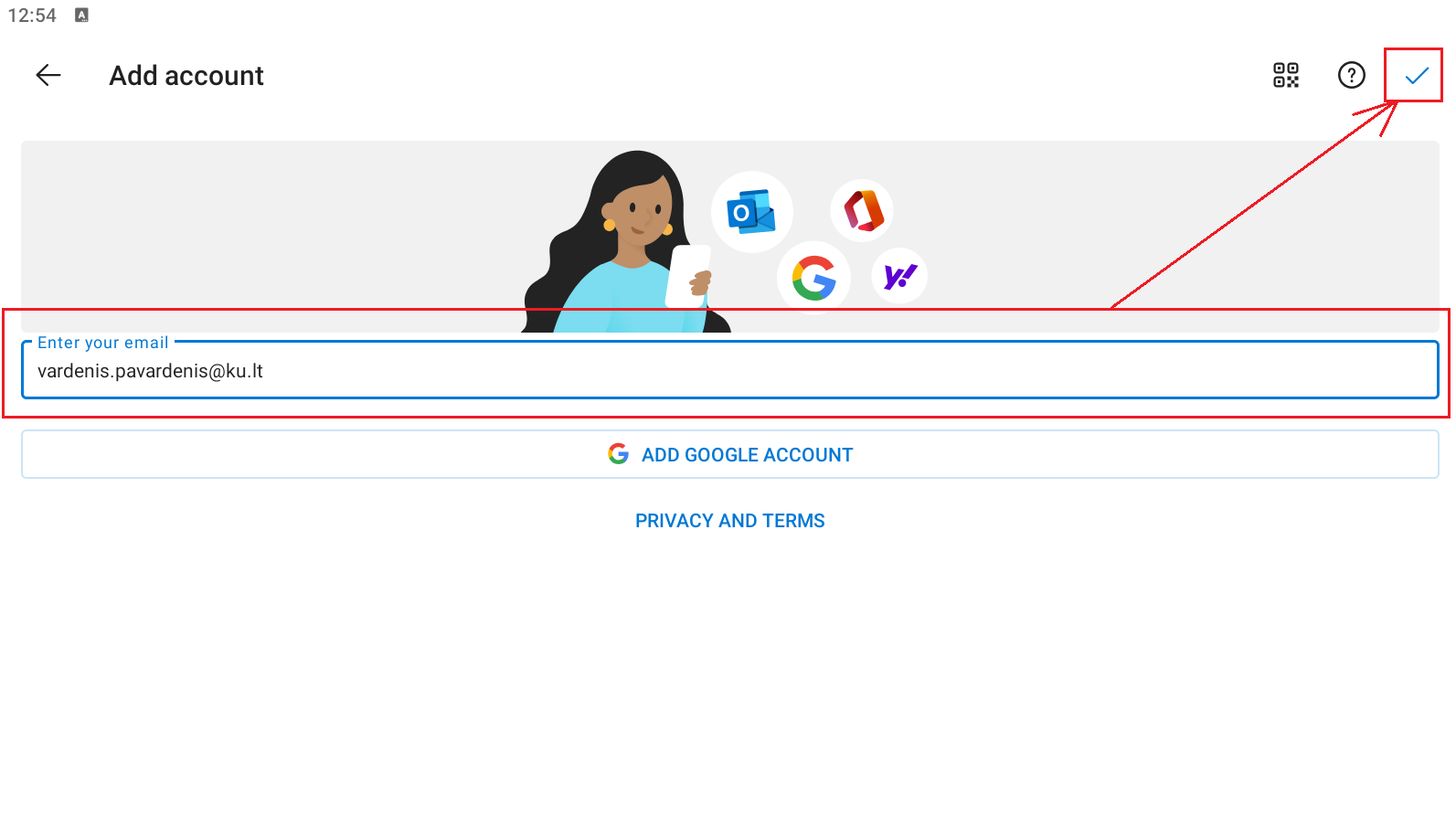
Fig. 5. Entering the email address and confirming
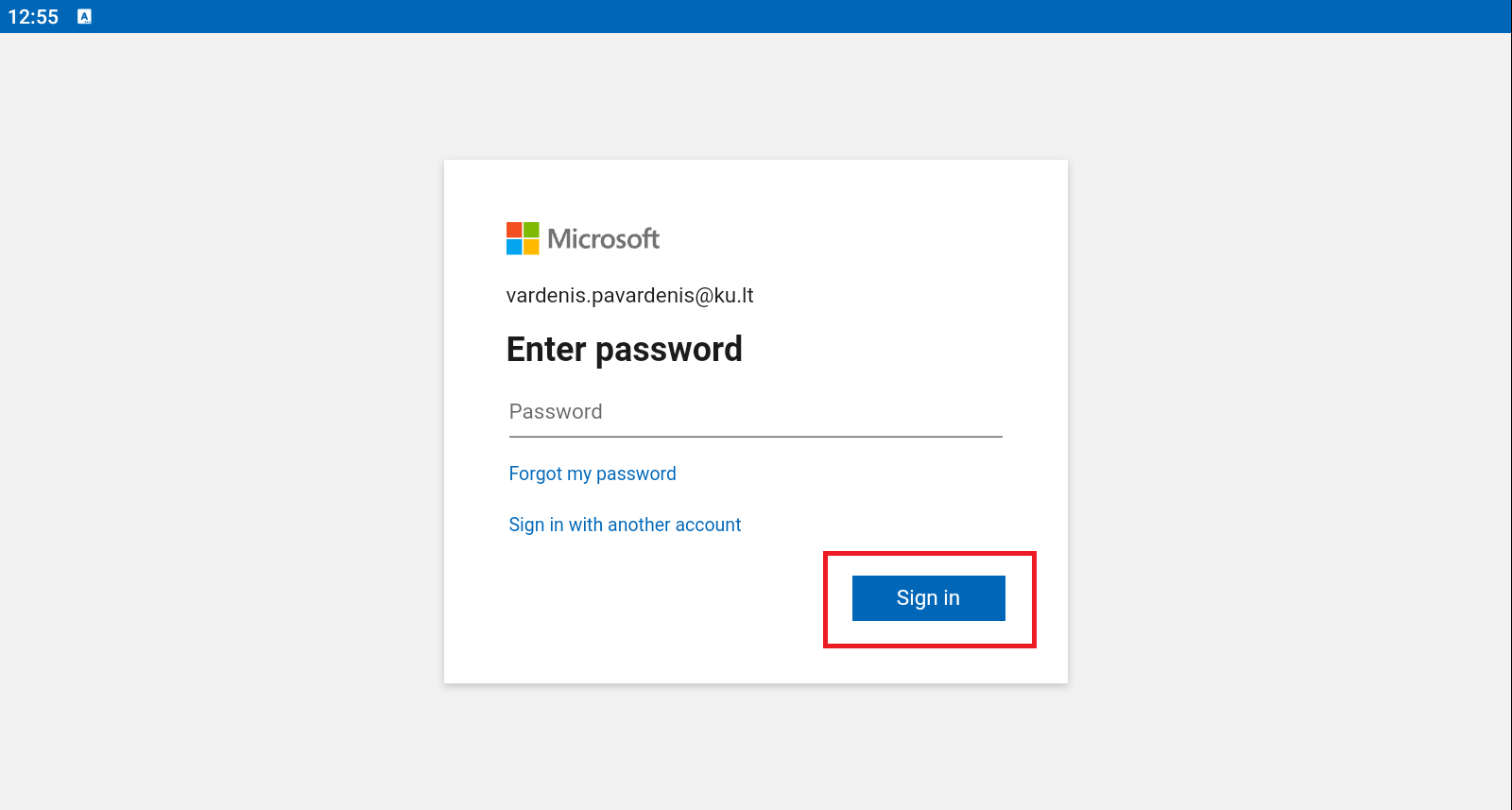
Fig. 6. Entering login credentials
Step 3: Complete the Configuration
-
The system will ask if you would like to add another account (see Fig. 7). If you do not have additional addresses, tap Maybe Later.
-
If you accidentally enter the additional account creation screen, you can go back by tapping the arrow in the top-left corner (see Fig. 8).
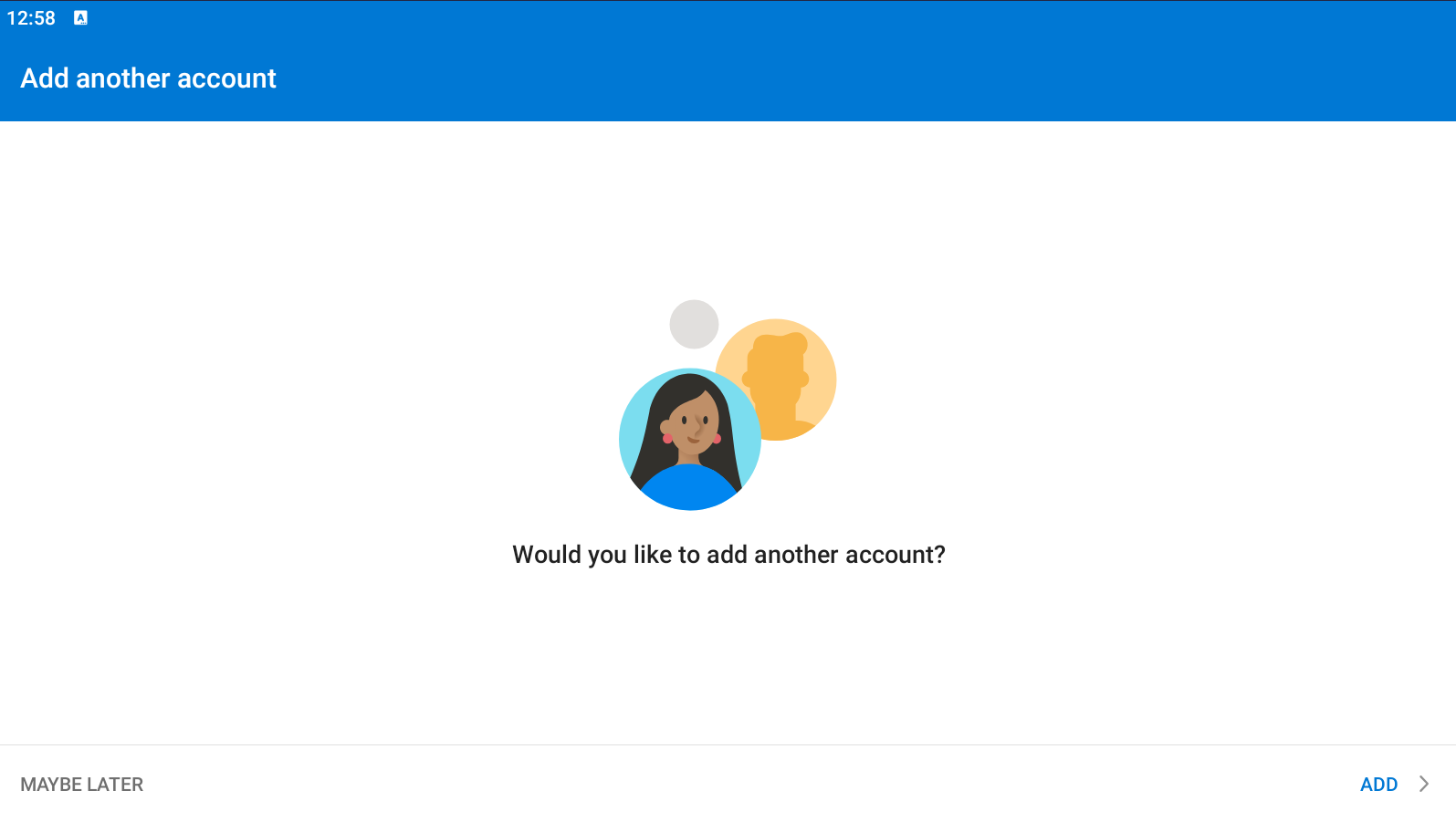
Fig. 7. Prompt for an additional account
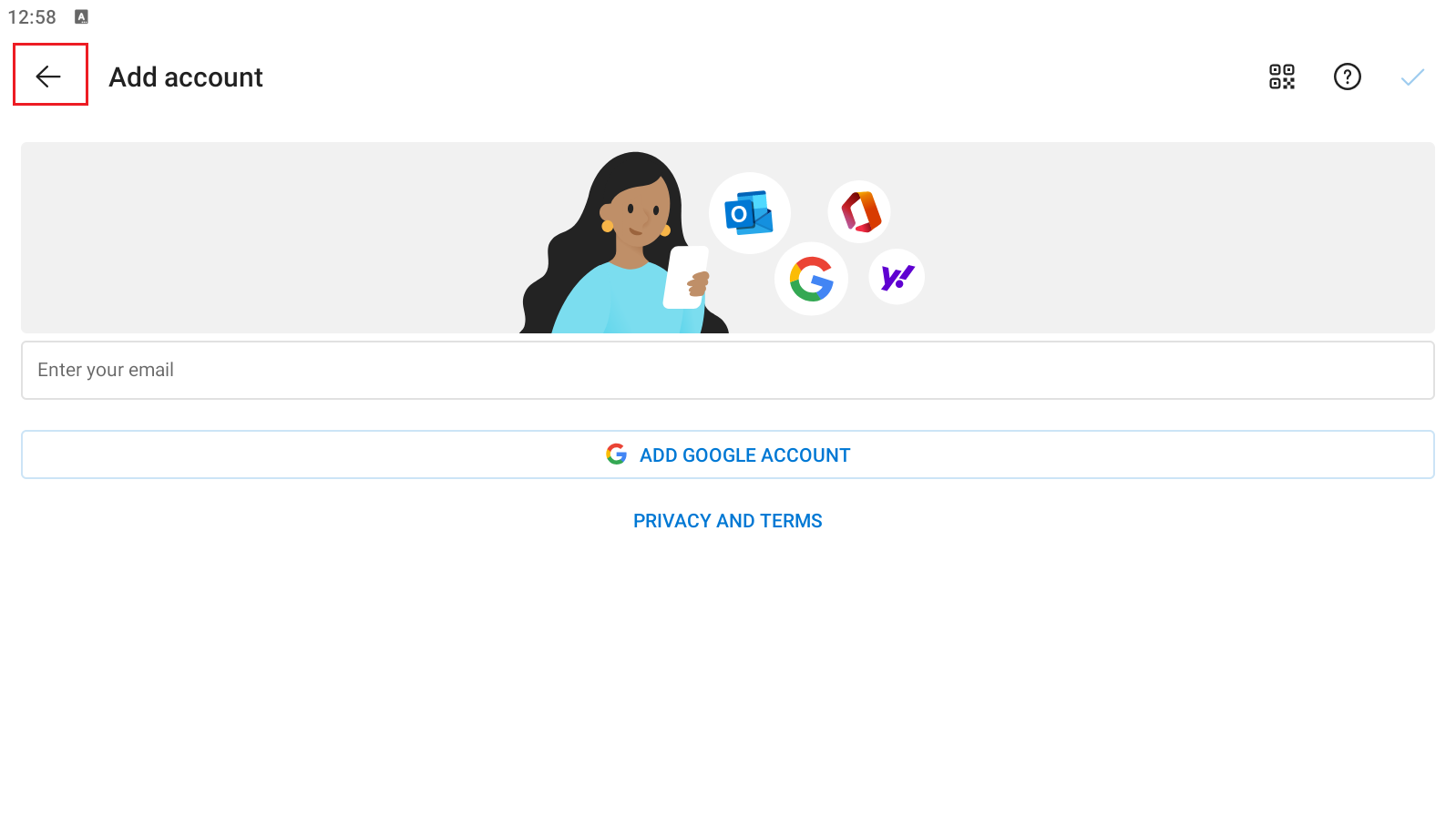
Fig. 8. Back button
Step 4: Start Using Your Email
After tapping "Maybe Later," you will be redirected to your main KU mailbox window (see Fig. 9). You can now read and write emails.
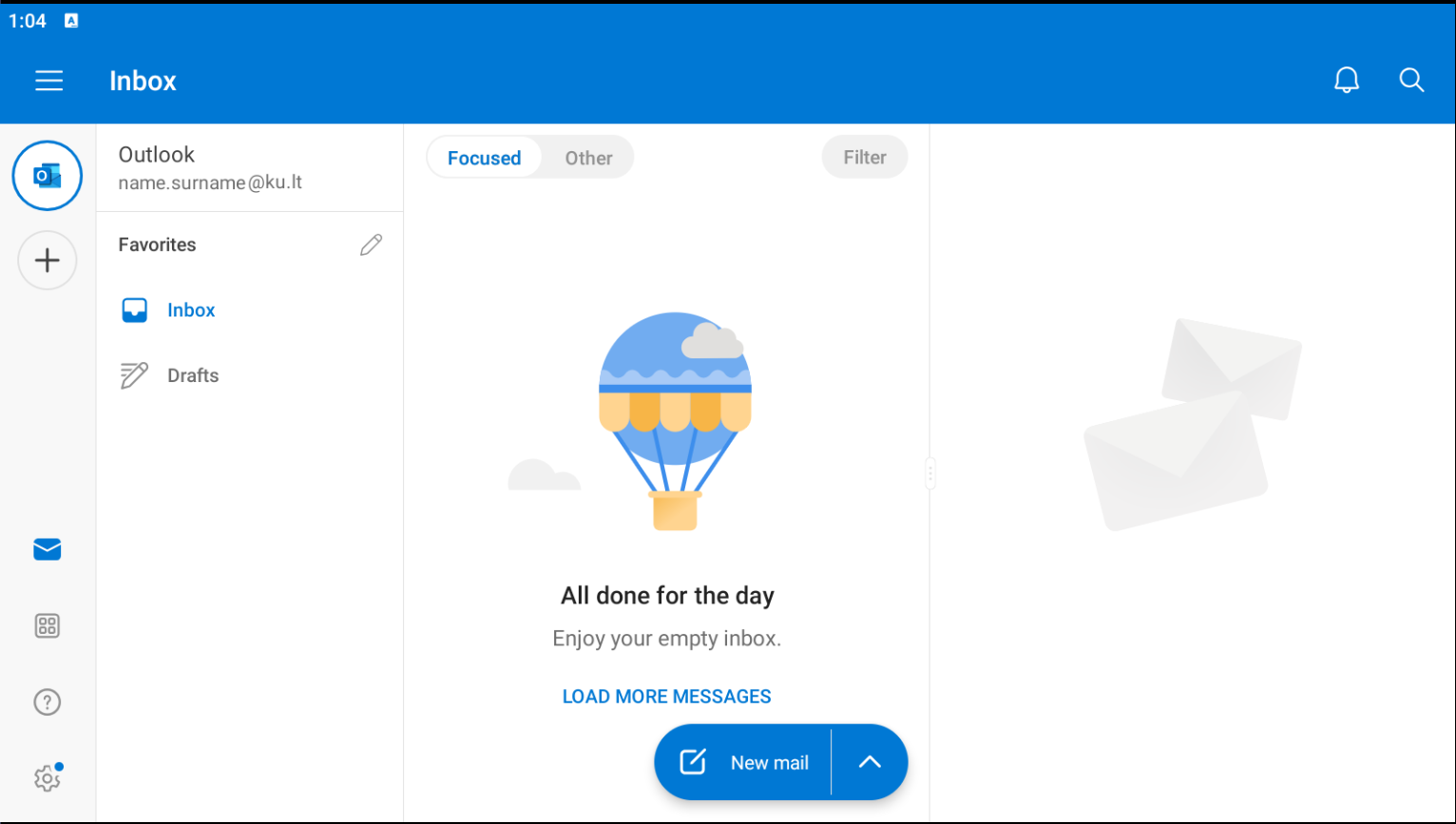
Fig. 9. Ready-to-use KU mailbox
💡 Useful Notes
-
Password: If you cannot sign in, ensure you are not using Lithuanian characters in your password (unless required) and check if Caps Lock is on.
-
Other Accounts: You can add your personal email accounts (e.g., Gmail) to the same app using the same principles.
-
Support: If you encounter technical difficulties, please contact the KU IT Help Desk.