
How to Configure KU Email on an iOS Device?
By using the Microsoft Outlook app on your iPhone or iPad, you can conveniently read emails and receive real-time notifications.
Step 1: Download the Outlook App
-
Open the App Store on your device (see Fig. 1).
-
Type "Outlook" in the search bar.
-
Find Microsoft Outlook and tap Get to download it (see Fig. 2).
-
Once the download is complete, tap Open (see Fig. 3).
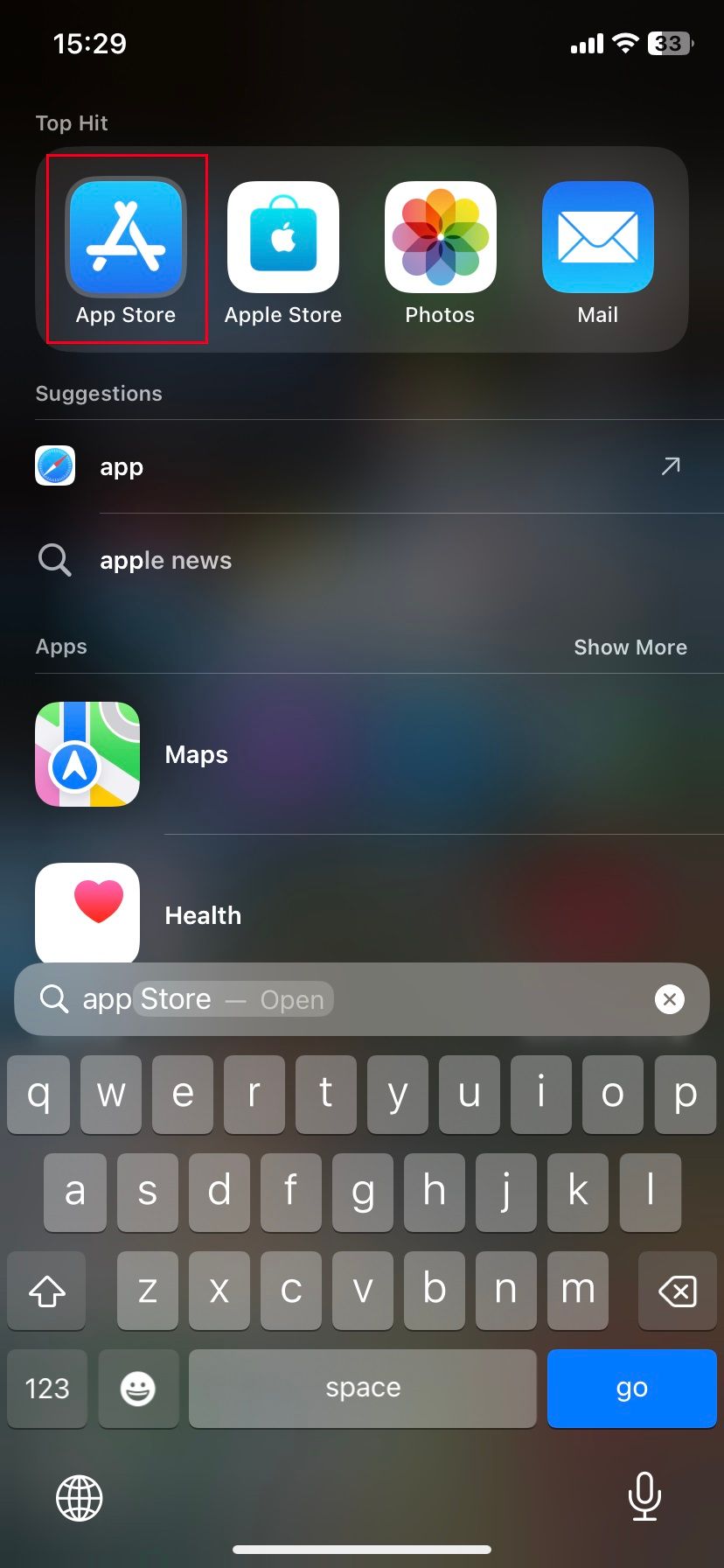
Fig. 1. App Store icon
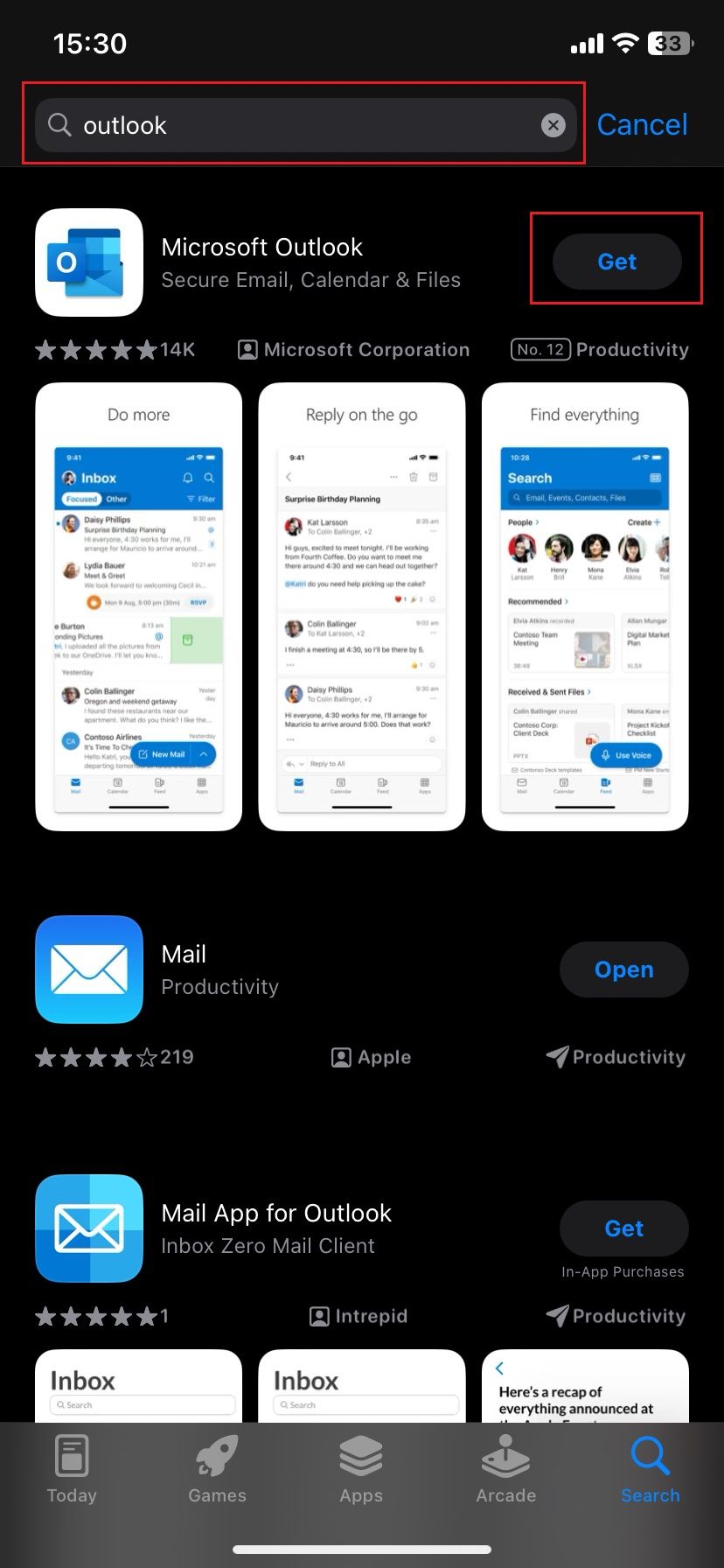
Fig. 2. Downloading the app
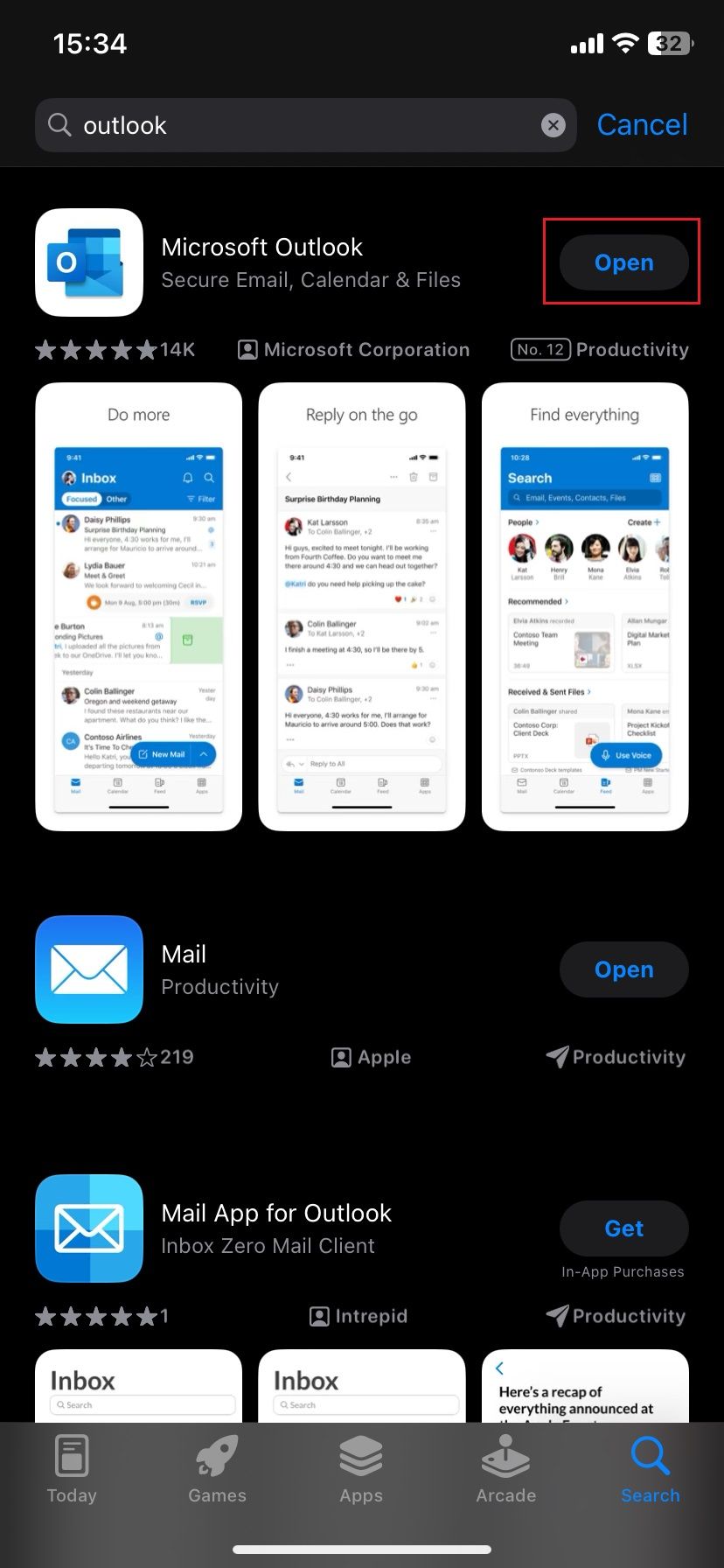
Fig. 3. "Open" button after installation
Step 2: Add Your Account
-
Once the app is open, tap Add Account (see Fig. 4).
-
Enter your full KU email address (e.g., firstname.lastname@ku.lt).
-
Tap Add Account again (see Fig. 5) and enter your password in the login window.
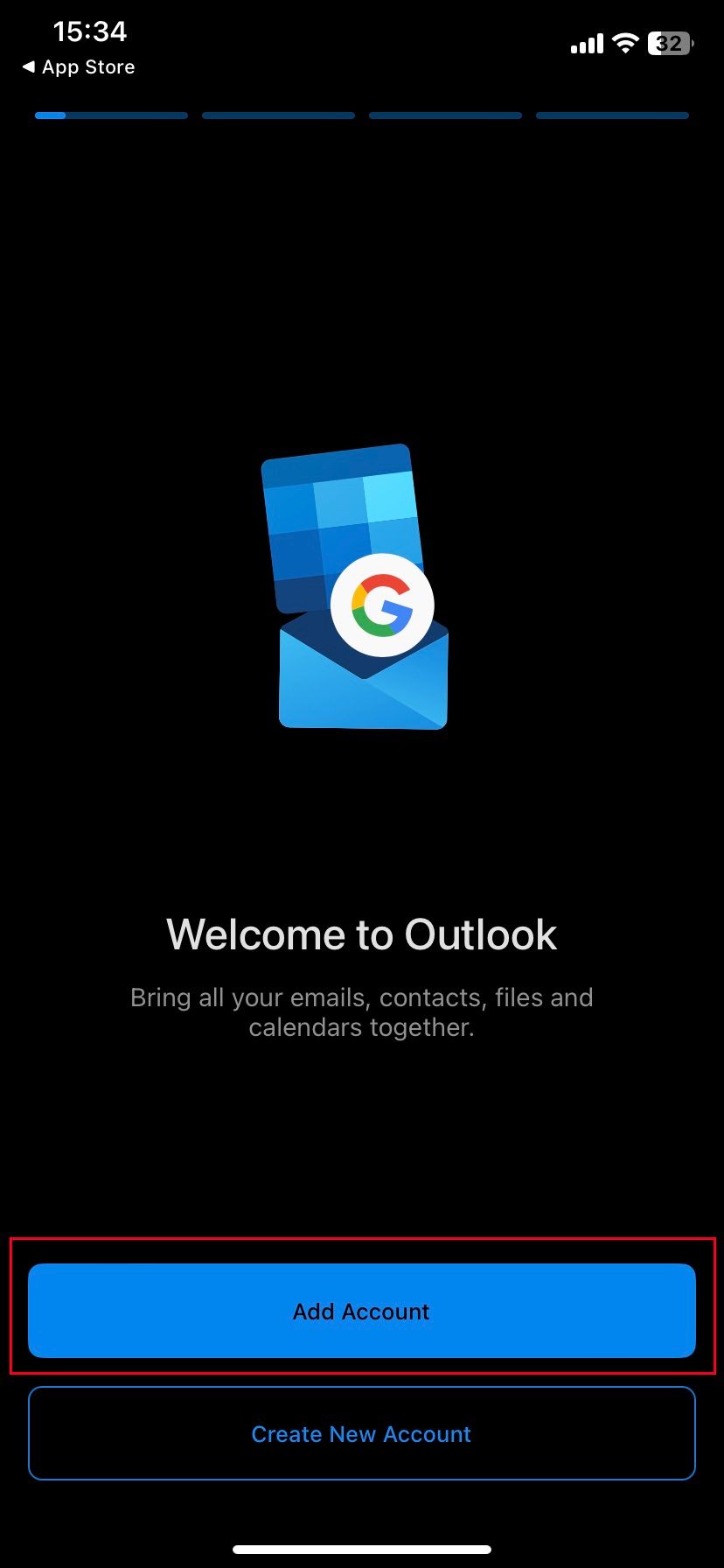
Fig. 4. Starting the account setup
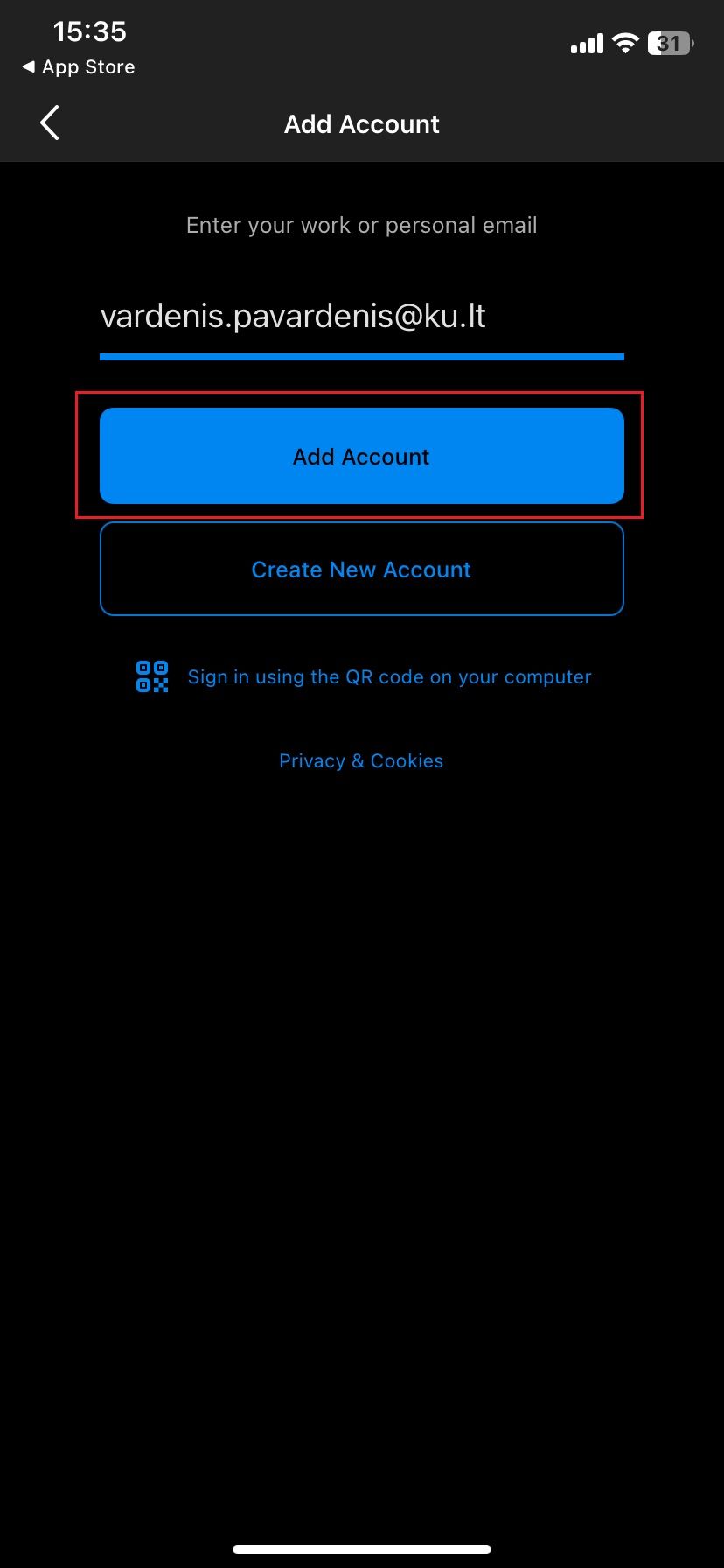
Fig. 5. Entering the email address
Step 3: Complete the Configuration
-
The system will ask if you would like to add another account (see Fig. 6). If you only have one address, tap Maybe Later.
-
If introductory slides appear, you can skip them by tapping Skip in the top corner (see Fig. 7).
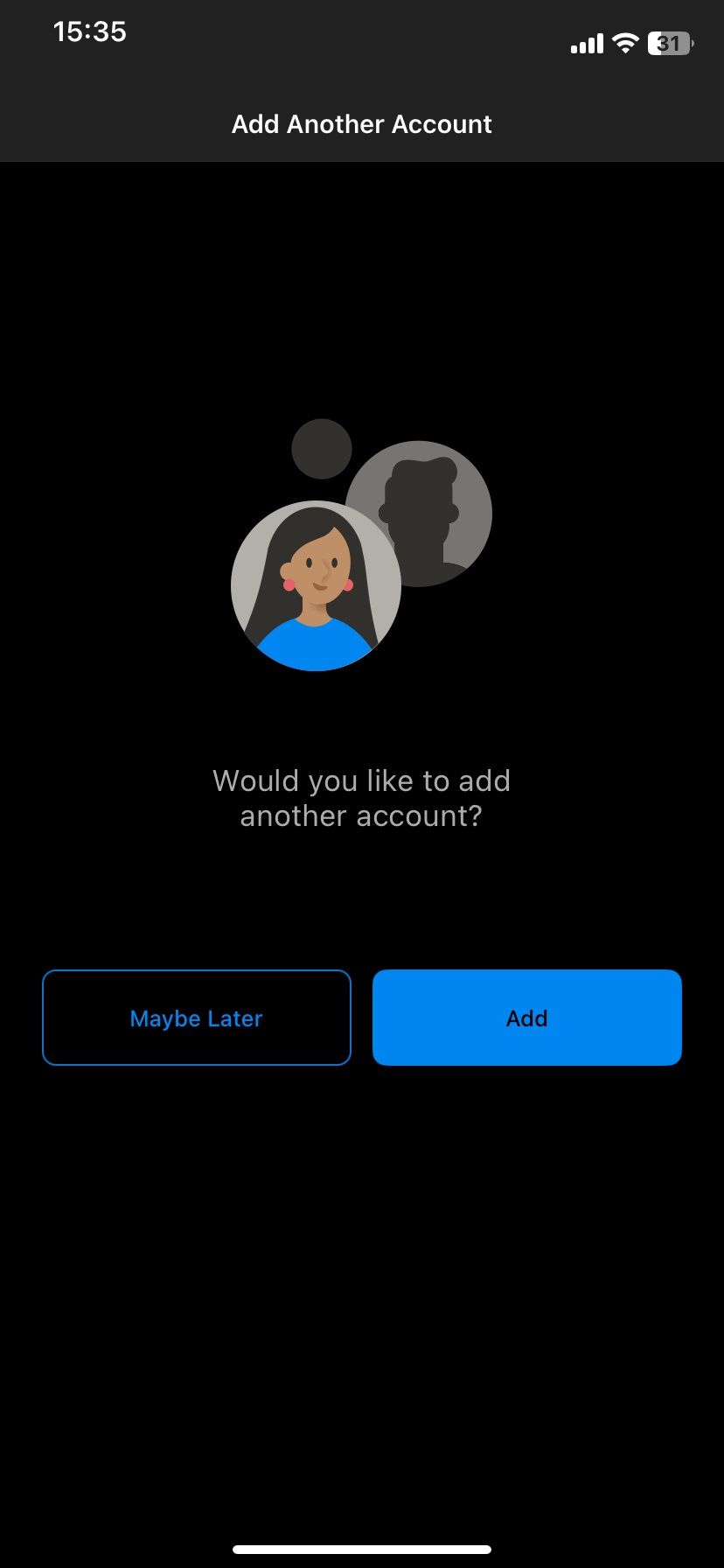
Fig. 6. Prompt for an additional account
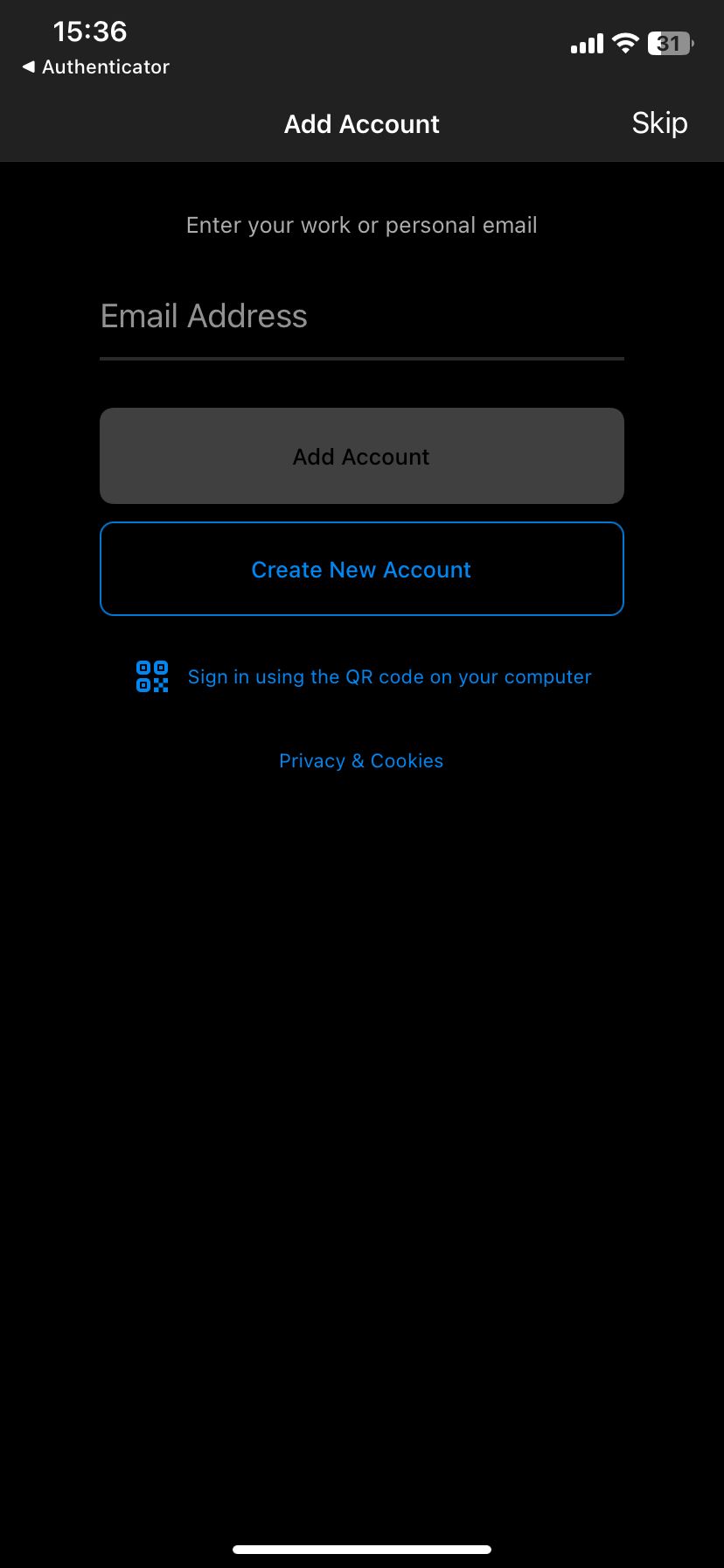
Fig. 7. Skipping the feature introduction ("Skip")
Step 4: Start Using Your Email
After following these steps, you will be redirected to your inbox. Your KU email is now ready to use!
💡 Useful Tips
-
Security: If you cannot sign in, ensure you have entered your password correctly (check for uppercase/lowercase letters).
-
Updates: It is recommended to allow the app to update automatically via the App Store to ensure stability.
-
Support: If you encounter any issues, you can always contact the KU IT Help Desk.