
Classic Outlook
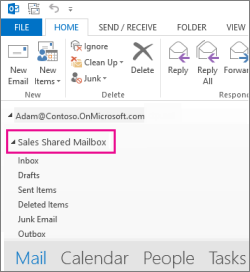
When using the classic Outlook desktop application, the shared mailbox usually appears automatically, but it can also be added manually if needed.
1. How to Add a Shared Mailbox?
Automatically:
-
Once the administrator grants you access, simply close and restart the Outlook application.
-
The shared mailbox will automatically appear in your folder pane on the left side (see Fig. 1).
Manually:
-
In the app, select File > Account Settings > Account Settings.
-
On the Email tab, select your account and click Change.
-
Choose More Settings > Advanced > Add.
-
Type the shared email address (e.g., info@ku.lt) and click OK.
-
Complete the process by clicking Next > Finish > Close.
2. Sending and Replying to Emails
Sending a New Email:
-
Select New Email.
-
If you don't see the From field at the top, select Options > From.
-
Click From and choose the shared address. If it is not in the list, select Other email addresses and type it in manually.
-
Write your message and click Send. Recipients will only see the shared address.
Replying to an Email:
-
Find the email in the shared mailbox and click Reply.
-
Ensure the From field indicates the shared address (select it from the dropdown list if necessary).
-
Write your reply and send it.
3. Calendar, Contacts, and Search
-
Calendar: Open the Calendar view and check the shared mailbox on the left (see Fig. 2). All members can create and edit meetings.
-
Contacts: Select the People section and find the shared list under My Contacts (see Fig. 3).
-
Search: Select the shared mailbox on the left and enter your query in the search box at the top—results will be shown only from this mailbox.
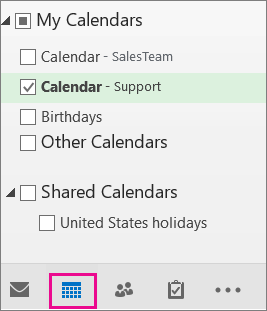
Fig. 2. Selecting the shared mailbox in the calendar
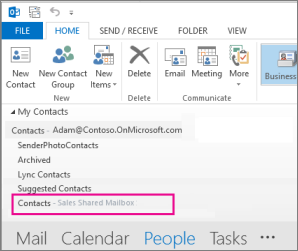
Fig. 3. Selecting the contacts list
💡 What to do if it doesn't work?
-
Wait a few minutes after being added to the mailbox.
-
Restart Outlook.
-
If the mailbox does not appear automatically, use the manual addition method.
-
If problems persist, contact IT Support.
🎥 Additional Help
Since the direct video link is unavailable, detailed video instructions and additional explanations can be found on the official Microsoft website: 🔗 Microsoft Support: Open and use a shared mailbox in Outlook