
Outlook on the Web
1. How to Add a Shared Mailbox to Your List?
If you want the shared mailbox to always be visible on the left side under your main folders:
-
Sign in to Outlook in your browser.
-
In the left navigation pane, right-click on Folders or on your name.
-
Select Add shared folder or mailbox (see Fig. 1).
-
In the window that opens, enter the shared mailbox address and click Add.
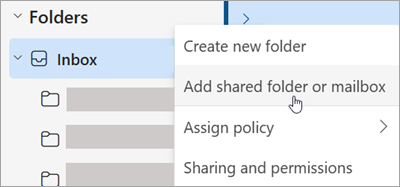
Fig. 1. Adding a shared folder or mailbox
2. How to Open a Shared Mailbox in a Separate Window?
This method is useful if you want to receive direct notifications for new emails specifically for the shared mailbox.
-
Click your profile icon (or name) in the top navigation bar.
-
Select Open another mailbox.
-
Enter the shared mailbox address and click Open. The mailbox will open in a new browser tab.
3. How to Send an Email from a Shared Mailbox?
-
Select New mail.
-
If you don't see the sender selection, click ... (three dots) at the top and select Show From (see Fig. 2).
-
Click on the From field. When using it for the first time, remove your own address (right-click -> Remove) and type in the shared address (see Fig. 3).
-
Fill in the subject and text, then click Send.
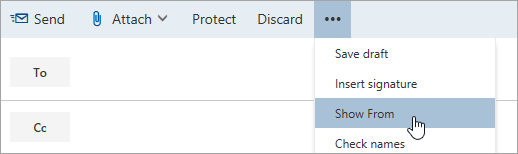
Fig. 2. Option to show the "From" field
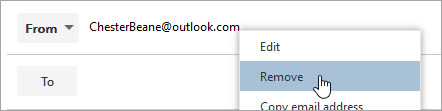
Fig. 3. Changing the sender address
4. How to Reply to a Received Email?
-
Open the email in the shared mailbox and click Reply.
-
Check if the From field shows the shared address. If not, enable it via ... and change it:
-
Right-click the sender address in the From field and select Remove (see Fig. 4 and 5).
-
Enter the shared email address (e.g., info@ku.lt).
-
-
Write your reply and click Send.
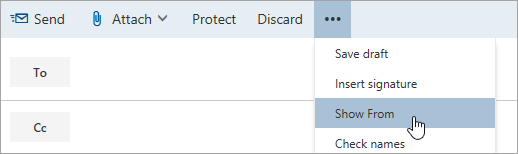
Fig. 4. Showing the "From" field when replying
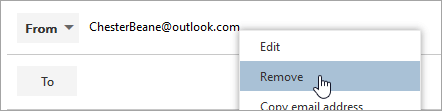
Fig. 5. Changing the sender address in a reply
From now on, the shared mailbox address will automatically appear in the From field whenever you reply from that mailbox.
💡 Need Additional Help?
Official instructions and support can be found here: 🔗 Microsoft Support: Use a shared mailbox in Outlook on the web