
How to Change Audio and Video Settings in a Teams Meeting?
If you want to switch from your computer speakers to headphones or select a different camera, you can do so directly within the meeting window.
Step 1: Open Quick Settings
Click the small arrow located next to the microphone or camera icon (see Fig. 1).
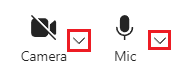
Fig. 1. Quick setting arrows next to the Mic and Camera buttons
Step 2: Select the Required Device
-
Speaker: Select the device you want to use to hear others (e.g., headphones or external speakers).
-
Microphone: Set which device should capture your voice.
-
Camera: If you have multiple cameras, choose the one you want to use for video transmission.
💡 When is this useful?
These settings will be helpful if:
-
You connected new headphones and the system did not select them automatically.
-
You want to use a higher-quality external microphone instead of the one built into your computer.
-
Colleagues mention they cannot hear you or are seeing the wrong video feed.
⚙️ Additional Settings
If you do not see your device in the list, click More -> Device settings. There, you can perform a more detailed configuration and test your equipment before you start speaking.