
How to Use Chat Features and Attach Files?
The Microsoft Teams chat window allows you not only to write text but also to format messages and share documents.
1. Main Chat Features
At the bottom of the message box, you will find a toolbar that allows you to (see Fig. 1):
-
Format text: Change font, color, or highlight important parts.
-
Use Emojis: Insert emotions or quick reactions.
-
Add components: Create polls or work plans.
-
Attach a file: Upload documents directly into the chat.
-
Send message: Click the send icon or press the Enter key.
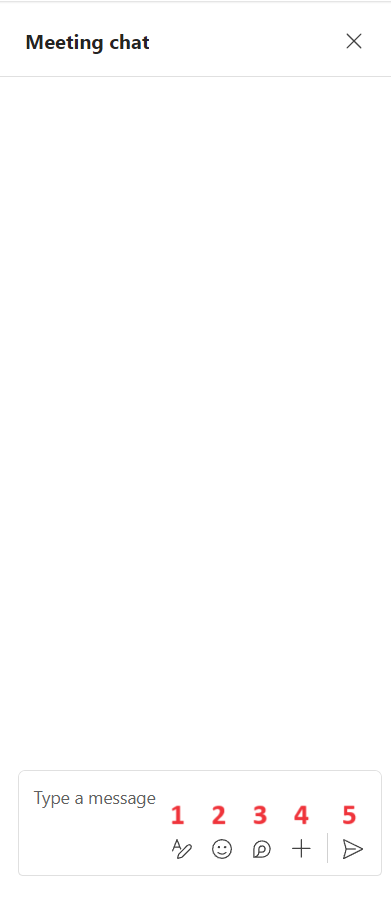
Fig. 1. Message box toolbar
2. How to Attach a File to a Message?
Step 1: Open the attachment menu In the message box, click the plus icon "+" (see Fig. 2).
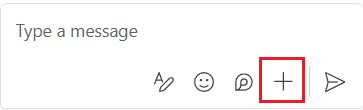
Fig. 2. Attachments and additional features button "+"
Step 2: Select the attach file option In the pop-up menu, select the Attach file function (see Fig. 3).
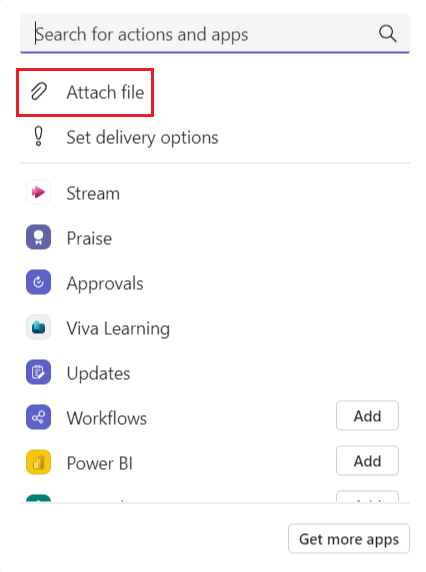
Fig. 3. Selecting file attachment from the menu list
Step 3: Select the file location Specify where you want to upload the document from (see Fig. 4):
-
Upload from this device: If the file is on your computer.
-
OneDrive: If the file is stored in the cloud.

Fig. 4. File source selection window
💡 Useful Tip
You can upload files to a Teams chat even more simply – just drag and drop the file from your computer folder directly into the chat window.