
How to Manage Features During a Microsoft Teams Meeting?
Once you join a meeting, you will see a control bar at the top of the screen. Below is an explanation of what each number on your control panel represents (see Fig. 1).
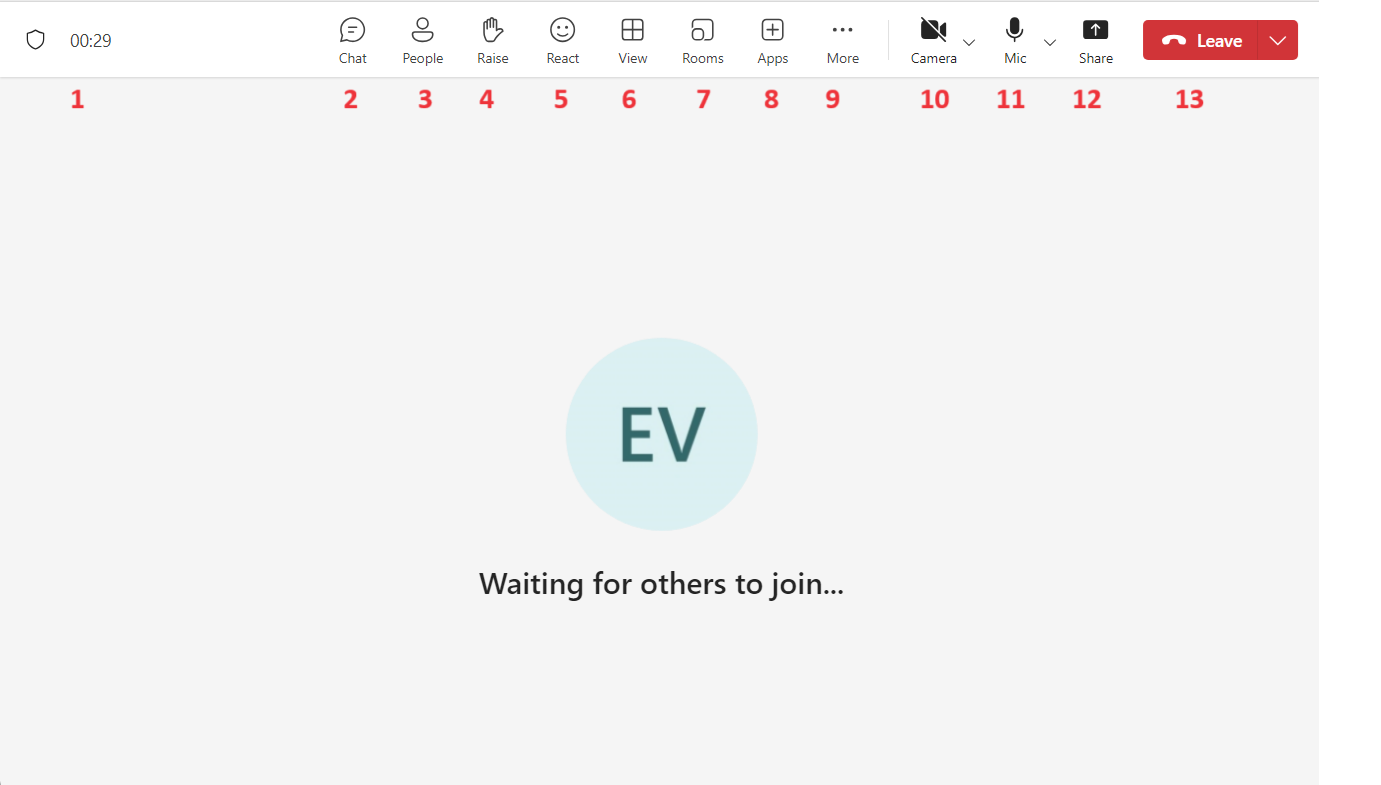
Fig. 1. Microsoft Teams meeting control bar with numbered elements
Control Bar Elements:
-
Meeting Duration: Shows how long the conversation has been active.
-
Chat Window: Open the chat to write messages or share links.
-
Participants (People): Click here to see a list of all connected individuals.
-
Raise Hand: Inform others that you wish to speak.
-
Reactions (React): Send a quick emotion (e.g., a smile or applause).
-
Change View: Choose how you see other participants on your screen.
-
Breakout Rooms: Used to split participants into smaller groups for discussions.
-
Apps: Add additional tools (e.g., polls or a whiteboard).
-
More Options: Additional settings, recording, and background effects.
-
Camera: Turn your video broadcast on or off.
-
Microphone (Mic): Turn your audio on or off.
-
Share Screen: Show your screen or slides to other participants.
-
Leave: Press this button when you want to exit the meeting.
💡 Tip
If you encounter technical issues during a meeting, they can often be resolved by clicking More Options (9) and selecting device settings.