
How to Join a Meeting via a Link?
If you received an email invitation to a Microsoft Teams meeting, you can join directly via the link, even if you do not have the application installed.
Step 1: Confirm Your Attendance
In the invitation email you received, select Yes (see Fig. 1). This will automatically add the meeting to your calendar, and the system will provide a reminder.
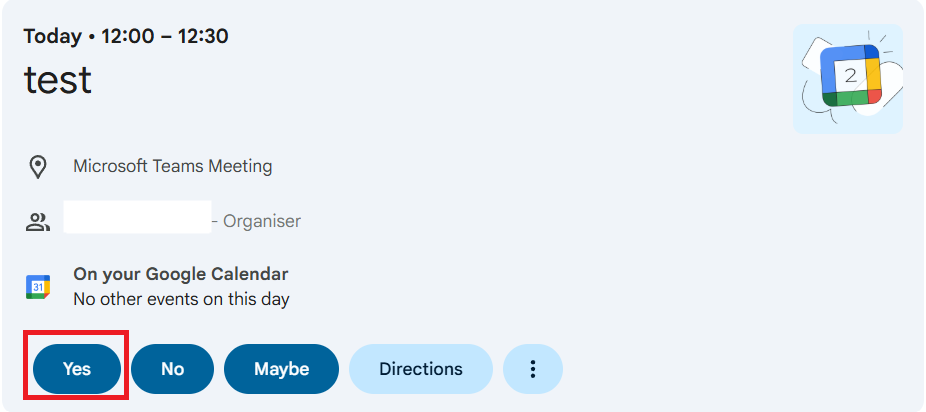
Fig. 1. Attendance confirmation buttons in the email
Step 2: Join the Meeting
Open the invitation email and click the Click here to join the meeting (or Join the meeting now) link (see Fig. 2).
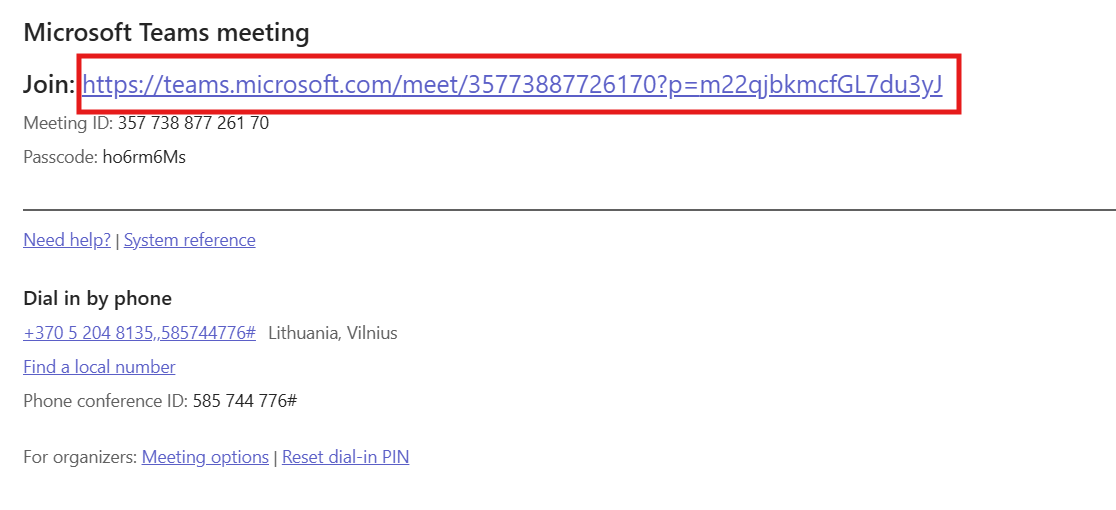
Fig. 2. Meeting link within the invitation email
Step 3: Choose Your Connection Method
In the window that opens, choose one of the following two methods:
Option A: Join via Browser (No Installation Required)
-
Click Continue on this browser (see Fig. 3).
-
When the notification appears at the top, allow the system to use your microphone and camera by clicking Allow (see Fig. 4).
-
In the pre-join window (see Fig. 5):
-
Enter your name or sign in to your account.
-
Select your audio output source.
-
Mute your microphone or choose not to use audio.
-
Turn your camera on or off.
-
-
Click Join now.
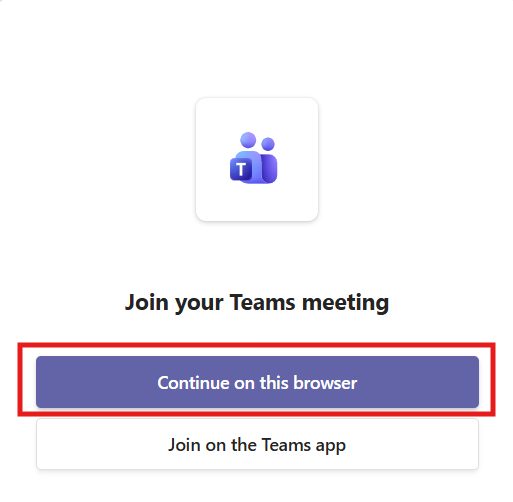
Fig. 3. Selecting to join via the browser
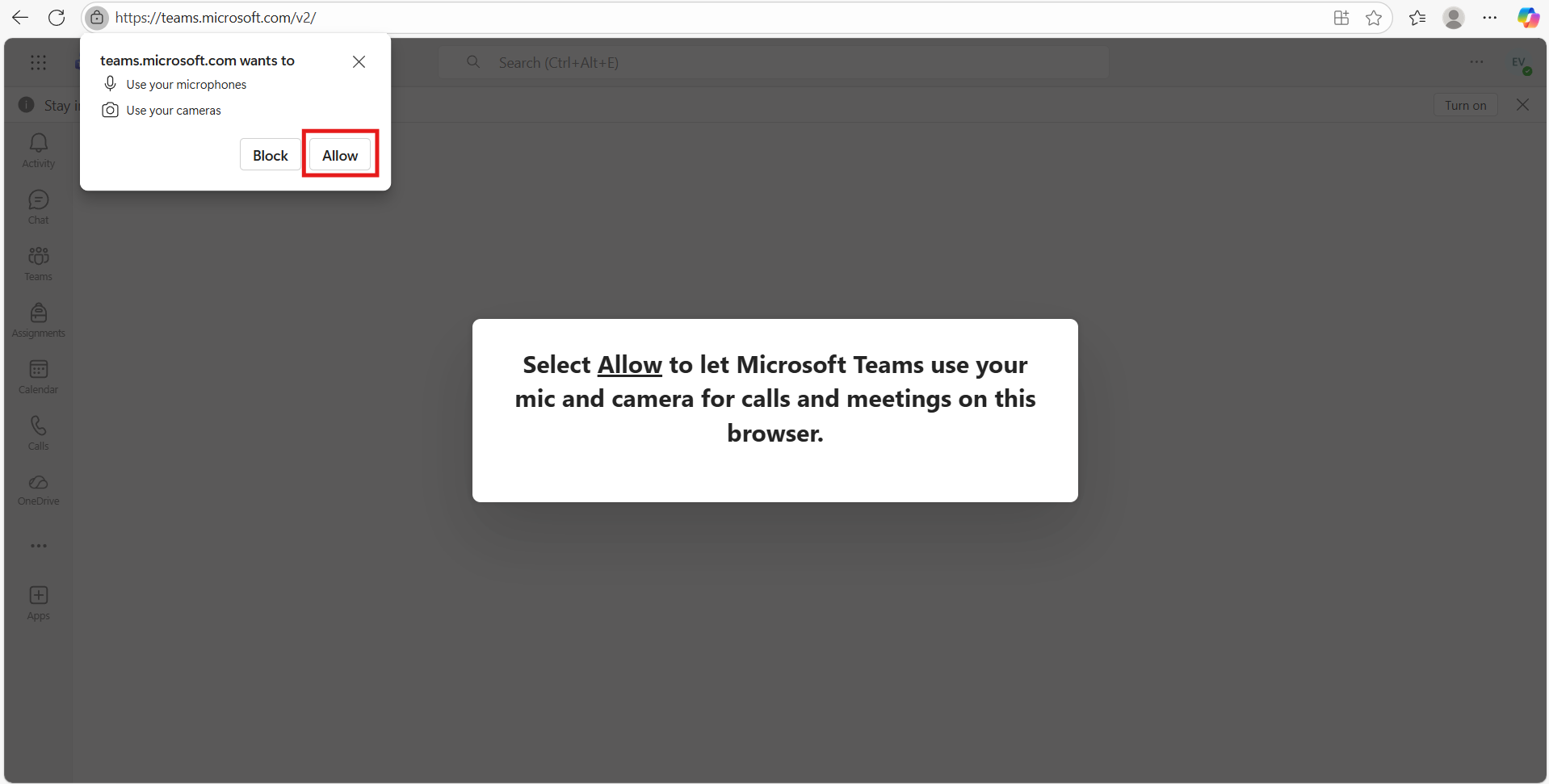
Fig. 4. Permission to use the microphone and camera in the browser
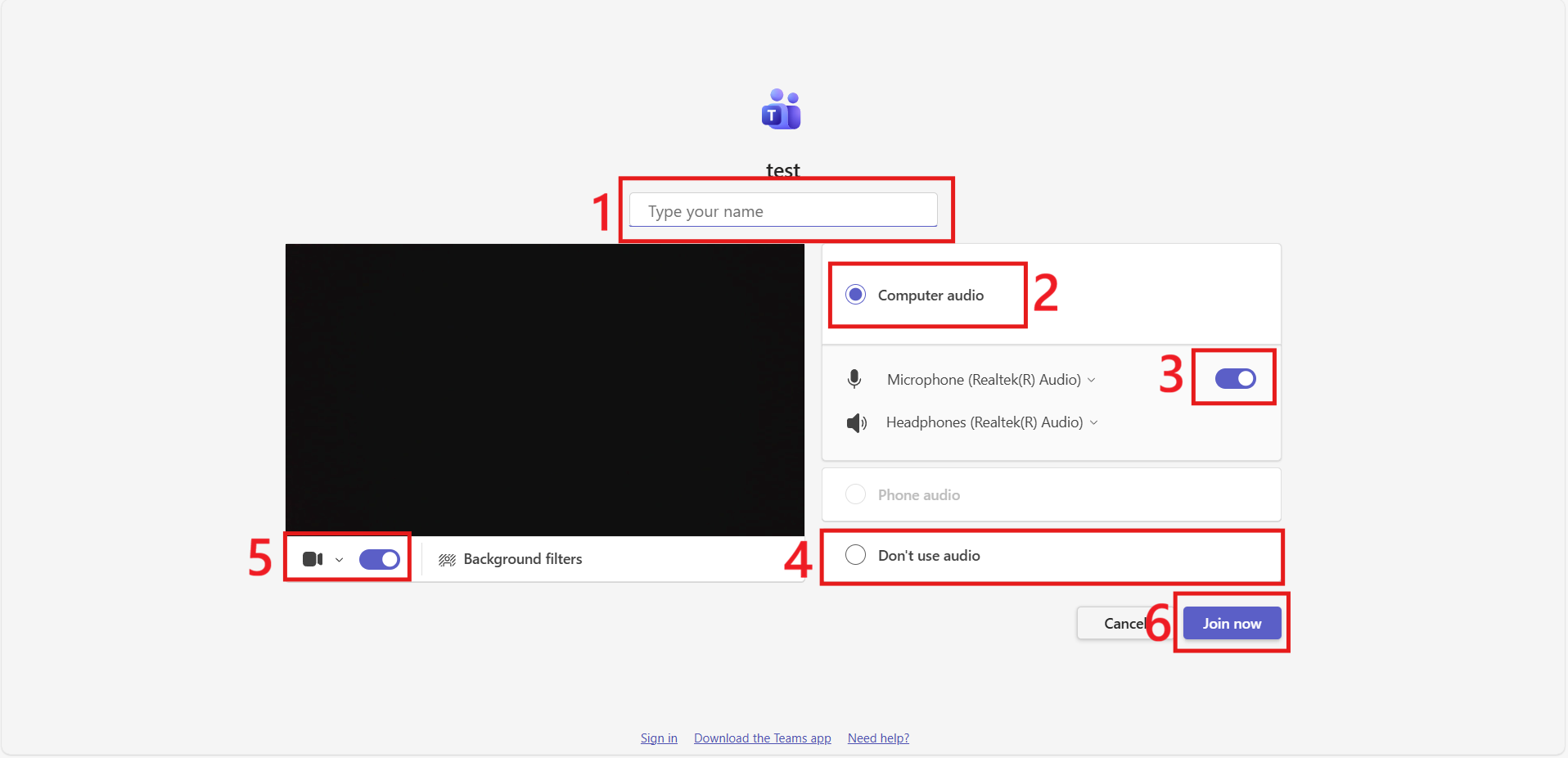
Fig. 5. Preparation window: entering name and camera settings
Option B: Join via the Teams App
-
Select Join on the Teams app (see Fig. 6).
-
When the browser prompt appears, click Open (see Fig. 7).
-
Once the app opens, verify your settings and click Join now (see Fig. 8).
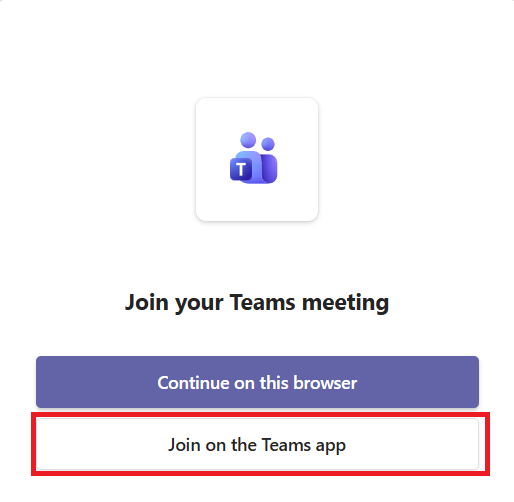
Fig. 6. Selecting to join via the app
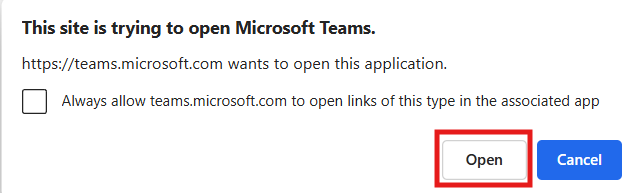
Fig. 7. Browser prompt to open the Teams application
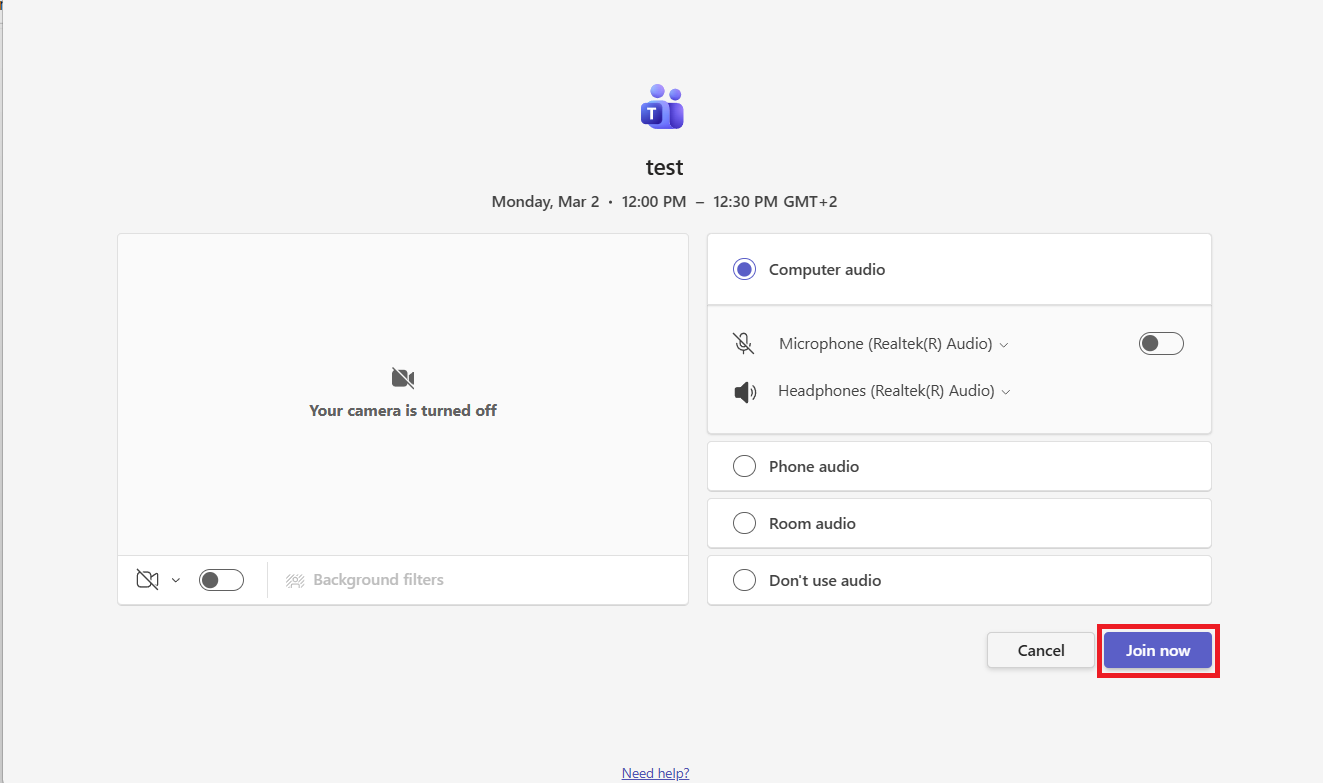
Fig. 8. Final "Join now" button in the app
💡 Useful Tip
If you are joining as a guest (without signing into your account), make sure to enter your full name so the meeting organizer knows who to admit from the Lobby.