
How to Sign In to Microsoft Teams?
In this guide, you will learn how to access the Microsoft Teams platform via the application or directly through your web browser.
Step 1: Choose Your Sign-in Method
-
Go to the official website: microsoft.com/microsoft-teams.
-
On the home page (see Fig. 1), choose the method most convenient for you:
-
Download the app: Click "Download now" if you want to install Teams on your computer or phone (1).
-
Sign in via browser: Click "Sign in" if you prefer to use the platform without installation (2).
-
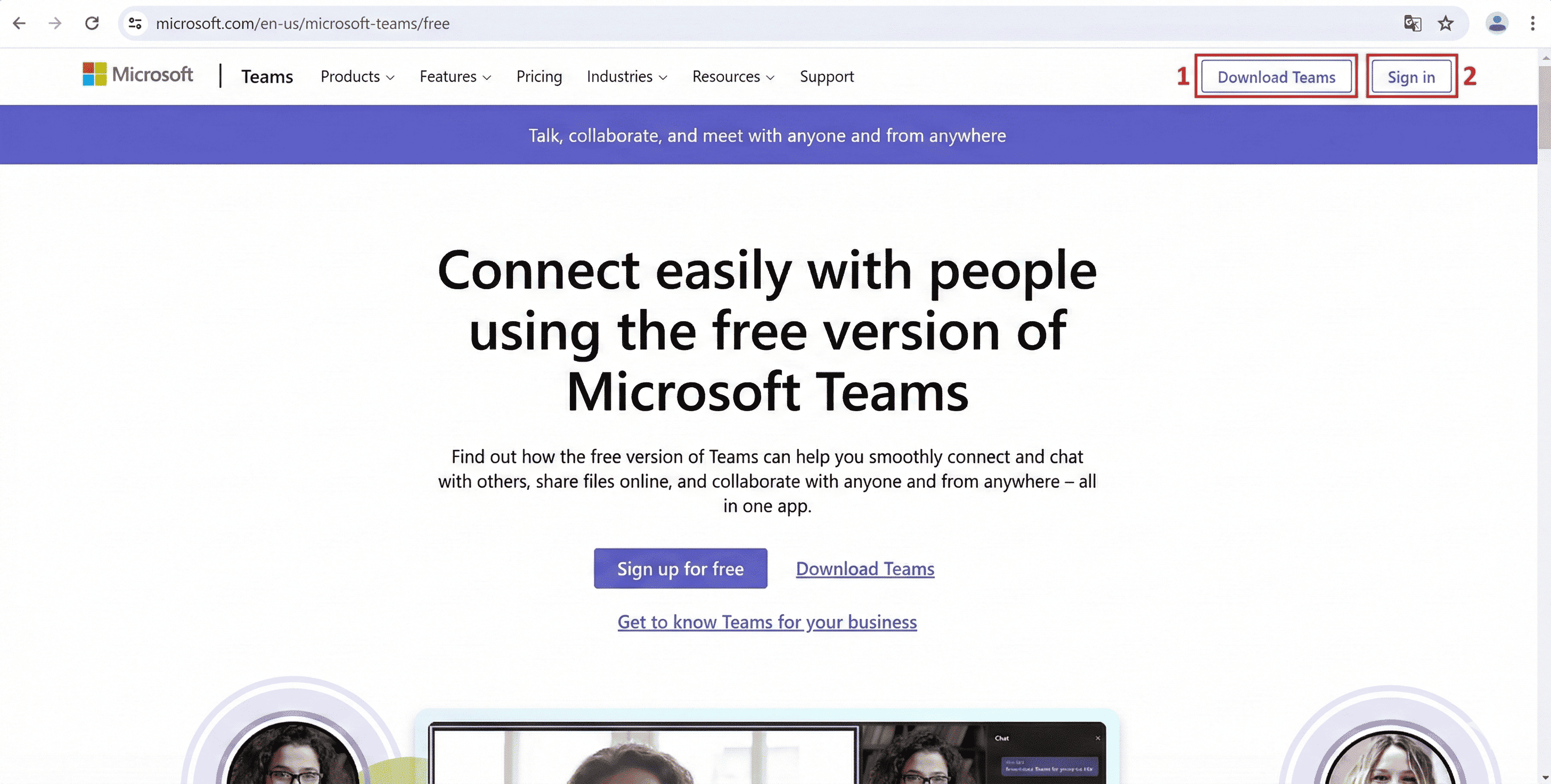
Fig. 1. Teams home page with options
Step 2: Enter Your Credentials
-
In the window that opens, enter your KU Single Sign-On (SSO) email address.
-
Click the Next button (see Fig. 2).
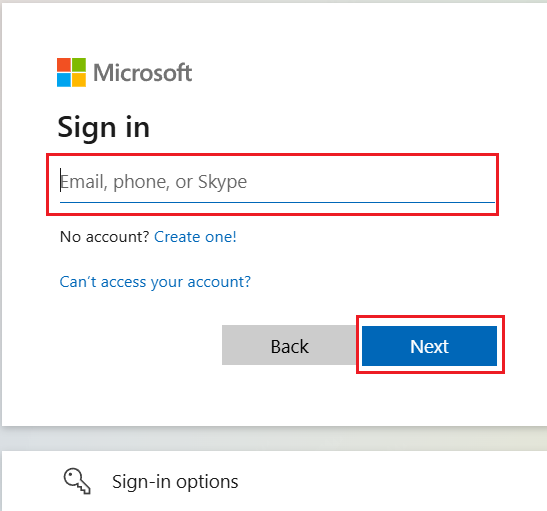
Fig. 2. Email address entry window
Step 3: Verify Your Identity
-
Enter your password.
-
Click the Sign in button (see Fig. 3).
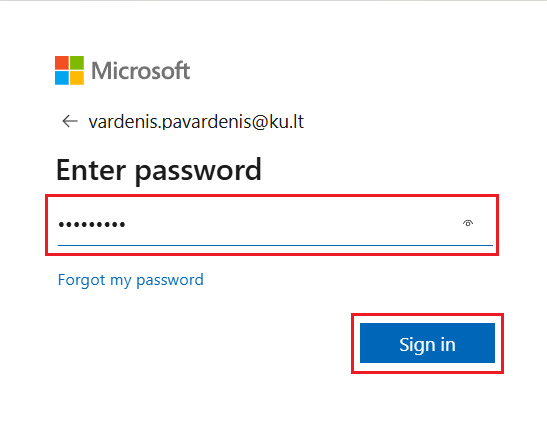
Fig. 3. Password entry window
Step 4: Get Started
Once you have completed these steps, you will be signed into your account. If this is your first time signing in, the system may offer a brief overview of the main features.